
uNLIMITED DIGITAL MARKETING SUPPORT AND TECHNOLOGY
Do you want access to the most powerful digital marketing solution available for your business? Unlock limitless growth potential with our comprehensive digital marketing solution and expert support
Fill out the form below to get started!
WHAT YOU'LL GET

Unlimited Support
Gain access to unlimited support coupled with expert guidance to navigate our marketing technology seamlessly. Never feel stranded again as our team stands ready to assist you at every turn.

Comprehensive CRM Integration
Easily centralize your contacts with our CRM integration, including automatic LinkedIn imports. Track interactions across all platforms for targeted engagement strategies.

Autonomous AI Agents
Deploy agents that go beyond chat to manage pipelines and trigger complex workflows. These digital workers execute multi-step tasks 24/7, ensuring no lead is missed while autonomously scaling your operations to meet every business goal.

Industry-Specific Snapshots & Prebuilt Tools
Our platform comes with pre-built, customizable snapshots by industry loaded with automations, templates, and tools so you have begin putting our system to work on day one.

Powerful Email Marketing Tools
Utilize our robust email marketing technology to craft engaging campaigns and automate follow-ups. Maximize audience engagement and conversion rates with powerful tools designed to deliver results.

Autonomous AI Engagement
Deploy 24/7 agents that handle complex conversations and lead nurturing. These systems autonomously sync with your CRM and execute follow-up workflows, turning inquiries into sales-ready opportunities without human intervention.

Limitless Marketing Reach with Funnels
Create unlimited marketing funnels and materials effortlessly with our intuitive interface and customizable templates. Scale your outreach efforts exponentially and capture leads with ease.
MARKETING TECHNOLOGY FEATURES
Social Media Scheduling: Schedule social media across all major channels and have unlimited recurring posts
CRM & Pipeline Management: Track leads, manage customer relationships, and monitor sales pipelines in one place.
Automated Follow-Ups: Create custom workflows for email, SMS, and call reminders to engage prospects effortlessly.
Smart Workflow Automation: Automate lead routing and pipeline updates using AI that triggers personalized follow-ups based on real-time prospect sentiment.
Custom Chatbots: Qualify leads and answer inquiries 24/7 with AI-powered chat solutions.
Multi-Channel Marketing: Run email campaigns, text messages (SMS), and social media ads from a single platform.
Landing Page Builder: Design high-converting pages with drag-and-drop tools and customizable templates.
Appointment Scheduling: Allow customers to book directly into your calendar with automated reminders.
Review Management: Generate, track, and respond to customer reviews to boost online reputation.
Payment Processing: Accept payments seamlessly through the platform.
Industry-Specific Marketing Tools
Our platform comes with pre-built, customizable snapshots ready to use.
Unlimited Integrations: Compatable with Make.com and Zapier for unlimited integrations and AI automations.
Call Tracking & Recording: Monitor call performance and record important conversations for training and analysis.
AI Booking Agents: Deploy autonomous agents to qualify leads and book meetings directly into your calendar via SMS and DM 24/7.
Analytics Dashboard: Access real-time reporting on campaign performance and business metrics, including advertising reporting via Meta and Google.
Membership & Course Hosting: Create and sell online courses or membership programs directly through the system.
Lead Nurturing Funnels: Build automated sequences to turn cold leads into loyal customers.
Unlimited Users: Add your entire team to collaborate without additional licensing fees.
Mobile App: Manage your business on the go with the iOS and Android mobile apps.
Dedicated Support: Get expert assistance to help you maximize platform features.
WHO IS THIS FOR?
This plan is ideal for any business owner or marketing team looking to elevate their marketing efforts to the next level.
Whether you're a startup seeking growth or an established enterprise aiming for expansion, our Unlimited Digital Marketing support and technology are tailored to meet your needs.
If you desire to upgrade your marketing strategies while having dedicated support every step of the way, this plan is perfect for you.


How Tags Trigger (or Silently Break) Your Automations
You built a workflow that's supposed to fire the moment a contact takes a specific action. Weeks go by, and when you finally check the numbers, something's off — the segment you expected to have hundreds of contacts in it only has a fraction of that. Nothing crashed. No error appeared anywhere. The automation just... never ran for most of the people it should have.
Almost every time this happens, the cause is the same: the information that was supposed to fire the automation got recorded in the wrong place. Understanding the difference between a tag and a note — and how automations actually read your contact data — is one of the simplest things to get right, and one of the easiest to get quietly wrong.
Tags Aren't Notes — and the Difference Runs Your Automations
A tag is a structured label attached to a contact — something like "Downloaded Guide" or "VIP Customer." Because it's structured, your automation platform can read it, filter by it, and use it as the exact condition that fires a workflow.
A note, by contrast, is free text. It's useful for context — a comment about a call, a detail worth remembering — but it isn't something your workflows can search or trigger on. To the person reading the contact record, a note and a tag might convey the same information. To the automation engine, only one of them exists.
This is exactly why a form or integration that logs an action as a note, when the automation is actually listening for a tag, produces a workflow that silently never fires for those contacts — nothing looks broken, because technically nothing is.
How the Contact Tag Trigger Actually Works
The Contact Tag trigger fires a workflow whenever a specific tag is added to, or removed from, a contact. A few things about how it behaves are worth knowing before you build around it:
It only fires going forward. Tags that were already present before the workflow was activated won't trigger it retroactively — the trigger only reacts to a tag being added or removed after the workflow goes live.
In the tag selector, changes don't apply until you confirm them. The trigger only fires once the tag update is actually applied, not while you're still selecting options.
You can set the trigger to fire on tag Added, tag Removed, or both, depending on what you're building.
Setting Up a Tag-Based Automation
To build one from scratch:
Go to Automations > Workflows and click Create Workflow, choosing either a blank workflow or a template.
Click Add Trigger and search for Contact Tag.
Give the trigger a descriptive name — something like "Tag Added – Downloaded Guide" is far easier to audit later than "Trigger 1."
Choose whether it should fire on tag Added or Removed, then select the specific tag from the list (or use + Add New Tag to create one on the spot).
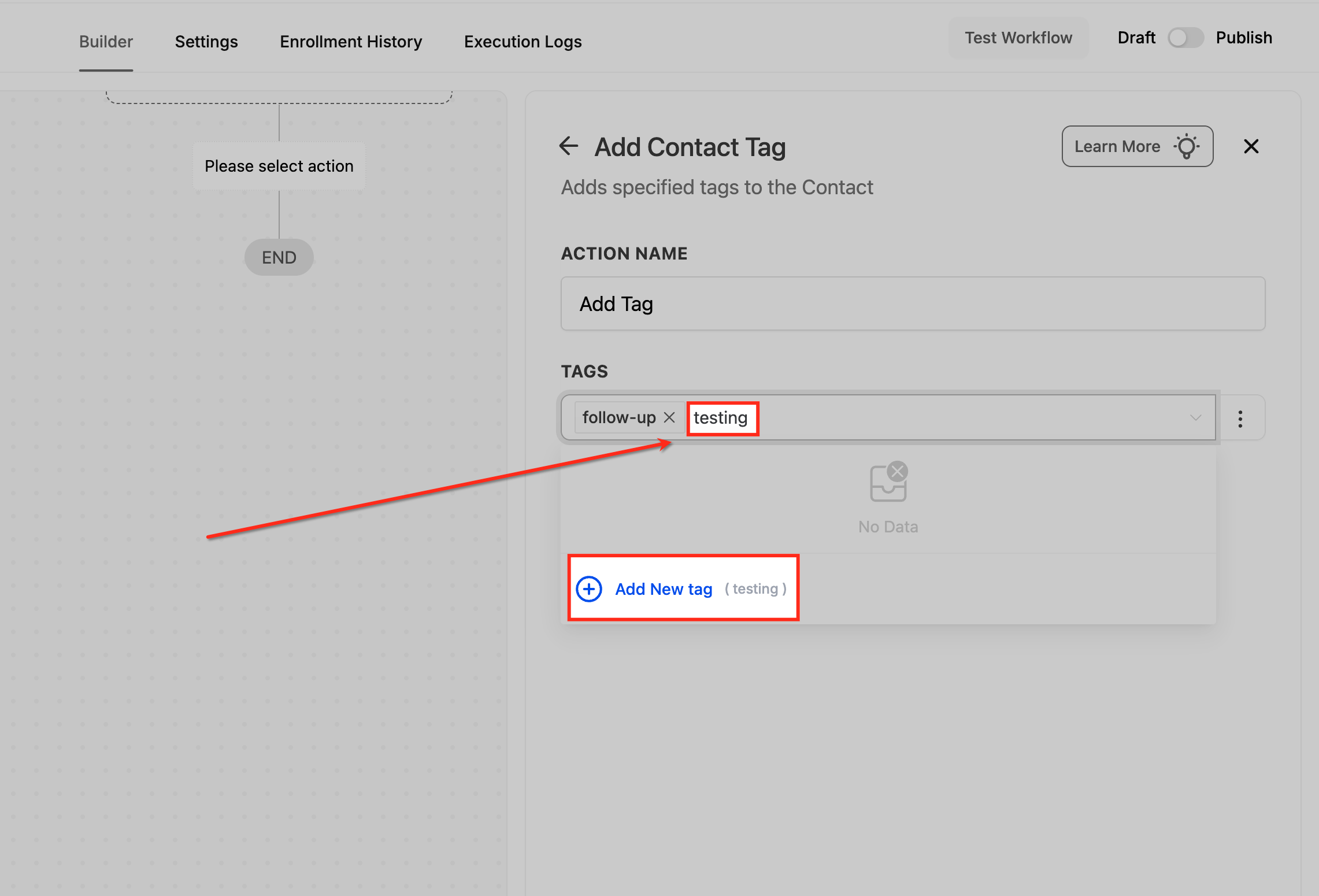
Add the actions you want the workflow to perform once triggered — sending an email or text, notifying a team member, or updating the contact's pipeline stage are the most common.
Save and publish the workflow, then test it by actually tagging a sample contact to confirm the action fires as expected.
Building It Both Ways: Tag Added and Tag Removed
Tag-added and tag-removed triggers are typically used for opposite purposes. A tag being added — "Interested," for example — usually kicks off a follow-up sequence: a thank-you email, an internal notification to a sales rep, or both. A tag being removed — "Newsletter Subscriber" disappearing, say — is a good moment for a re-engagement message, or simply a way of confirming the change was intentional.
Treating these as two distinct triggers, rather than one combined event, makes the resulting automation far easier to reason about later.
Common Ways Tags Get Applied
Tags can land on a contact through more than one path, and it's worth knowing all of them, since a mismatch here is usually where automations quietly break:
Manually, from the contact record or as a bulk action across a filtered list of contacts.
Automatically, through a workflow's own "Add Tag" action — one automation tagging a contact to trigger another.
During a CSV import, by including a tags column in the file; multiple tags can be added to the same contact by separating them with commas.
Through third-party integrations like Zapier, which can add tags based on activity in another tool — though this path typically can only add tags, not remove them.
Where This Breaks Down
The failure pattern is almost always the same shape: a form, integration, or manual process was assumed to be tagging contacts, but it was actually just logging a note or a comment instead. The data is technically there — visible on the contact record — but invisible to anything that filters or triggers on tags. The tell is usually numeric: a segment or workflow that should have a large volume of contacts shows a small fraction of what's expected.
A second common trap is duplicate or inconsistently named tags — "Interested," "interested," and "Interested Lead" all technically existing as separate tags — which fragments a segment that should have been unified. A third is two workflows sharing the same tag trigger without anyone realizing it, causing both to fire simultaneously when only one was intended.
Troubleshooting Checklist
Confirm the workflow is actually published, not sitting in draft.
Check whether the data is landing as a tag or as a note on a sample contact — this is the single most common root cause.
Look for duplicate or near-duplicate tag names that might be splitting a segment without your realizing it.
Check for other workflows using the same tag trigger, which can cause overlapping or unintended actions.
Test end to end by manually tagging a sample contact and confirming the workflow actually fires, rather than only checking that the tag itself gets applied.
Frequently Asked Questions
Can a tag trigger a workflow retroactively, for contacts tagged before the workflow existed? No. The trigger only fires when a tag is added or removed after the workflow is active — contacts tagged earlier won't be swept in automatically.
What's the fastest way to tell if a data point is a tag or a note? Open a sample contact record and look at where the information actually lives. If it's in the notes/activity feed rather than the tags field, no tag-based automation will ever see it.
Can the same tag be used across multiple workflows and campaigns? Yes — tags are meant to be reused across workflows, smart lists, and campaigns. Just be aware that multiple workflows sharing the same trigger will all fire together.
Why would a segment show far fewer contacts than expected, with no error anywhere? This is almost always a data-classification issue rather than a technical bug — the underlying data exists, but not in the structured format (a tag) the automation is actually filtering on.
Is there a way to add tags in bulk instead of tagging contacts one at a time? Yes — filter your contact list and apply a tag to the entire filtered group at once, or include a tags column when importing a CSV.
Automations rarely fail because the logic is wrong. More often, they fail because the data feeding them landed in the wrong field. Getting into the habit of checking where an important piece of information actually lives — tag or note — before trusting an automation to react to it will save you from more than one quiet, hard-to-diagnose gap down the line.
Log in at app.ajaxunion.com, open Automations > Workflows, and check one live workflow to confirm the tag it's listening for is actually the tag your forms and imports are applying. For more guides on getting the most from your Ajax Union MarTech account, visit martechsupport.com.

HOW MUCH IS IT?
Our monthly subscription is just $249*, providing you with unlimited access to all features and support without any hidden fees. Try it FREE for 7 days!
Enjoy the flexibility to cancel or upgrade your subscription at any time, ensuring you get the most value out of your investment in comprehensive digital marketing support and cutting-edge technology.
*Some features have usage-based fees - learn about them here.
WATCH NOW
Unlimited Digital Marketing
Marketing Automation Workshop Replay
Learn how our software can help you start nurturing your prospects and grow your business from the top of the funnel to the bottom line.
In this video you’ll learn:
Easy ways to organize your contacts and communicate better.
Simple methods for creating and handling social media posts.
Time-saving automation to make nurturing leads easier.
Ways to manage reviews and boost your company's reputation.
TAKE THE NEXT STEP TOWARDS DIGITAL MARKETING SUCCESS
Ready to revolutionize your marketing efforts?
Fill out the form below to access unlimited support, cutting-edge technology, and expert guidance.
Get started today for $249/mo or $2,490/yr with a FREE 7-day trial.
Additional Resources
Authority Blueprint
In this highly personalized process, we create an optimized LinkedIn marketing strategy for you, optimize your LinkedIn profile, and produce a calendar of content ideas for you to update your LinkedIn on a daily basis—complete with copy to get you started!
evyAI LinkedIn Assistant
Enhance your LinkedIn™ presence with evyAI,
a Chrome extension and a web app that supports your LinkedIn™ activities.
Create Personas, generate ideas, craft posts and 10x your LinkedIn™ exposure and productivity.
Monthly Strategy Session
Join our free monthly strategy session to get expert feedback on your current B2B marketing approach. Learn actionable ways to attract more leads and generate high-quality referrals.