
uNLIMITED DIGITAL MARKETING SUPPORT AND TECHNOLOGY
Do you want access to the most powerful digital marketing solution available for your business? Unlock limitless growth potential with our comprehensive digital marketing solution and expert support
Fill out the form below to get started!
WHAT YOU'LL GET

Unlimited Support
Gain access to unlimited support coupled with expert guidance to navigate our marketing technology seamlessly. Never feel stranded again as our team stands ready to assist you at every turn.

Comprehensive CRM Integration
Easily centralize your contacts with our CRM integration, including automatic LinkedIn imports. Track interactions across all platforms for targeted engagement strategies.

Autonomous AI Agents
Deploy agents that go beyond chat to manage pipelines and trigger complex workflows. These digital workers execute multi-step tasks 24/7, ensuring no lead is missed while autonomously scaling your operations to meet every business goal.

Industry-Specific Snapshots & Prebuilt Tools
Our platform comes with pre-built, customizable snapshots by industry loaded with automations, templates, and tools so you have begin putting our system to work on day one.

Powerful Email Marketing Tools
Utilize our robust email marketing technology to craft engaging campaigns and automate follow-ups. Maximize audience engagement and conversion rates with powerful tools designed to deliver results.

Autonomous AI Engagement
Deploy 24/7 agents that handle complex conversations and lead nurturing. These systems autonomously sync with your CRM and execute follow-up workflows, turning inquiries into sales-ready opportunities without human intervention.

Limitless Marketing Reach with Funnels
Create unlimited marketing funnels and materials effortlessly with our intuitive interface and customizable templates. Scale your outreach efforts exponentially and capture leads with ease.
MARKETING TECHNOLOGY FEATURES
Social Media Scheduling: Schedule social media across all major channels and have unlimited recurring posts
CRM & Pipeline Management: Track leads, manage customer relationships, and monitor sales pipelines in one place.
Automated Follow-Ups: Create custom workflows for email, SMS, and call reminders to engage prospects effortlessly.
Smart Workflow Automation: Automate lead routing and pipeline updates using AI that triggers personalized follow-ups based on real-time prospect sentiment.
Custom Chatbots: Qualify leads and answer inquiries 24/7 with AI-powered chat solutions.
Multi-Channel Marketing: Run email campaigns, text messages (SMS), and social media ads from a single platform.
Landing Page Builder: Design high-converting pages with drag-and-drop tools and customizable templates.
Appointment Scheduling: Allow customers to book directly into your calendar with automated reminders.
Review Management: Generate, track, and respond to customer reviews to boost online reputation.
Payment Processing: Accept payments seamlessly through the platform.
Industry-Specific Marketing Tools
Our platform comes with pre-built, customizable snapshots ready to use.
Unlimited Integrations: Compatable with Make.com and Zapier for unlimited integrations and AI automations.
Call Tracking & Recording: Monitor call performance and record important conversations for training and analysis.
AI Booking Agents: Deploy autonomous agents to qualify leads and book meetings directly into your calendar via SMS and DM 24/7.
Analytics Dashboard: Access real-time reporting on campaign performance and business metrics, including advertising reporting via Meta and Google.
Membership & Course Hosting: Create and sell online courses or membership programs directly through the system.
Lead Nurturing Funnels: Build automated sequences to turn cold leads into loyal customers.
Unlimited Users: Add your entire team to collaborate without additional licensing fees.
Mobile App: Manage your business on the go with the iOS and Android mobile apps.
Dedicated Support: Get expert assistance to help you maximize platform features.
WHO IS THIS FOR?
This plan is ideal for any business owner or marketing team looking to elevate their marketing efforts to the next level.
Whether you're a startup seeking growth or an established enterprise aiming for expansion, our Unlimited Digital Marketing support and technology are tailored to meet your needs.
If you desire to upgrade your marketing strategies while having dedicated support every step of the way, this plan is perfect for you.


How to Preview and Test Your Email Templates Before You Hit Send
You built the email, it looks great on your screen, and you send it out. Ten minutes later someone replies: "hey, this looks broken on my end." You open it up and sure enough — an image is out of place, a section has a strange white gap, or the whole layout has collapsed into something unrecognizable.
This isn't a one-off bug. It's one of the most common — and most avoidable — problems in email marketing, and it almost always comes down to one thing: the email was never actually tested before it went out.
This guide walks through how to build your template with fewer surprises baked in, preview it properly, send yourself (and someone else) a real test copy, and know what a test still won't catch.
Why the Same Email Can Look Different in Every Inbox
Every inbox provider — Gmail, Outlook, Apple Mail, Yahoo — renders HTML and CSS a little differently, the same way two different web browsers can render a website slightly differently. Outlook in particular has a long history of being stricter than most, especially with certain layout blocks and spacing. That's why an email that looks perfect in your own inbox can still land oddly for a meaningful chunk of your list.
The practical takeaway: your own inbox is not a reliable test. It only tells you how the email renders in your client, on your device. Anything you actually want to trust needs to be checked across more than one environment before it reaches a real contact.
Build With the Right Elements From the Start
A lot of formatting issues get baked in at the design stage, before testing even enters the picture. When you're building or editing a template in Marketing > Emails > Templates, a few elements are worth extra attention:
Text elements carry your headings and body copy, with control over font, size, color, and alignment. Templates come with default padding (top 12, bottom 12, left 24, right 24) to keep spacing consistent — worth knowing before you start manually adjusting things that were already fine.
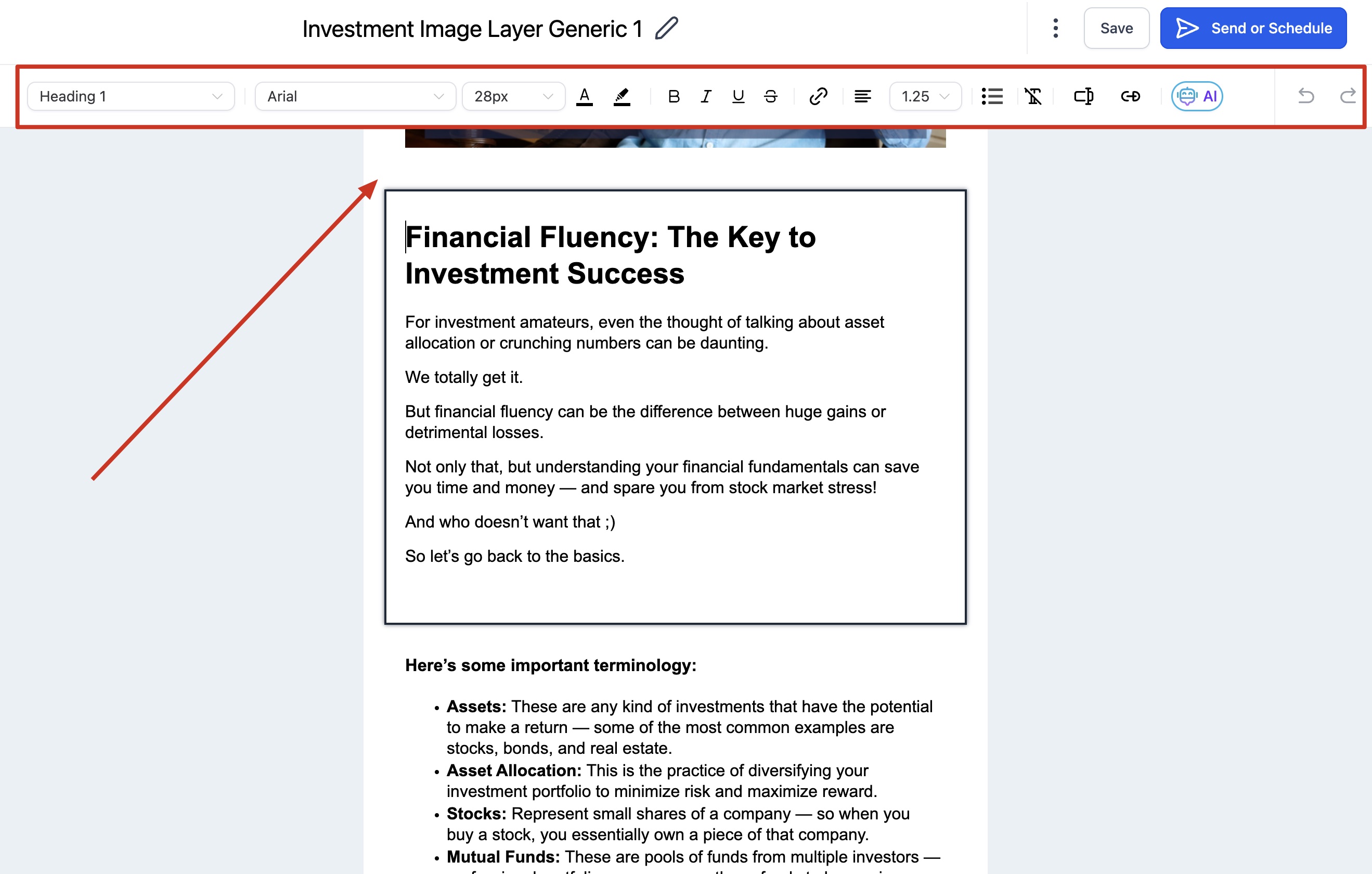
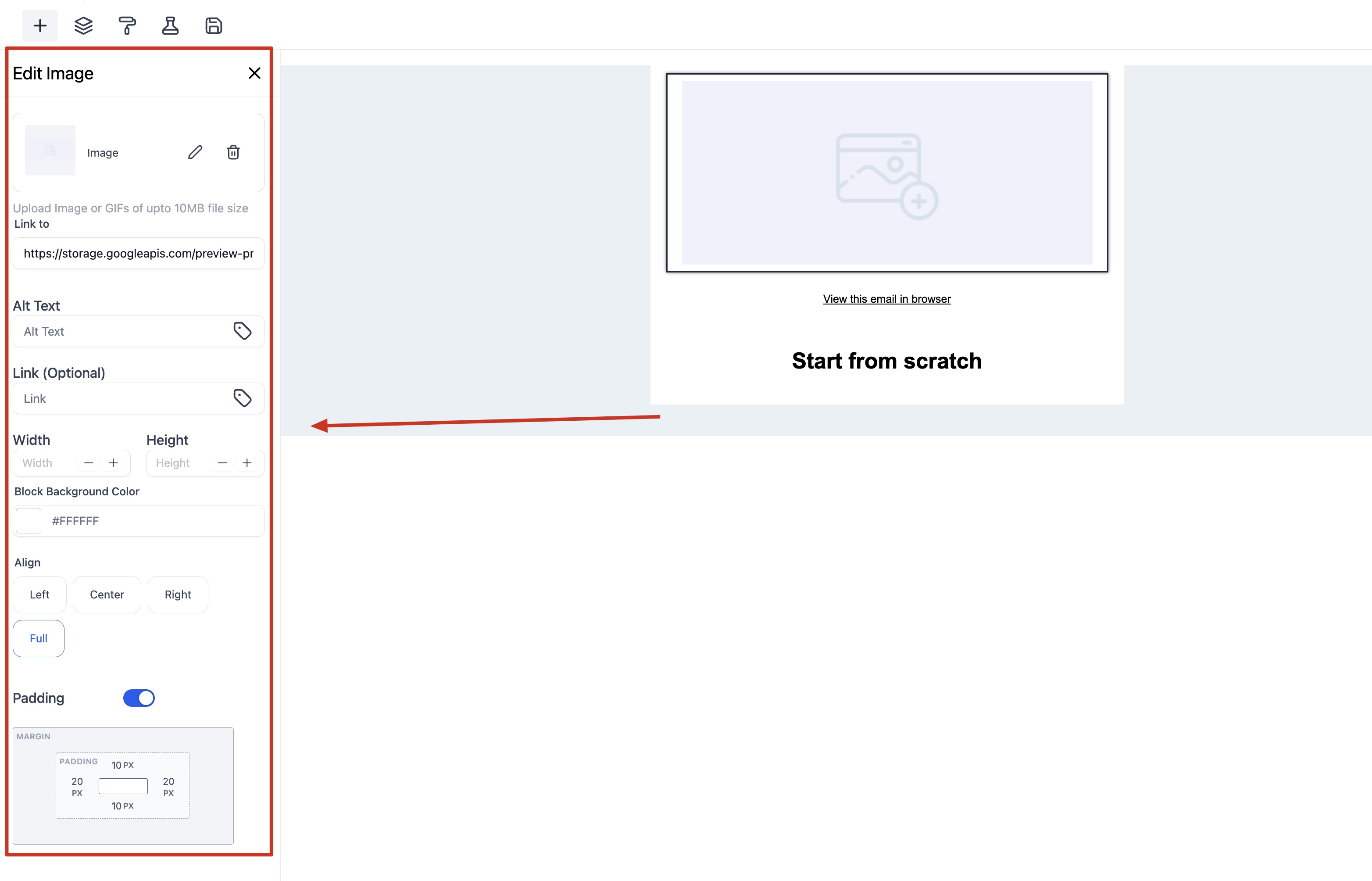
Image elements are, more often than any other block, the source of a broken layout. Pay close attention to width, height, and padding settings rather than leaving them on auto and hoping for the best.
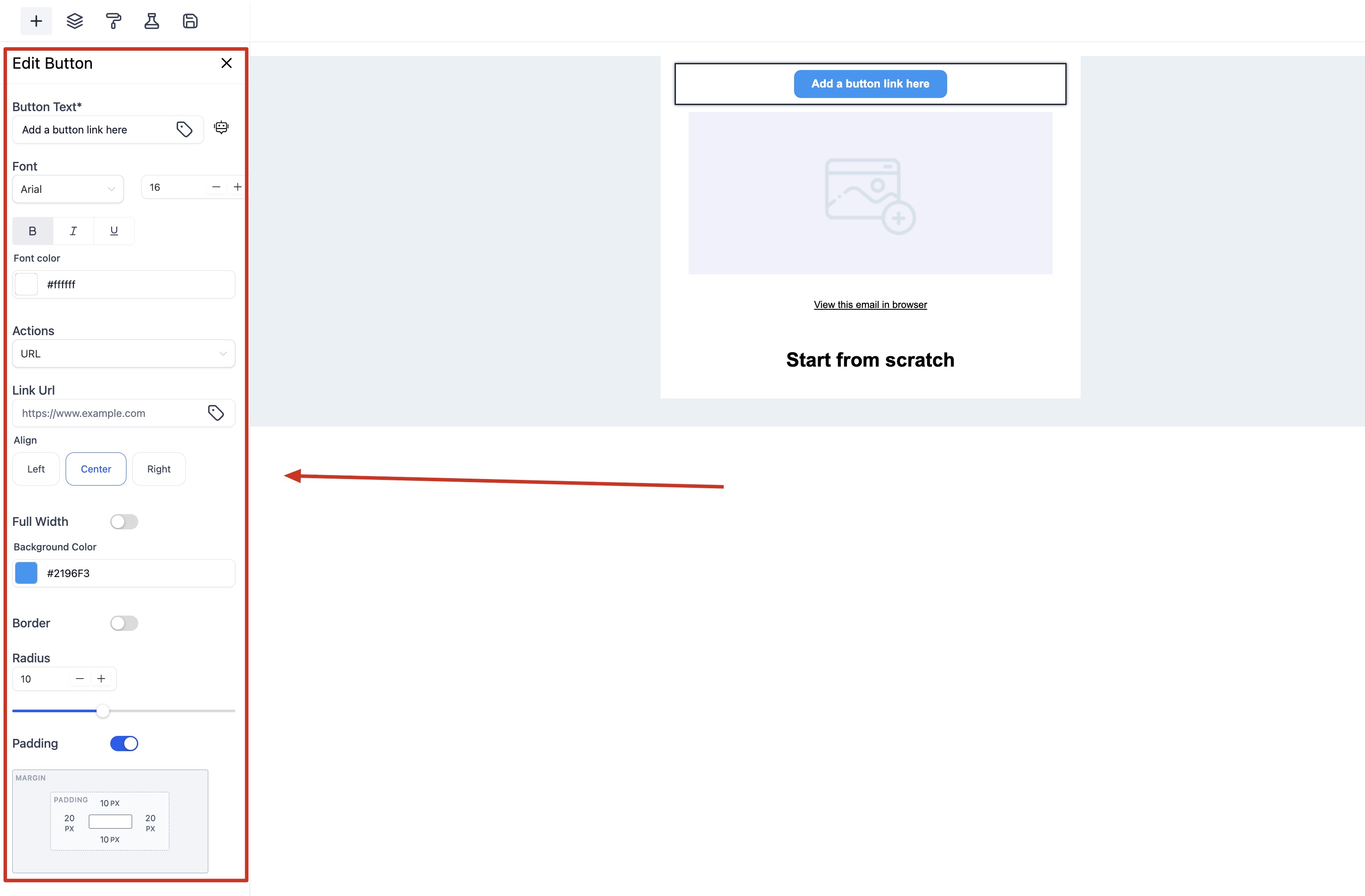
Buttons and dividers each have their own alignment and spacing controls, and small inconsistencies here are exactly the kind of thing that looks fine on a wide screen and breaks on a narrow one.
None of this replaces testing — but a cleanly built template gives you far fewer things to catch later.
Preview Every Version Before You Trust It
Once your template or campaign is built, open it and click Preview in the top right. From there, you can switch between Desktop, Tablet, and Mobile views to see how the layout adapts at each size. This step alone catches a surprising number of issues — a two-column layout that crowds itself on mobile, a button that's too small to tap comfortably, text that wraps in a way you didn't intend.
Preview mode shows you how the builder expects the email to render. It's a good first check, but it's still not the same as seeing the email land in an actual inbox — which is where a real test send comes in.
Send Yourself (and a Teammate) a Real Test Copy
To send an actual test:
Go to Marketing > Emails > Campaigns (or Templates, if you're testing a template directly) and open the one you want to check.
Click the three dots next to the Preview button and select Test Email.
Choose a Sender Email and Sender Name, enter a Receiver Email, and fill in the Preview Text and Email Subject.
Click Send Test Email.
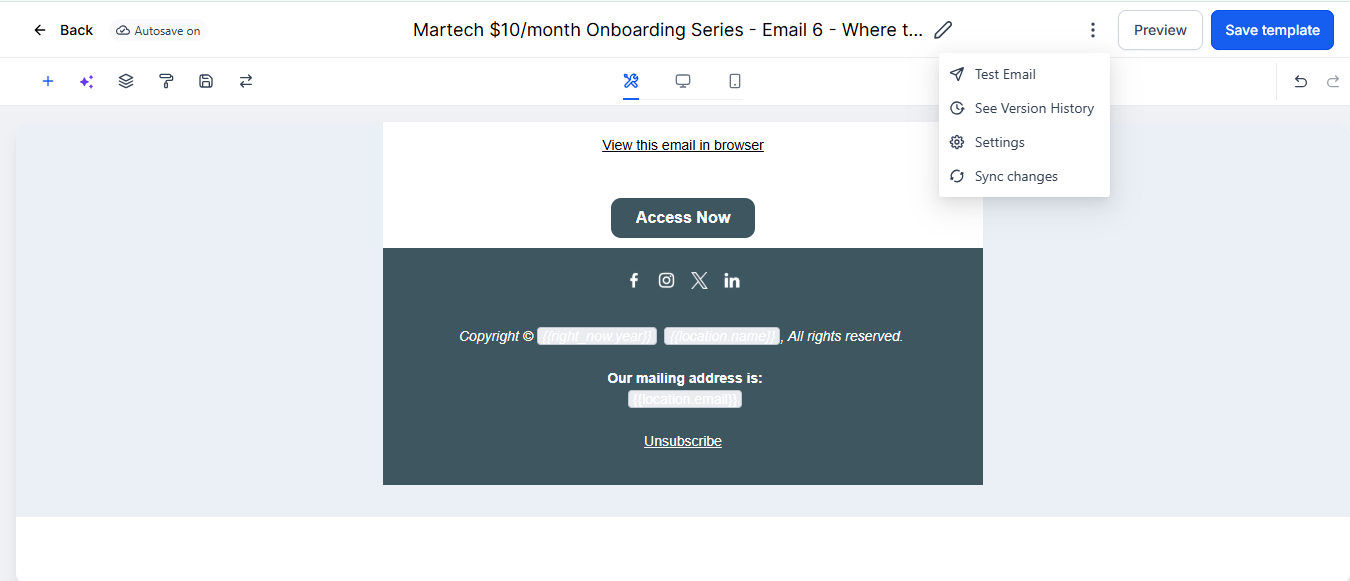
The single most useful habit here isn't sending one test — it's sending it to more than one address, ideally across different providers (a Gmail account and an Outlook account, for example) rather than only to yourself. That's the only way to actually confirm the email behaves the way you expect outside of the builder's own preview.
What a Test Won't Catch
A few things behave differently in test sends than in a live campaign, and it's worth knowing this going in so you don't mistake normal test behavior for a bug:
The unsubscribe link is disabled in test emails by design, to protect your list. It works normally once the campaign actually goes out.
Test opens and clicks don't affect your analytics. Performance metrics only populate from real sends, so testing as much as you want won't skew your reporting.
If your test didn't arrive at all, check the spam or junk folder first, confirm your sending domain and email settings are configured correctly, and try a different receiving address before assuming something is broken.
When Something Still Looks Off
If a layout issue survives all of the above, a few usual suspects are worth checking first:
Image blocks. They're responsible for the majority of rendering issues, especially around alignment and unexpected white space.
Mobile-specific formatting. Headings, paragraphs, and buttons each have their own mobile font size, alignment, and line-height settings, separate from the desktop version — it's easy to fix the desktop view and forget the mobile one still needs attention.
Layout complexity. A single-column structure is consistently the safest choice for mobile readability; multi-column layouts are more prone to breaking on smaller screens.
Frequently Asked Questions
Why doesn't the unsubscribe link work in my test email? It's intentionally disabled in test sends to protect your list from accidental unsubscribes. It functions normally in a live campaign.
Do test opens and clicks affect my email analytics? No. Testing is purely for validation — your real performance data only comes from actual campaign sends.
My test email never arrived. What should I check first? Check spam/junk, confirm your sender configuration and domain settings are correct, make sure the recipient address isn't suppressed, and try sending to a different address.
Why does my email look fine on my phone but broken for a colleague on Outlook? Different email clients render HTML and CSS differently, and Outlook is historically the strictest. This is exactly why testing across more than one provider — not just your own inbox — matters.
What's usually the fastest fix when a layout looks broken? Start with the image block involved and the mobile formatting settings for that section. Between the two, they account for the large majority of formatting issues.
A broken-looking email isn't usually a design failure — it's a testing gap. Building with clean, well-configured elements, previewing across device sizes, and sending a real test to more than one inbox before you launch turns "hope it looks right" into "know it looks right."
Log in at app.ajaxunion.com, click into Marketing > Emails, open a template you're working on right now, and send yourself a real test copy before it goes out. For more guides on getting the most from your Ajax Union MarTech account, visit martechsupport.com.

HOW MUCH IS IT?
Our monthly subscription is just $249*, providing you with unlimited access to all features and support without any hidden fees. Try it FREE for 7 days!
Enjoy the flexibility to cancel or upgrade your subscription at any time, ensuring you get the most value out of your investment in comprehensive digital marketing support and cutting-edge technology.
*Some features have usage-based fees - learn about them here.
WATCH NOW
Unlimited Digital Marketing
Marketing Automation Workshop Replay
Learn how our software can help you start nurturing your prospects and grow your business from the top of the funnel to the bottom line.
In this video you’ll learn:
Easy ways to organize your contacts and communicate better.
Simple methods for creating and handling social media posts.
Time-saving automation to make nurturing leads easier.
Ways to manage reviews and boost your company's reputation.
TAKE THE NEXT STEP TOWARDS DIGITAL MARKETING SUCCESS
Ready to revolutionize your marketing efforts?
Fill out the form below to access unlimited support, cutting-edge technology, and expert guidance.
Get started today for $249/mo or $2,490/yr with a FREE 7-day trial.
Additional Resources
Authority Blueprint
In this highly personalized process, we create an optimized LinkedIn marketing strategy for you, optimize your LinkedIn profile, and produce a calendar of content ideas for you to update your LinkedIn on a daily basis—complete with copy to get you started!
evyAI LinkedIn Assistant
Enhance your LinkedIn™ presence with evyAI,
a Chrome extension and a web app that supports your LinkedIn™ activities.
Create Personas, generate ideas, craft posts and 10x your LinkedIn™ exposure and productivity.
Monthly Strategy Session
Join our free monthly strategy session to get expert feedback on your current B2B marketing approach. Learn actionable ways to attract more leads and generate high-quality referrals.