
Unlimited Digital Marketing Blog
Make the most of your subscription with these helpful tips and resources, while unlocking the potential of digital marketing to gain valuable insights for unlimited growth.
Automation & Workflows

How to Clone and Share AI Agents Using Snapshots in Unlimited Digital Marketing
Building a great AI agent takes time — refining prompts, connecting the right knowledge bases, testing every branch of the flow. The last thing you want to do is rebuild that same agent from scratch every time you onboard a new client or spin up a new sub-account. Account Snapshots solve exactly that. Inside app.ajaxunion.com, snapshots let you package one or more Agent Studio agents (along with their knowledge bases and supporting assets) and deploy them into other sub-accounts in minutes — or share and sell them outside your agency.
This tutorial walks you through creating an agent snapshot, loading it into one or many sub-accounts, handling conflicts, refreshing versions, and sharing snapshots externally.
What Are Agent Studio Snapshots?
Agent Studio Snapshots are bundles you create inside an Account Snapshot that package one or more AI agents along with everything they need to function in a new account. When you include an agent in a snapshot, the following is preserved:
Agent flow structure — every node and connection
Node configurations — prompts, model choices, tool settings
Connected knowledge bases — if you select them during snapshot creation
Version state — Draft, Staging, and Production all remain intact
Supporting assets — workflows, custom values, and other dependencies you choose to include
The result: a complete, working agent that drops into a new sub-account ready to run.
Why Snapshots Matter for Agencies
If you manage multiple clients or sub-accounts, snapshots are one of the highest-leverage features in your account:
Clone agents instantly — copy complex AI agents across accounts in minutes instead of rebuilding from scratch.
Preserve configurations — agents retain their full logic, prompts, and version states.
Include dependencies — knowledge bases and selected assets move with the agent so nothing breaks on import.
Standardize onboarding — new clients can start day one with fully configured AI automations.
Enable distribution and monetization — share snapshots with other agencies or sell them through the Marketplace.
How to Create an Agent Snapshot
Step 1: Open Account Snapshots
Switch to Agency View.
Navigate to Account Snapshots.
Click Create New Snapshot.
Step 2: Name and Select the Source Account
Enter a Snapshot Name that clearly identifies what's inside (for example, "Lead Qualifier Agent v2").
Select the Sub-Account that contains the agent you want to package.
Click Next.
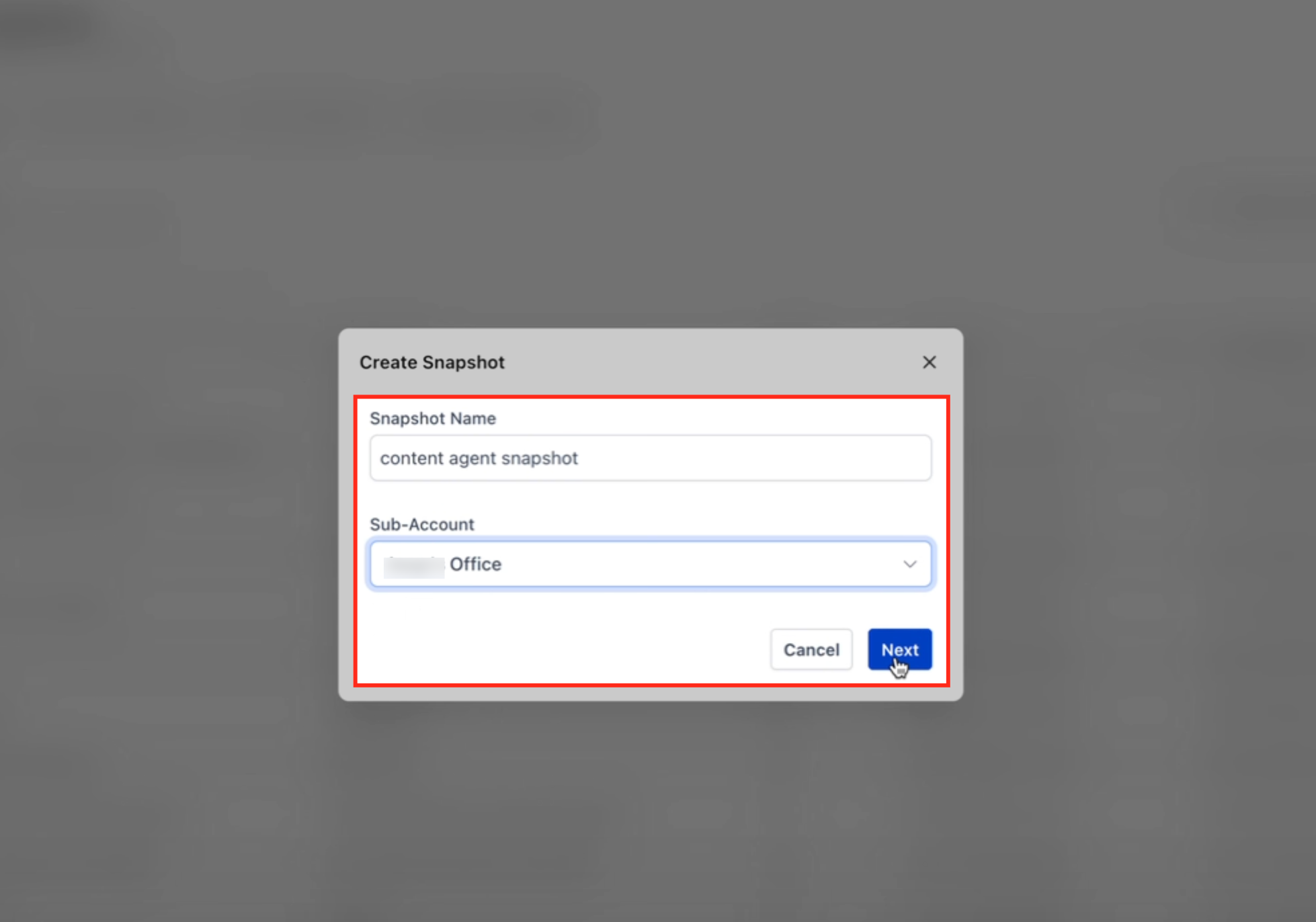
Step 3: Select Your Agent Studio Assets
Expand the Agent Studio category.
Select the agent or agents you want to include.
Select any supporting assets the agent depends on — Knowledge Bases, Workflows, Custom Values.
Click Create in the bottom-right corner.
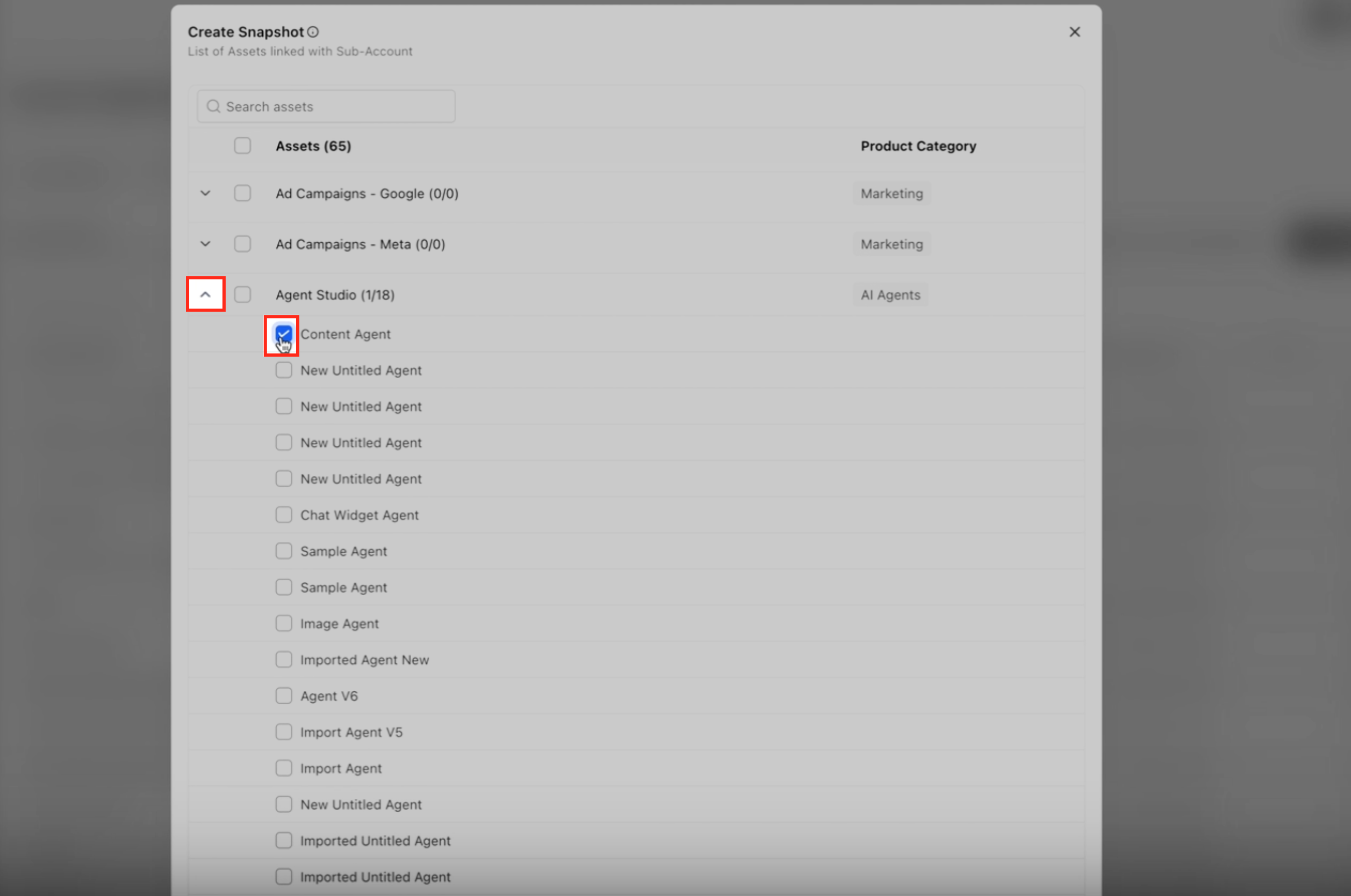
The system will now package everything you selected into the snapshot.
Important: if your agent uses a Knowledge Base, you must explicitly select that Knowledge Base when creating the snapshot. Snapshots only include the assets you check. If you forget the knowledge base, the agent will load into the new account without its reference material and won't be able to answer questions properly. Always review the asset selection screen before continuing.
Step 4: Review Snapshot Details
After creation, you'll land on the snapshot details screen. This confirms:
The included agents
The included knowledge bases
The total asset count
If anything is missing, you can edit the snapshot before loading it anywhere.
How to Load an Agent Snapshot into a Sub-Account
You can load a snapshot into one sub-account at a time or push it to many at once.
Option 1: Load Into a Single Sub-Account
Go to Agency View → Sub-Accounts.
Click the three-dot menu beside the target account and select Manage Client.
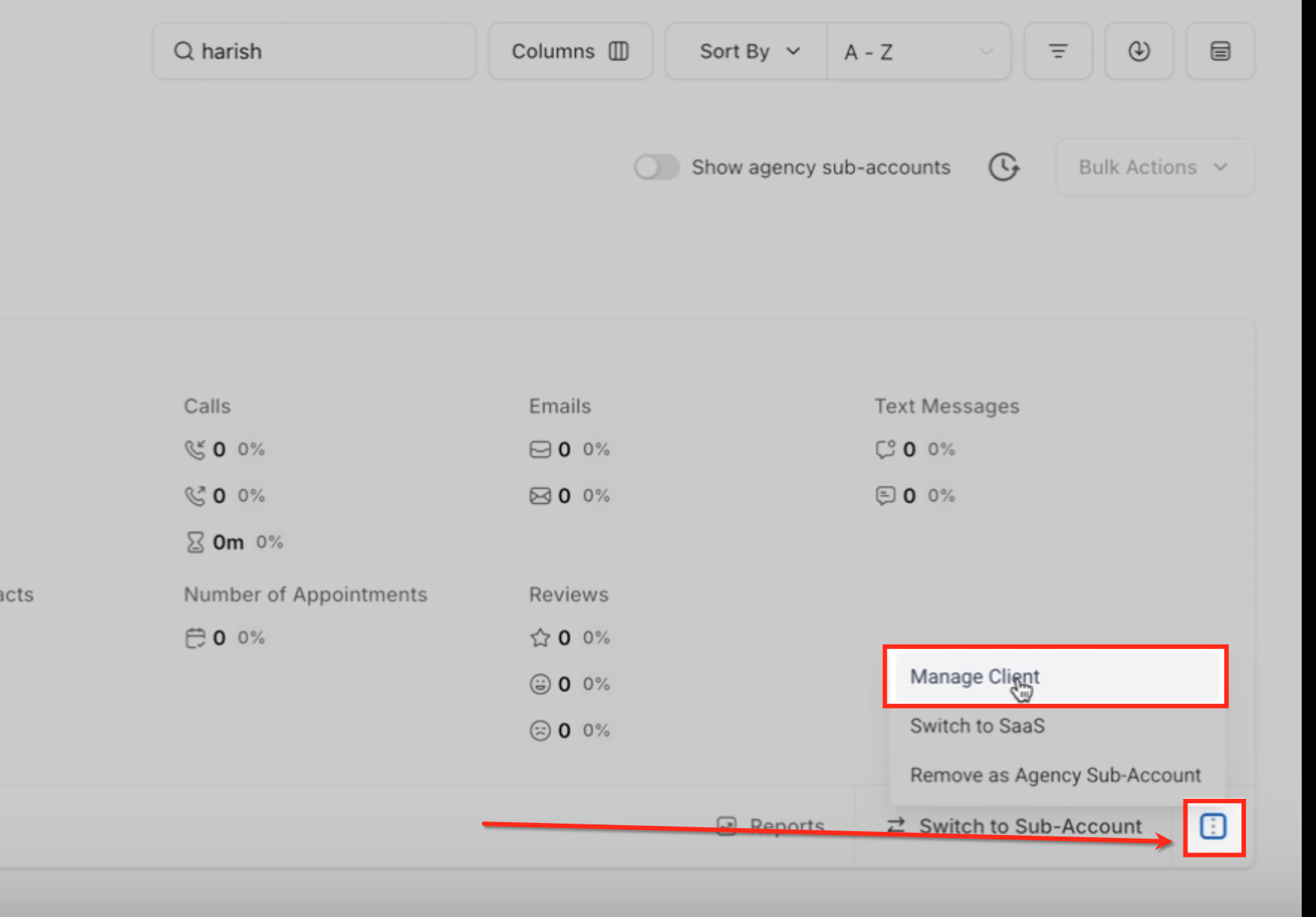
Choose Actions → Load Snapshot.
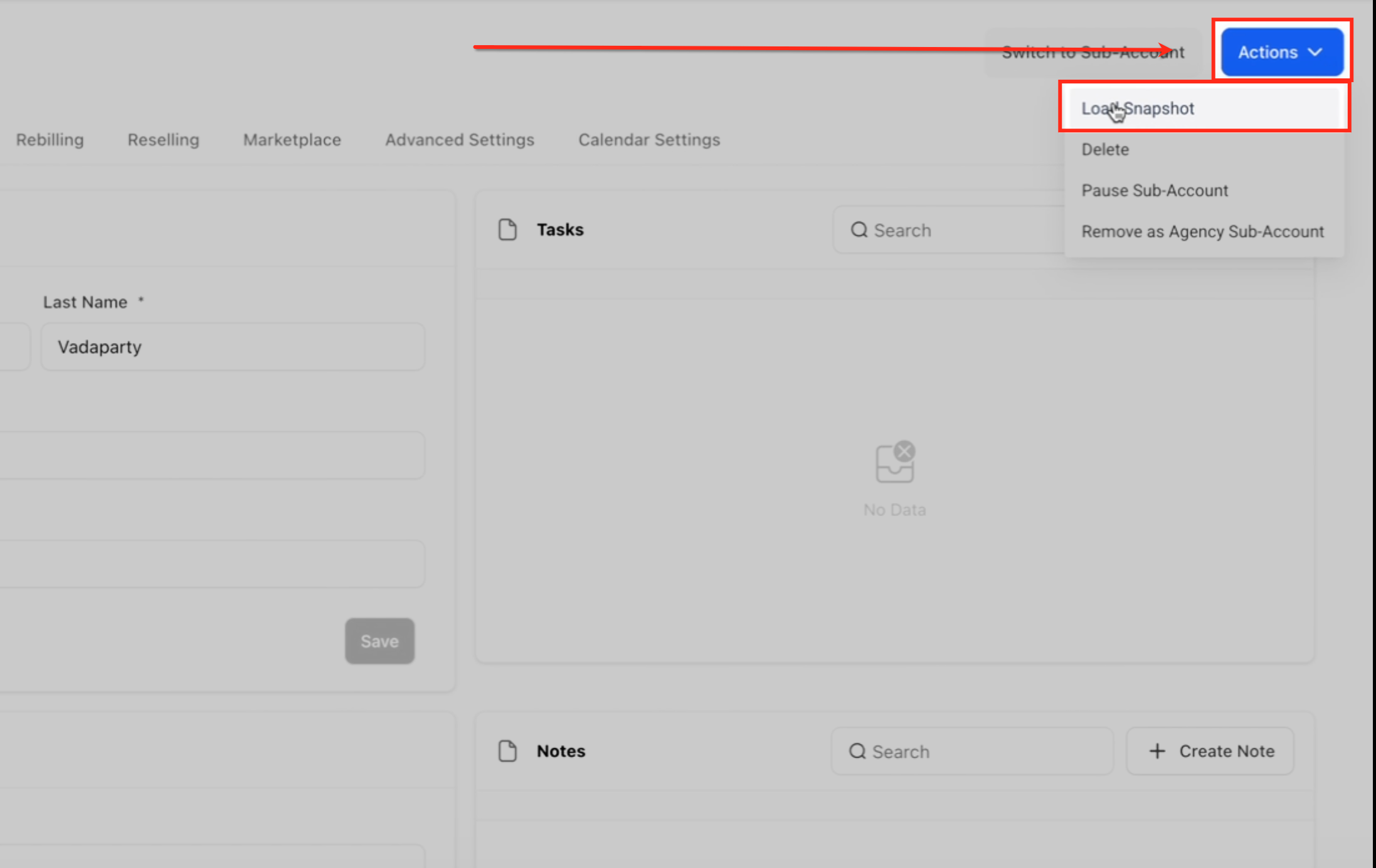
Select your snapshot from the list.
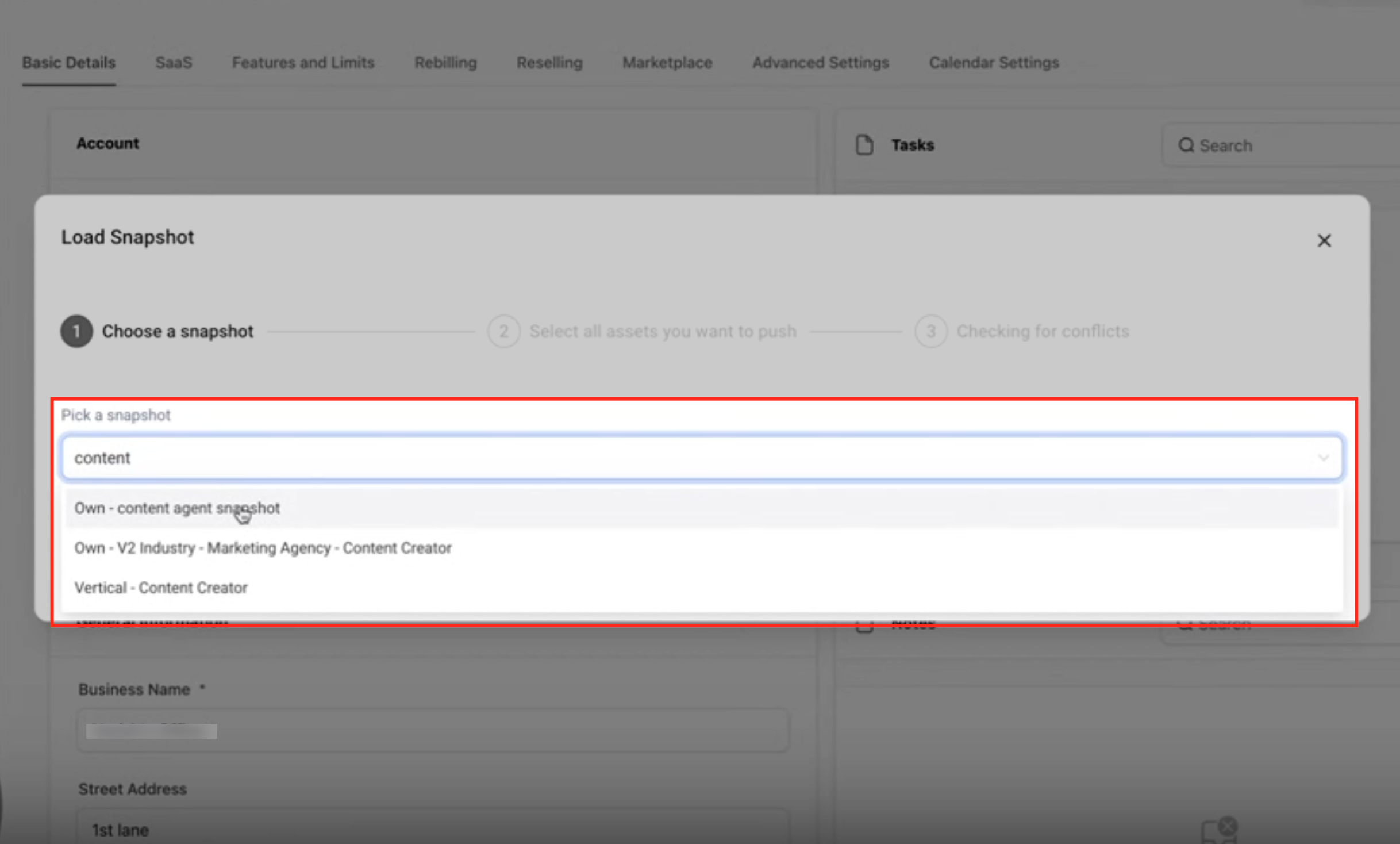
Choose the Agent Studio category (or Select All to load everything in the snapshot).
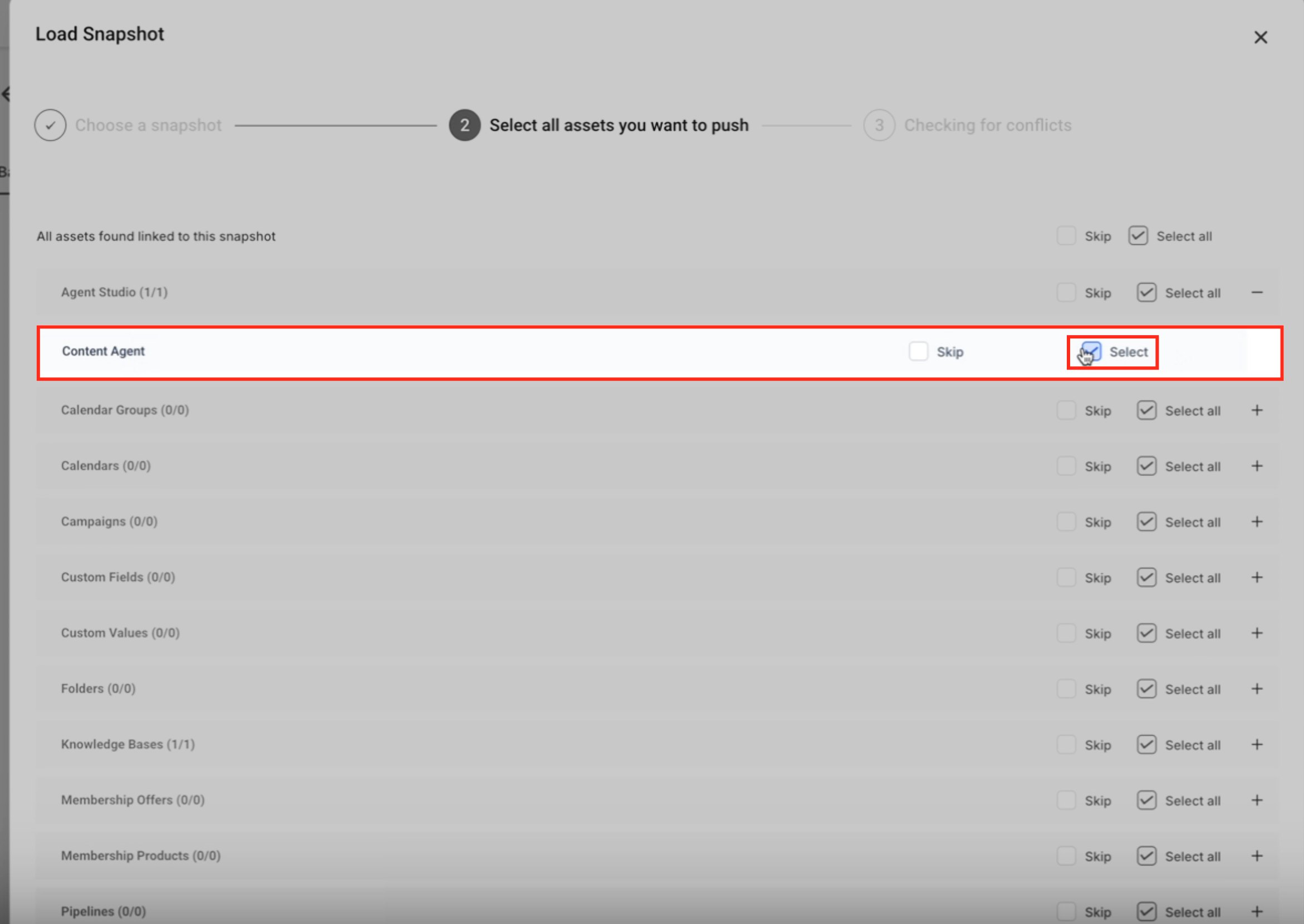
Confirm the import.
After loading, the agent will appear in AI Agents → Agent Studio inside the target sub-account, ready to test and publish.
Option 2: Push the Snapshot to Multiple Sub-Accounts
When you need to deploy the same agent across many clients at once:
Go to Account Snapshots.
Open the snapshot.
Click Push Snapshot.
Select the sub-accounts you want to push to.
Select which assets to include.
Proceed through the conflict check.
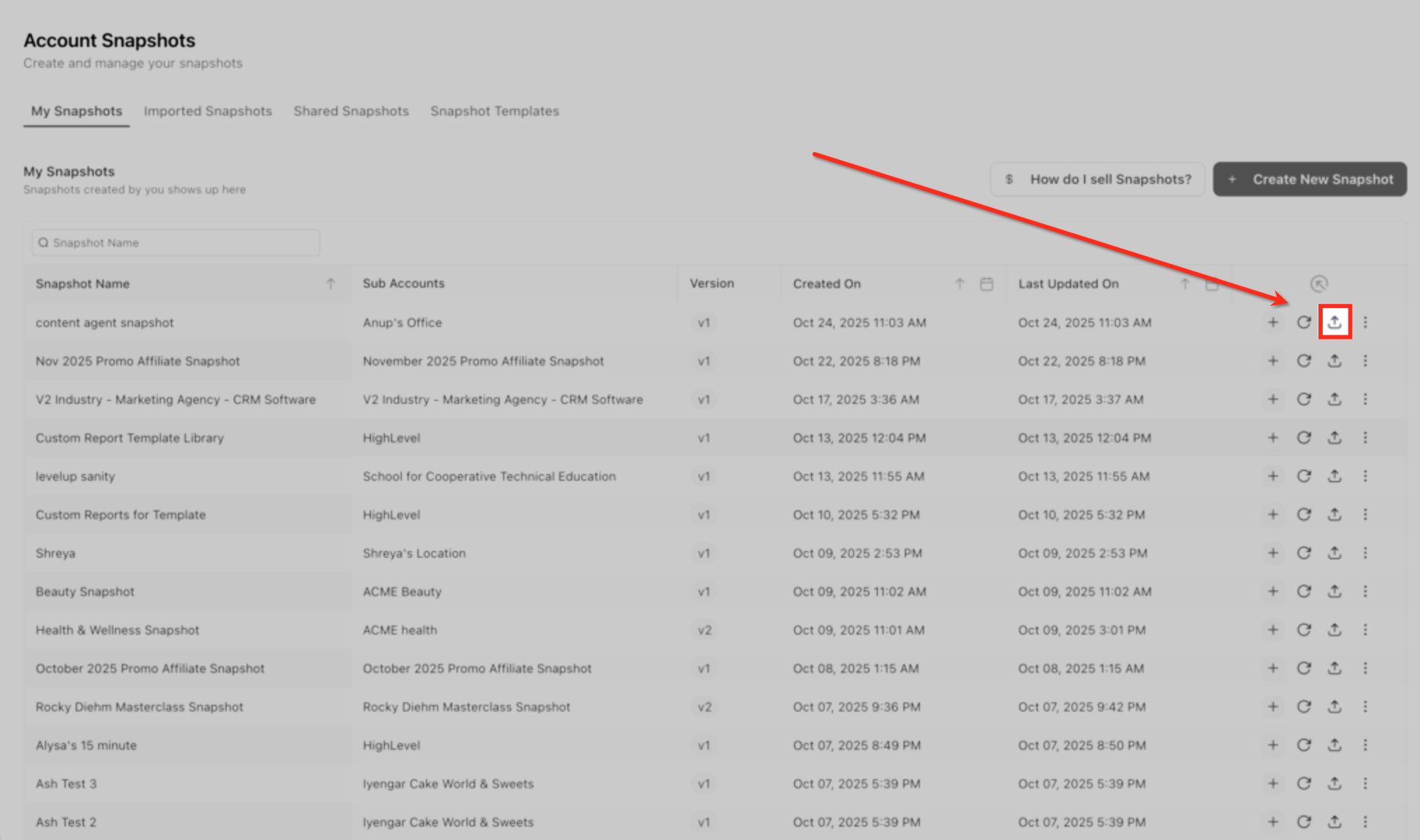
This is the fastest way to roll a new agent out across your full client base.
Resolving Conflicts During Import
If an asset in the snapshot has the same name as something already in the target account, you'll be prompted to choose how to handle it:
Keep both copies — the existing asset stays, and the imported one comes in alongside it.
Overwrite existing — the imported asset replaces the one already in the account.
Proceed with conflict check — review each conflict individually before finalizing.
Always review conflicts carefully before confirming — overwriting a live agent is irreversible without a backup snapshot.
Keeping Snapshots Up to Date
Snapshots are versioned, which means updating the source agent doesn't automatically update every account that received the snapshot. To push out improvements:
Return to Account Snapshots.
Select the snapshot.
Click Refresh.
This updates the snapshot to reflect the latest version of the agent in the source account and creates a new snapshot version. You can then push the updated version to your sub-accounts.
Sharing or Selling Agent Snapshots
Snapshots aren't limited to your own agency — you can share them externally with other businesses or sell them through the Marketplace.
To share a snapshot:
Go to Account Snapshots.
Click the three-dot menu next to the snapshot.
Choose Share Snapshot.
Generate a share link or list it in the Marketplace.
Recipients can load your snapshot directly into their own account. SaaS plan requirements apply if you want to monetize through the Marketplace.
What's NOT Included in a Snapshot
It's just as important to know what doesn't transfer. Snapshots do not include:
Contacts
Conversation history
Messages
Live data
Only configuration and the assets you explicitly select are transferred. The imported agent starts fresh in its new home with no historical chat or contact data attached.
Permissions Required
To work with snapshots, users need:
"Create Snapshots" permission to package and create a snapshot.
"Share/Import Snapshots" permission to load a snapshot or share one externally.
Permissions are managed by an admin from the agency settings.
Frequently Asked Questions
Does loading a snapshot overwrite my existing agents?
Only if an agent with the same ID already exists in the target account. If that happens, you'll be prompted to resolve the conflict before anything is overwritten.
Are knowledge bases included automatically?
No. Knowledge bases are only included if you explicitly select them when creating the snapshot. Always double-check this step — an agent without its knowledge base won't work as designed.
Can I share snapshots outside my agency?
Yes. You can share snapshots externally using share links or distribute them through the Marketplace.
Are version states preserved?
Yes. Draft, Staging, and Production version states all remain intact when an agent is imported.
Does importing affect API endpoints?
API endpoints remain available after import, but any account-specific tokens may need to be updated in the new sub-account.
Can I update an agent across many sub-accounts at once?
Yes. Update the agent in the source account, refresh the snapshot, then use Push Snapshot to deploy the new version to multiple sub-accounts in bulk.
Scale Smarter With Snapshots
Snapshots turn your best-performing AI agents into reusable assets — packaged once, deployed everywhere. Whether you're onboarding new clients, standardizing automations across sub-accounts, or sharing agents with other businesses, snapshots are how agencies built on Unlimited Digital Marketing ship faster without sacrificing quality.
Log in at app.ajaxunion.com, head to Account Snapshots, and package your first agent today. For more tutorials and platform guides, visit UnlimitedDigitalMarketing.com.
