
Unlimited Digital Marketing Blog
Make the most of your subscription with these helpful tips and resources, while unlocking the potential of digital marketing to gain valuable insights for unlimited growth.
CRM & Contact Management
How to upload and sort contacts in app.ajaxunion.com
Your contact database powers your marketing, sales, and automation efforts. The ability to upload contacts quickly — and more importantly, sort them efficiently — allows you to take action faster and run smarter campaigns.
In this guide, you’ll learn how to upload contacts into app.ajaxunion.com and sort them for better targeting, filtering, and bulk actions.
Why Sorting Contacts Matters
Uploading your database is only the first step. Sorting your contacts correctly allows you to:
Identify high-value leads
Segment audiences for targeted campaigns
Trigger automations more accurately
Assign contacts to specific team members
Send bulk emails or SMS to filtered groups
When your contacts are properly sorted, your outreach becomes more precise and effective.
Step 1: Upload Your Contacts
Follow these steps to import your existing database:
1. Go to Contacts
Log in to app.ajaxunion.com and click Contacts from the main menu.
2. Click Import
Select the Import option to begin uploading your file.
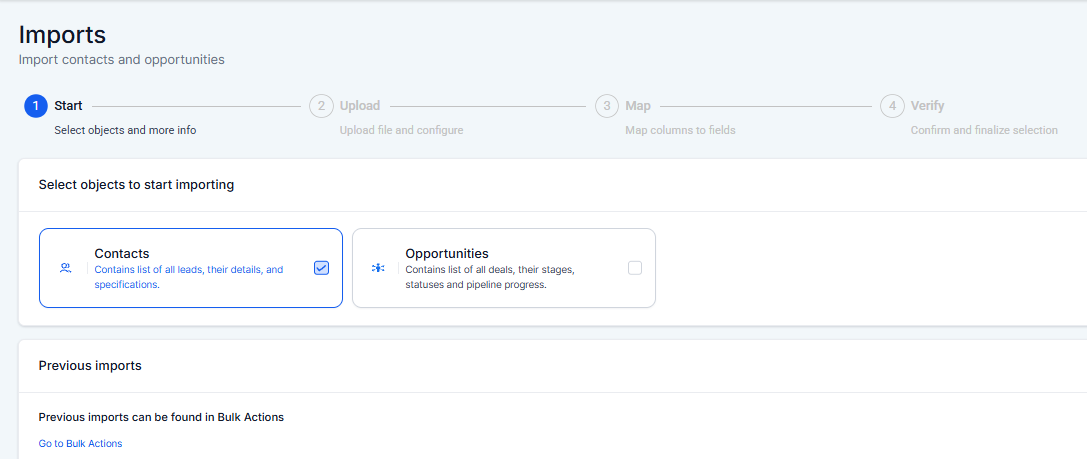
3. Choose Contacts
Select Contacts as your import type and continue.
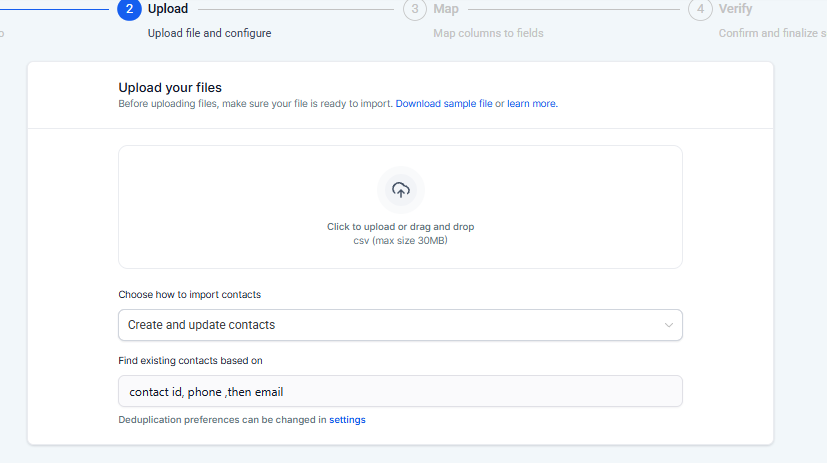
4. Upload Your CSV File
File format must be CSV
Maximum file size: 50MB
You can download a sample file to ensure correct formatting
5. Map Your Fields
Match each column in your CSV file to the appropriate contact field in the system.
If your file contains data that doesn’t match standard fields, you can:
Create a new custom field
Skip unmatched columns
6. Confirm Import Settings
Before finalizing, you can:
Name your import
Assign contacts to lists
Set consent preferences
Adjust duplicate settings
Click Bulk Import to complete the process.
Once finished, your contacts will appear inside your CRM.
Step 2: Sort Contacts Using Filters
After uploading, sorting allows you to quickly narrow down specific groups of contacts.
Inside the Contacts section, you can sort and filter by:
First or Last Name
Contact Owner
Contact Source
Tags
City, State, or Country
Time Zone
Communication status (DND)
Custom field values
Date added
Filters allow you to instantly refine your list and display only the contacts that match your criteria.
Step 3: Sort Contacts Using Custom Fields
If you need advanced sorting options, custom fields provide additional flexibility.
You can create custom data points such as:
Lead Status
Service Type
Industry
Budget Range
Campaign Source
To create a custom field:
Navigate to Settings
Click Custom Fields
Select Add Field
Choose your field type
Save your new field
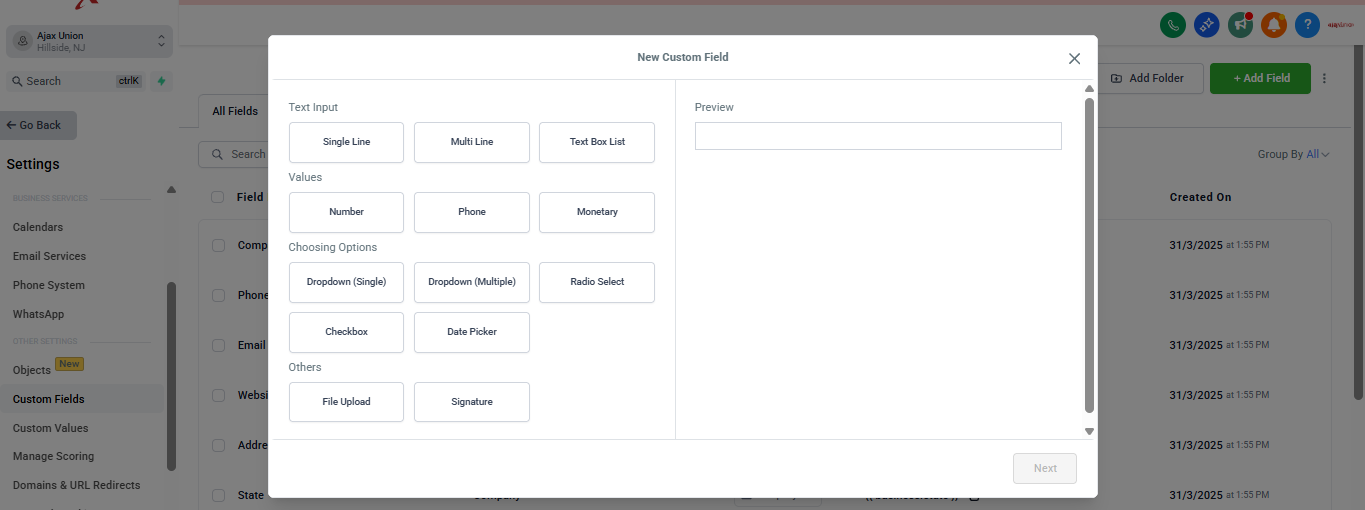
Once populated, you can sort and filter contacts based on those custom values.
Step 4: Use Bulk Actions After Sorting
Once you’ve sorted your contacts, you can take immediate action.
After applying filters:
Select contacts using checkboxes
Choose a bulk action such as:
Add to Automation
Send Email
Send SMS
Apply Tags
Assign to User
Sorting first ensures your bulk actions are applied only to the right audience.
Standard Fields You Can Sort By
When importing contacts, you can map and later sort by fields such as:
Contact ID
First Name
Last Name
Date of Birth
Contact Owner
Contact Source
Contact Type
Business Name
Phone
Email
Address
City
State
Postal Code
Country
Website
Time Zone
Additional Emails
Additional Phones
Notes
Do Not Disturb (DND)
Using consistent field mapping during upload ensures easier sorting later.
Best Practices for Sorting Contacts
To maximize efficiency:
Use consistent naming conventions
Apply tags during import
Create filters you frequently use
Regularly review duplicate settings
Keep custom fields structured and purposeful
Smart sorting leads to better segmentation, cleaner automation, and improved marketing results.
Ready to Take Control of Your Contact Database?
The CRM inside app.ajaxunion.com allows you to upload, sort, filter, and take action on your contacts from one powerful dashboard.
Stop digging through spreadsheets. Start sorting smarter.
If you don’t have an account yet, sign up for a free trial here:
👉 https://UnlimitedDigitalMarketing.com
Upload your contacts and start scaling today.
