
Unlimited Digital Marketing Blog
Make the most of your subscription with these helpful tips and resources, while unlocking the potential of digital marketing to gain valuable insights for unlimited growth.
CRM & Contact Management

How to Build Websites and Landing Pages with AI Studio in Unlimited Digital Marketing
Building a website used to mean starting from a blank canvas, arranging sections one by one, writing every line of copy manually, and spending hours getting to something that looked even close to finished. AI Studio inside app.ajaxunion.com changes that entirely. Describe what you want to build in plain language, and AI Studio generates a full working draft — layout, content, visuals, and all — in seconds.
This tutorial covers how to find and enable AI Studio, how to create your first project, how to edit and refine it, and how to connect forms, calendars, and custom domains so your page is ready to go live.
What Is AI Studio?
AI Studio is a conversational, AI-powered builder inside your Unlimited Digital Marketing account. Instead of dragging and dropping elements manually, you describe what you want — and AI Studio builds it. You can then keep refining the result using plain-language follow-up prompts until it matches your vision.
AI Studio is not just for standard websites and landing pages. It can also generate multi-step surveys, branded lead capture forms, appointment booking pages, ecommerce storefronts, portfolio sites, dashboards, and other interactive client-facing experiences. Think of it as a full creative workspace for building customer experiences — not just a page builder.
It's also worth noting what AI Studio is not: it's a separate tool from Agent Studio, which is used to build AI-powered agents that respond to events and automate tasks. AI Studio is specifically for building web-based experiences.
How to Enable and Access AI Studio
AI Studio is available through Labs inside your sub-account. Here's how to turn it on:
Open your account at app.ajaxunion.com.
Navigate to Settings → Labs.
Find AI Studio and enable it for your sub-account.
Once enabled, AI Studio will appear in your left-side navigation menu.
Navigating the AI Studio Home Screen
When you open AI Studio, you'll see a clean workspace designed around getting to your first project fast. The home screen includes:
A description box where you type what you want to build
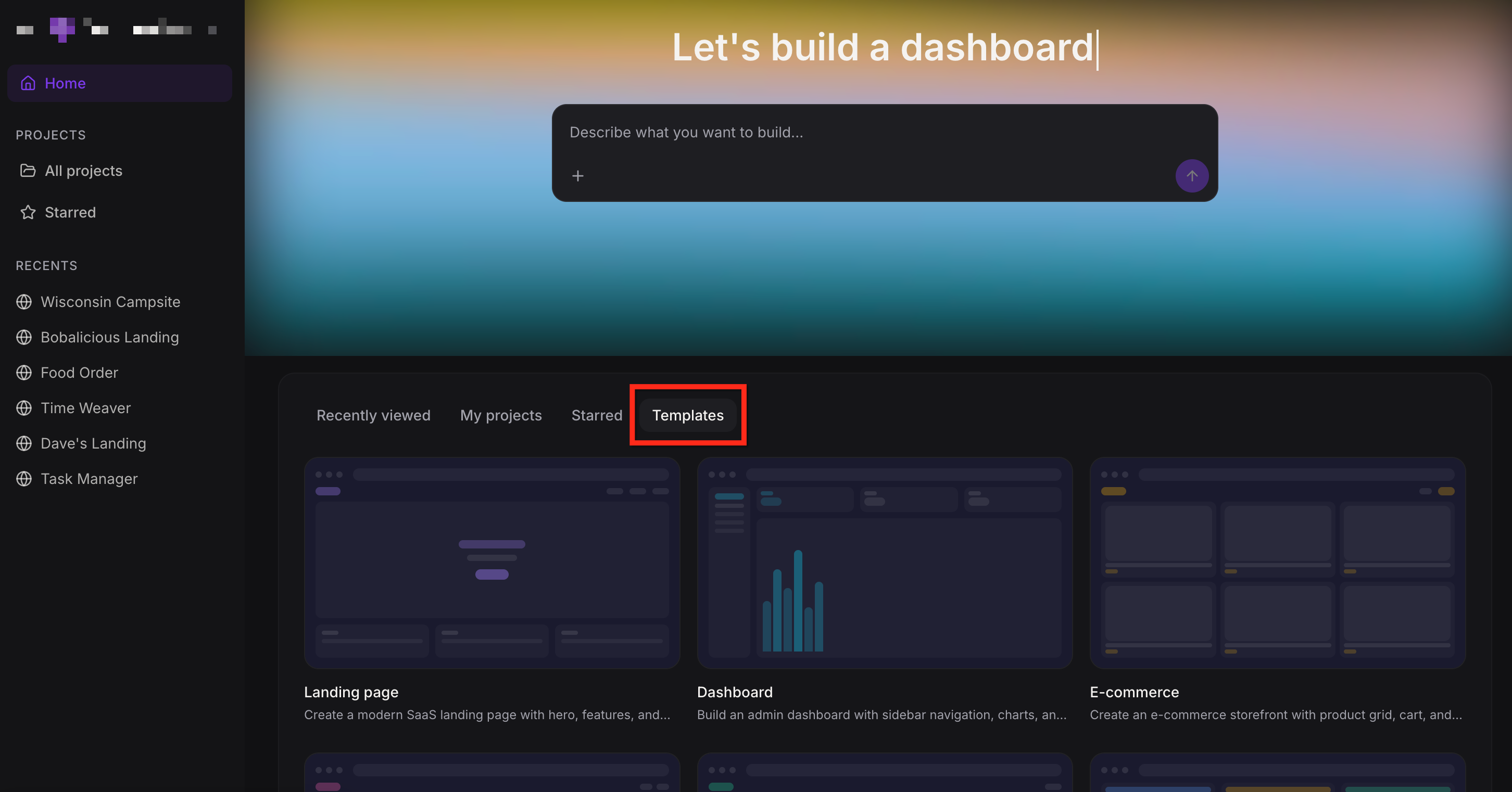
Tabs for Recently Viewed, My Projects, Starred, and Templates
A left sidebar for quick access to recent work and existing projects
Template options covering landing pages, dashboards, ecommerce storefronts, portfolios, and blogs
From the home screen you can start new projects, open existing ones, rename, move to a folder, or delete a project.
How to Create a Project in AI Studio
There are two main ways to start a project: from a prompt, or from a template.
Starting with a Prompt
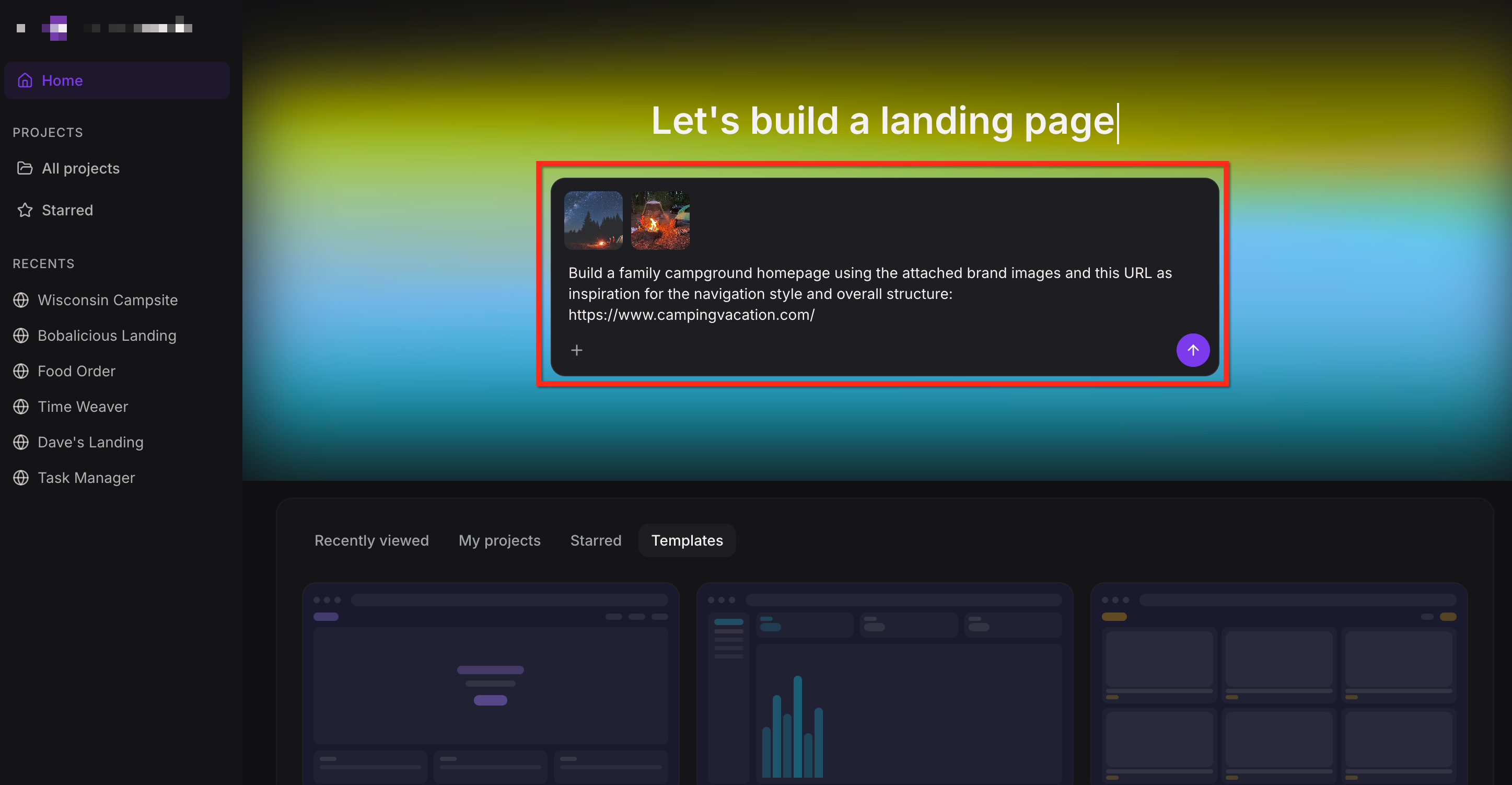
Type a description of what you want to build into the prompt box. The more specific you are, the better the first draft will be. You can also attach images, screenshots, or a live URL to give AI Studio additional reference material for layout, structure, or visual style.
Example prompts:
Create a website for a dental clinic with online booking
Build a portfolio site for a freelance designer using the attached brand images
Build a family campground homepage using this URL as inspiration for the navigation style
Create a boutique skincare website using the attached homepage screenshot as direction for the hero section and typography
If your prompt is too broad — for example, "build a website for my business" — AI Studio will ask follow-up questions before building. You'll be prompted to clarify the type of business, the goal of the page, or other details. This means you don't need to write a perfect prompt to get started.
Starting with a Template
If you'd prefer a familiar structure as a starting point, click the Templates tab from the home screen and select a template type — landing page, dashboard, ecommerce storefront, or portfolio. AI Studio will use the template as the foundation and you can refine from there using prompts.
How to Edit and Refine Your Project
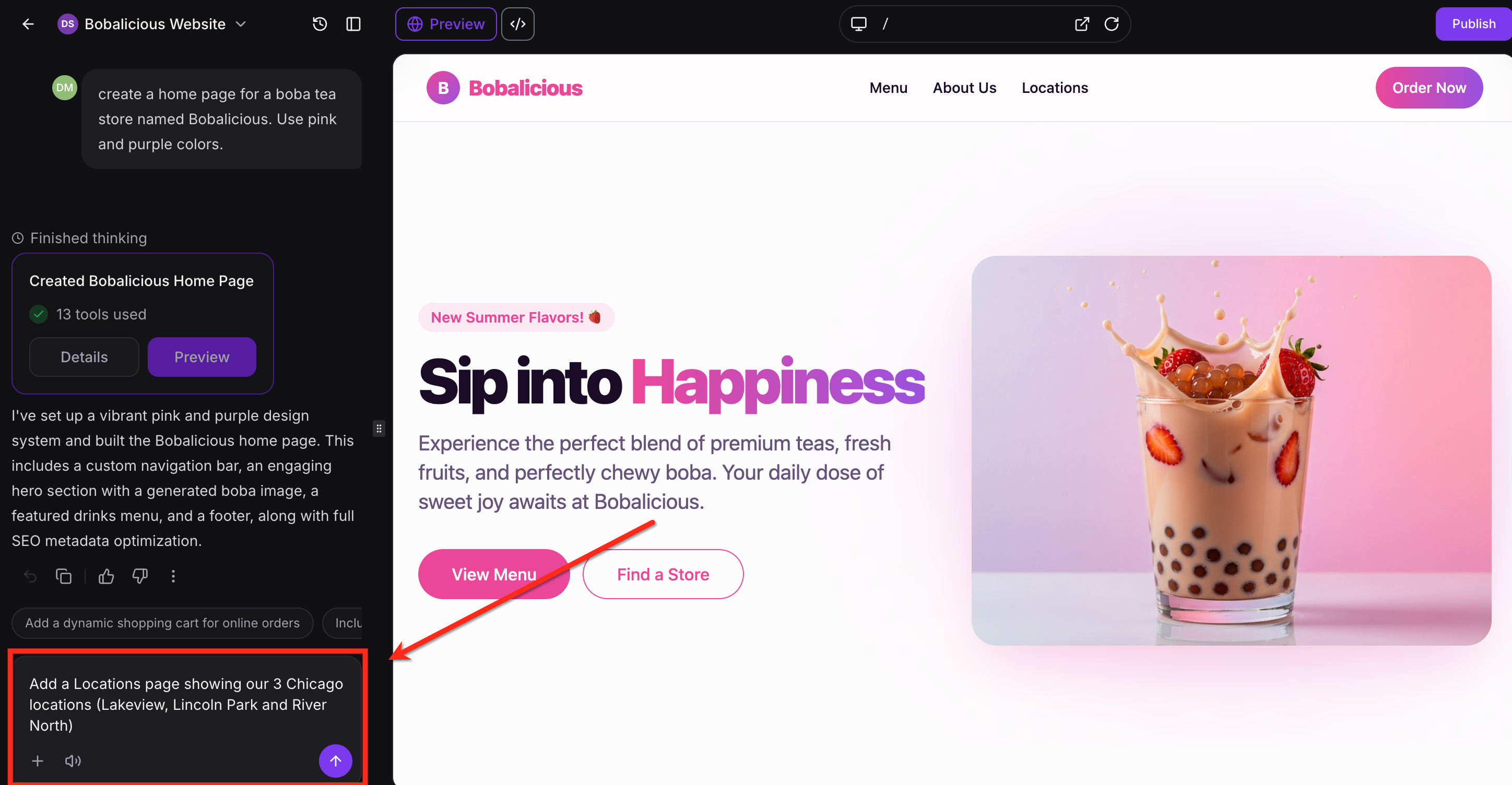
AI Studio is built for iteration. After the first draft is generated, you can keep prompting it to make changes — no manual drag-and-drop required. Examples of follow-up prompts:
Change the colors to use light green instead of orange
Add a Contact page
Rewrite the hero headline to focus on saving time
Add a testimonial section similar to the attached screenshot
Make the navigation similar to this reference URL
Change the hero image to the photo I just uploaded
If you don't provide images, AI Studio can generate visuals for hero sections and supporting areas. If you upload your own branded photos and ask it to use them, it will place them into the design.
Previewing Your Project
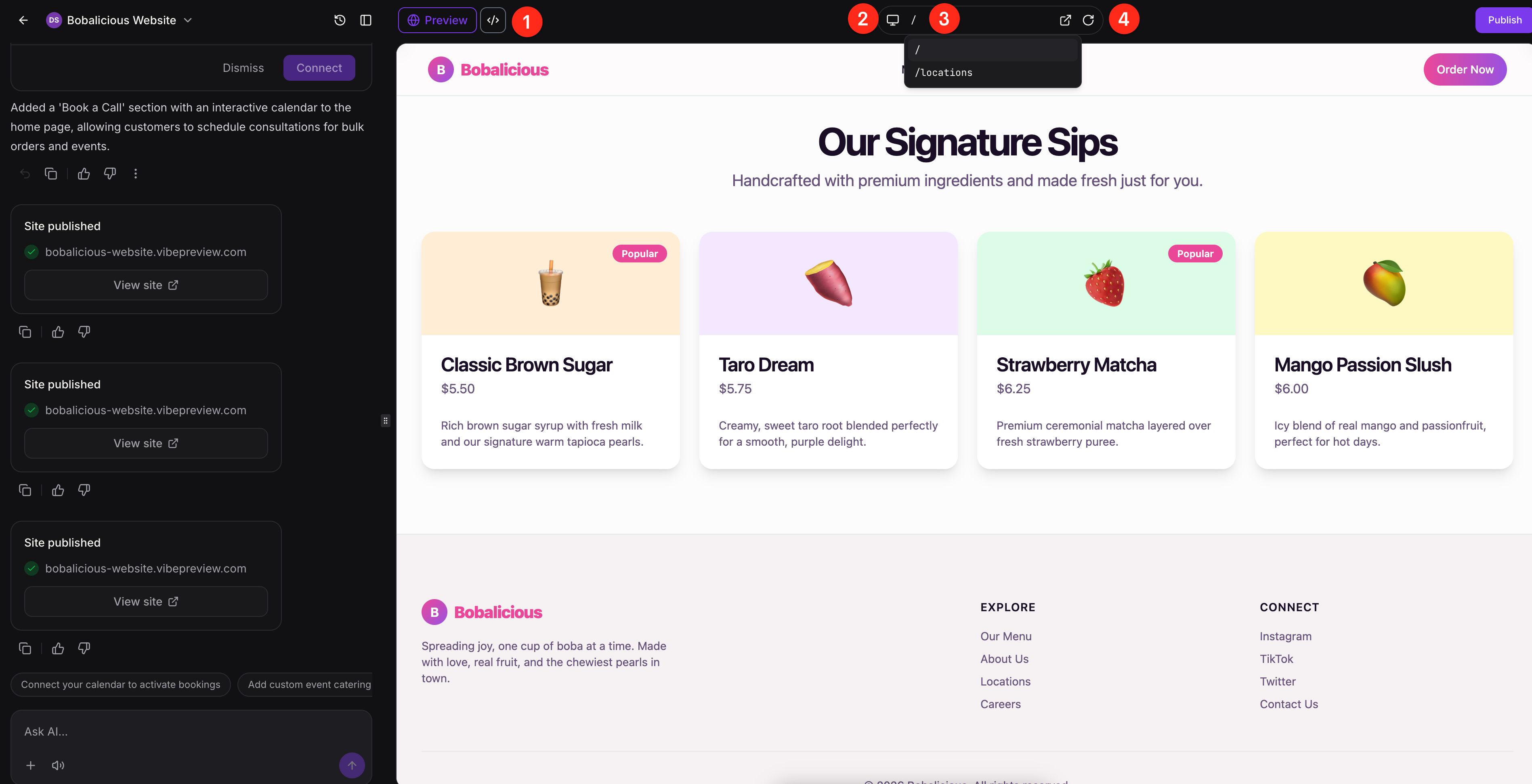
Before publishing, use the built-in preview tools to review how your project looks across devices. Inside the editor you can:
Toggle between Preview and Code view
Switch between desktop, tablet, and mobile modes
Use the page dropdown to navigate between pages in a multi-page project
Open the selected page in a new tab to review the live-preview experience
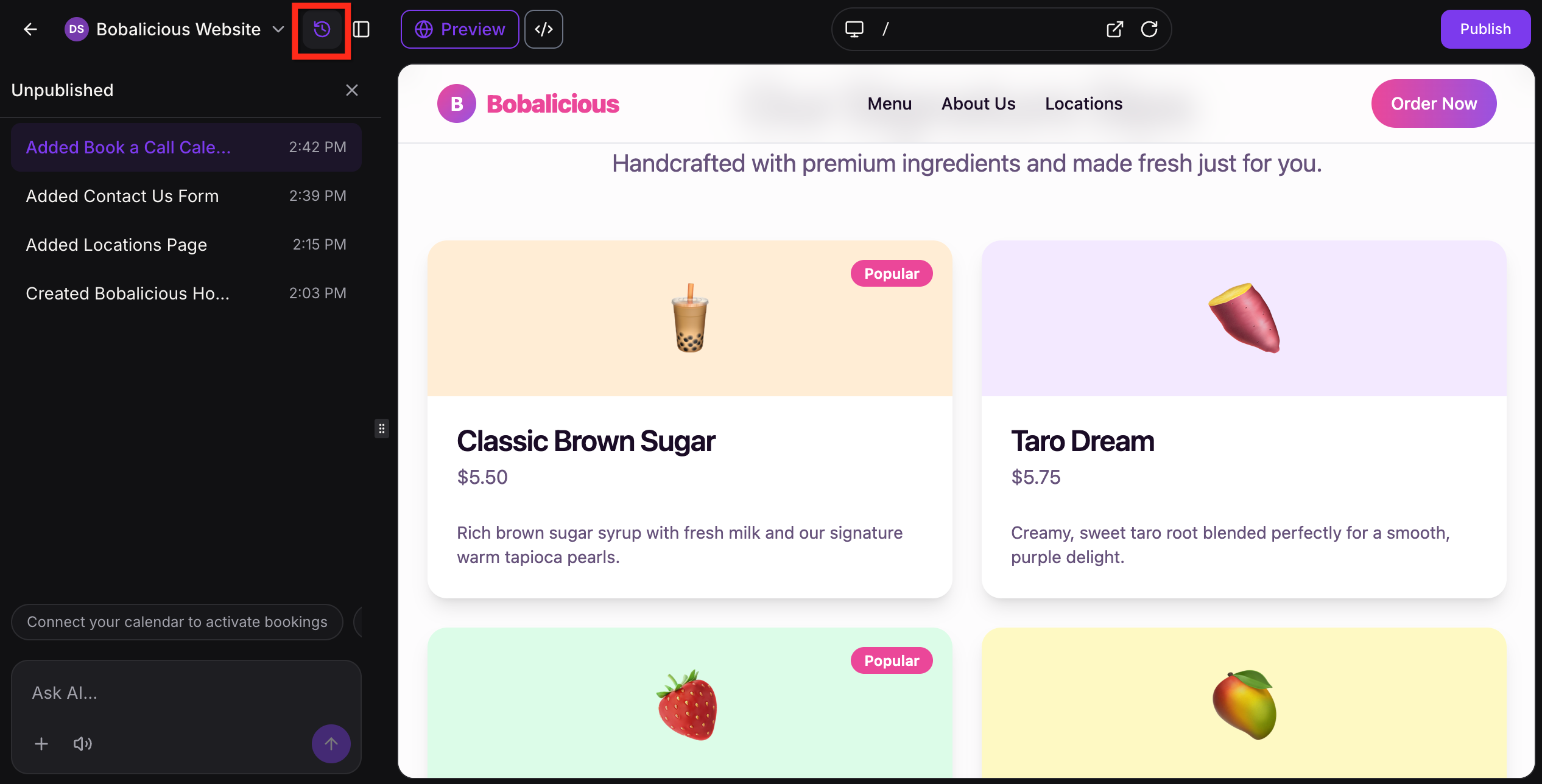
Version History
Every AI-generated change creates a new version you can return to. This makes it safe to experiment — if a prompt takes the design in the wrong direction, you can go back. From Version History you can open, preview, bookmark, or revert to any earlier version of your project.
To access it, click the Version History button from within your project editor.
Connecting Forms and Calendars
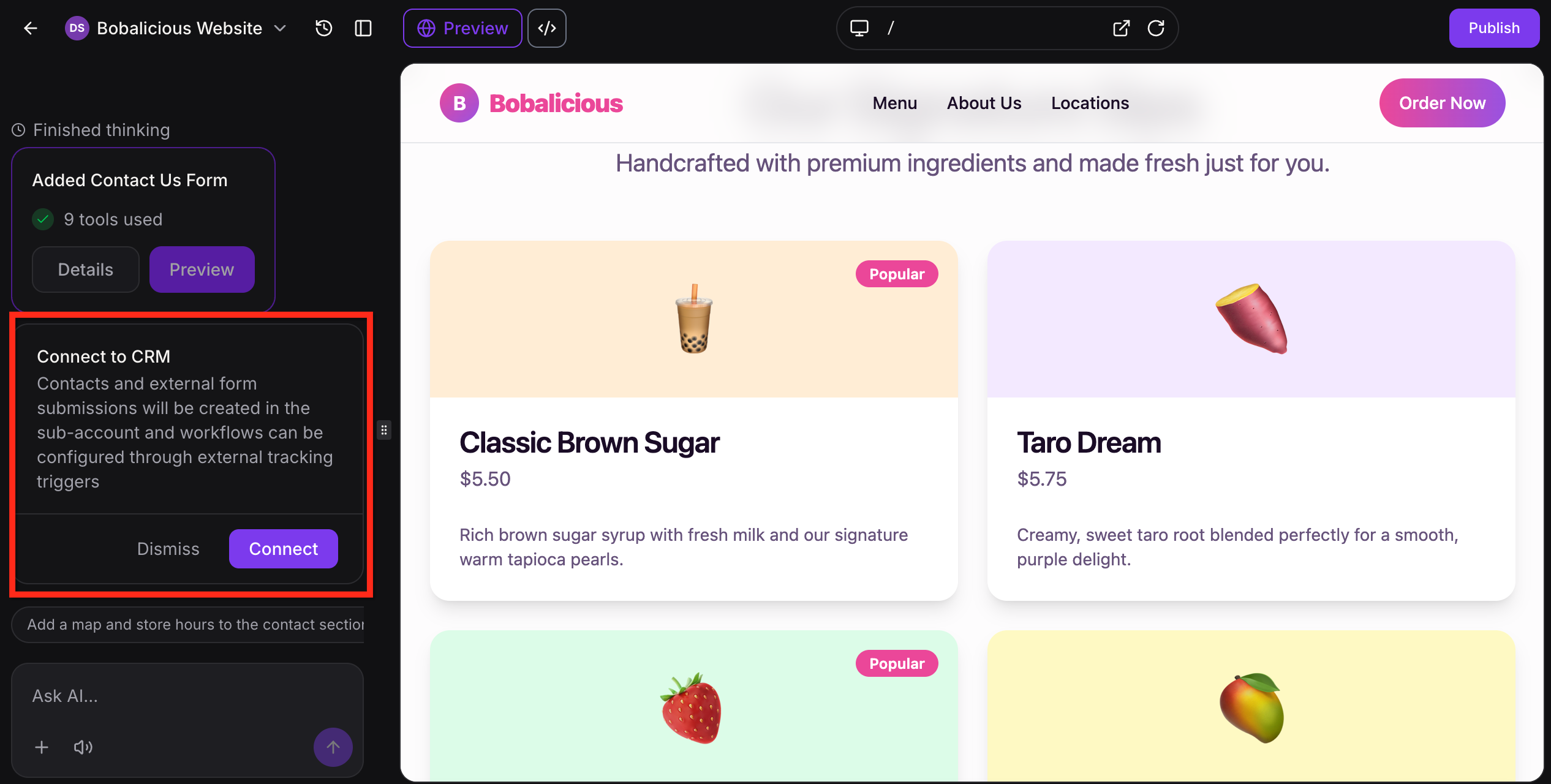
AI Studio can generate the layout for forms and booking sections as part of your page — but they are not connected automatically. You need to tell AI Studio to connect a form or calendar before it starts sending data into your account.
For forms: When you're ready for a form to capture real submissions, ask AI Studio to connect it or click Connect when prompted. This runs through the Connect to CRM flow, which allows the form to create contacts in your account and feed into workflow automations.
Once connected, submissions can be viewed under:
Contacts in your account
Sites → Forms → Submissions → External Forms
To trigger a workflow from a form submission, use the External Tracking Event trigger inside Automation, select Form Submission as the event, and apply your Domain or External Form filters.
For calendars: If you ask for an appointment booking page, AI Studio will build the scheduling layout and then prompt you to select which calendar from your account to connect. Once selected, the booking section becomes fully functional.
Publishing Your Project
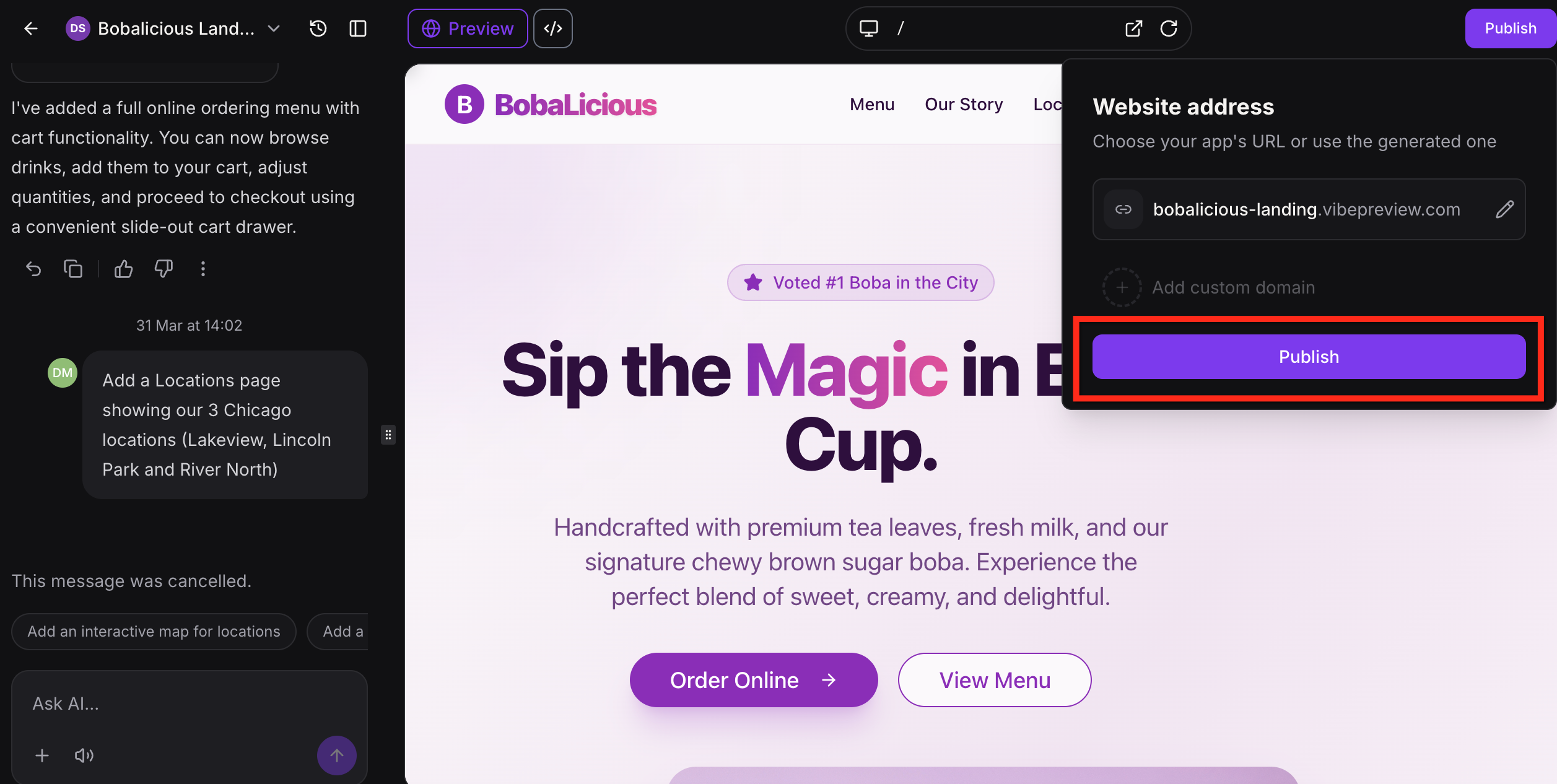
AI Studio uses a staged publishing flow so you can review the live experience before connecting a custom domain.
Click Publish, then click Publish again in the confirmation module.
Update the site icon, name, description, and social share image. Click Apply Changes, then Publish.
To add a custom domain, click Publish → Add Custom Domain.
Enter your domain name. Choose Authorize Automatically or Add Record Manually to configure your DNS settings.
Once a custom domain is connected, that connection is managed through Domain Hub in your account. Your AI Studio project continues to live inside AI Studio, but the published page is accessible on your branded domain.
After a page is published, you can continue editing — changes remain in draft until you publish again, so the live version stays untouched while you work.
Important Limitations to Know
Manual code editing is not currently available inside AI Studio.
AI Studio projects cannot be moved into the standard Funnels or Websites builders — they live and publish from within AI Studio only.
When using a URL or screenshot as reference, treat it as style and layout inspiration, not a pixel-perfect copy.
AI Studio is currently available through Labs, which means the feature set may continue to expand over time.
Frequently Asked Questions
Is AI Studio only for websites and landing pages?
No. AI Studio can also build multi-step surveys, branded forms, appointment booking flows, ecommerce storefronts, dashboards, portfolios, and other interactive front-end experiences.
Do I need to move my AI Studio project into Funnels or Websites before publishing?
No. Projects publish directly from AI Studio. You can build multiple connected pages and launch them to a custom domain without ever touching the Funnels or Websites builders.
Can I preview my project on mobile before publishing?
Yes. The editor includes desktop, tablet, and mobile preview modes. Click the device icon at the top of the preview panel to switch views.
What happens if a prompt takes the design in the wrong direction?
Use Version History to return to an earlier version. Every AI-generated change is saved as a version you can preview, bookmark, or restore at any time.
Does AI Studio cost extra?
AI Studio is currently available at no additional cost. Pricing may be updated as the feature evolves.
What's the difference between AI Studio and Agent Studio?
AI Studio builds websites, landing pages, and other web-based experiences using prompts. Agent Studio is a separate tool used to build AI-powered agents that automate tasks and respond to events. They serve different purposes.
Start Building Faster with AI Studio
Whether you're launching a lead capture page, a booking flow, or a full multi-page website, AI Studio gives you a powerful head start. Describe your idea, refine with follow-up prompts, connect your forms and calendars, and publish — all from one workspace inside your Unlimited Digital Marketing account.
Log in at app.ajaxunion.com, enable AI Studio in Labs, and start your first project today. For more tutorials and platform guides, visit UnlimitedDigitalMarketing.com.
