
Unlimited Digital Marketing Blog
Make the most of your subscription with these helpful tips and resources, while unlocking the potential of digital marketing to gain valuable insights for unlimited growth.
Integrations & Connectivity

How to Connect a Custom Domain to Your Funnels & Websites
Your funnels and websites look more professional, and earn more trust, when they live at your own web address instead of a generic link. In MarTech by Ajax Union, you can connect a domain you own to your Funnels, Websites, Stores, Blogs, and Webinars in a few minutes.
This guide walks you through choosing the right address, connecting it automatically or by hand, picking the page visitors land on, and fixing the most common connection problems.
Root domain vs. subdomain: which should you use?
A root domain is your main web address. A subdomain adds a short prefix in front of it, such as www.yourbusiness.com, offers.yourbusiness.com, or go.yourbusiness.com.
Both work in MarTech. The right choice depends on what that address is already doing:
Use your root domain if it is new, or if you want your MarTech site to be your main website.
Use a subdomain if your root domain already runs another website or service you need to keep online. For example, keep yourbusiness.com where it is and point offers.yourbusiness.com to your funnels.
Why connect your own domain?
A branded experience: visitors see your business name in the address bar, not a generic link.
Two easy setup options: connect automatically if your domain provider supports it, or add one DNS record yourself.
Free, automatic security: MarTech sets up SSL (the padlock in the browser) for you once the domain connects. No certificate to buy.
Control over the first impression: choose exactly which funnel step or website page loads when someone types in your domain.
A branded error page: send visitors who mistype a link to your own 404 page instead of a dead end.
Helpful reminders: an Action Required alert flags any connected domain that is missing its default page settings.
Before you begin
A few minutes of prep now prevents most connection headaches later. Make sure you have:
Ownership of, or access to, the domain or subdomain you want to connect.
Your login for the company that manages the domain's DNS (often your registrar, such as GoDaddy or Namecheap, or a service like Cloudflare).
A decision on whether you will use the root domain or a subdomain.
Keep these rules in mind:
One address can only point to one platform at a time.
Never create both an A record and a CNAME record for the same address.
If you use Cloudflare, the record must be set to DNS only, not Proxied.
DNS changes can take up to 24 hours to take effect worldwide.
Bought your domain inside MarTech? You can manage its DNS from the Purchased Domains area instead of logging in to an outside registrar.
Step 1: Start the connection
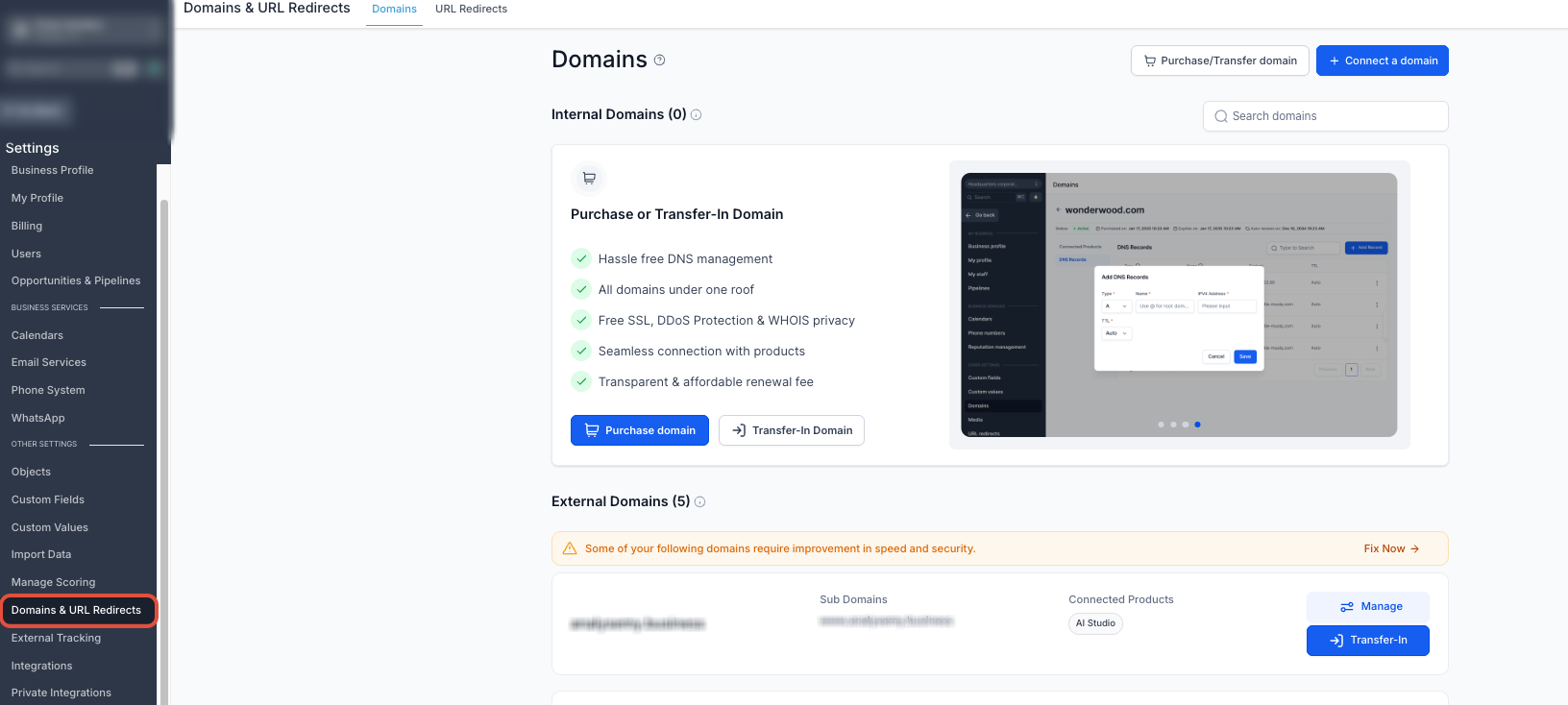
Log in at app.ajaxunion.com and open your account.
Click Settings, then select Domains & URL Redirects.
Click + Connect a domain.
Find Funnel/Website/Store/Blog/Webinar and click Connect.
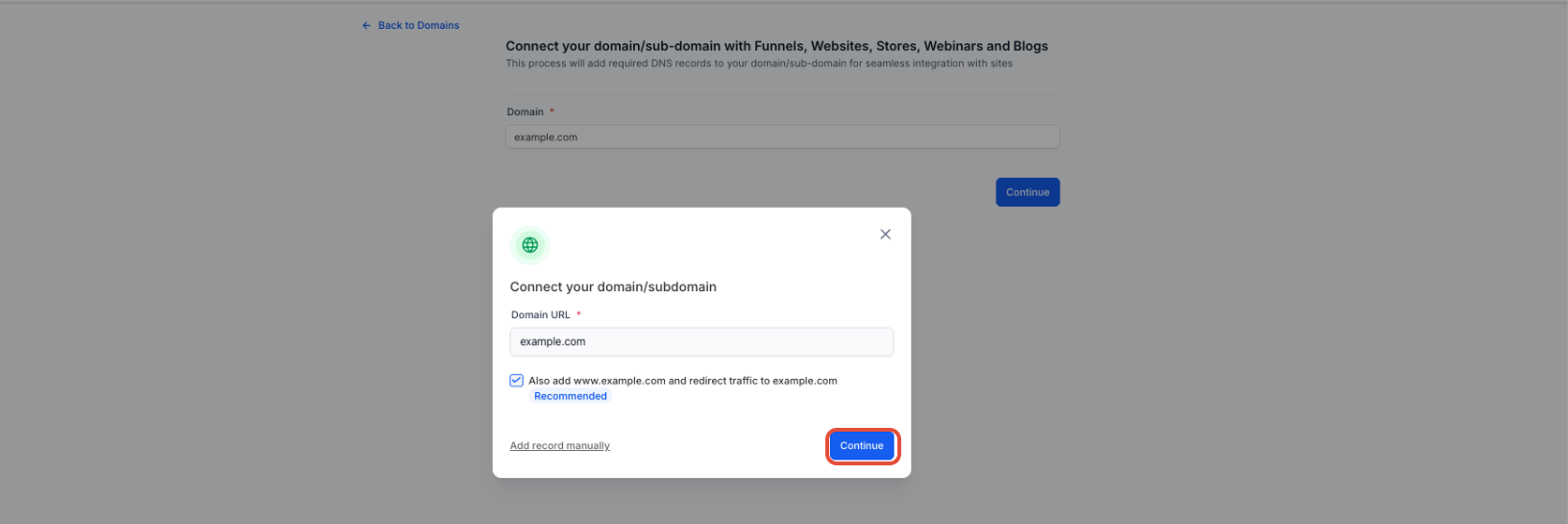
Type your root domain or subdomain into the Domain URL field.
Choose how to connect:
Continue to try automatic setup.
Add record manually to add the DNS record yourself.
Tip: when you connect a root domain, MarTech can also add the www version and redirect it to your root domain automatically, so both addresses reach your site.
Step 2a: Connect automatically (easiest)
If your domain provider supports automatic setup, MarTech handles the DNS for you.
After clicking Continue, click Authorize if your provider is recognized.
Sign in to your domain provider when prompted.
Approve the connection request.
Close the provider tab and return to MarTech, which will verify the setup.
Step 2b: Connect manually
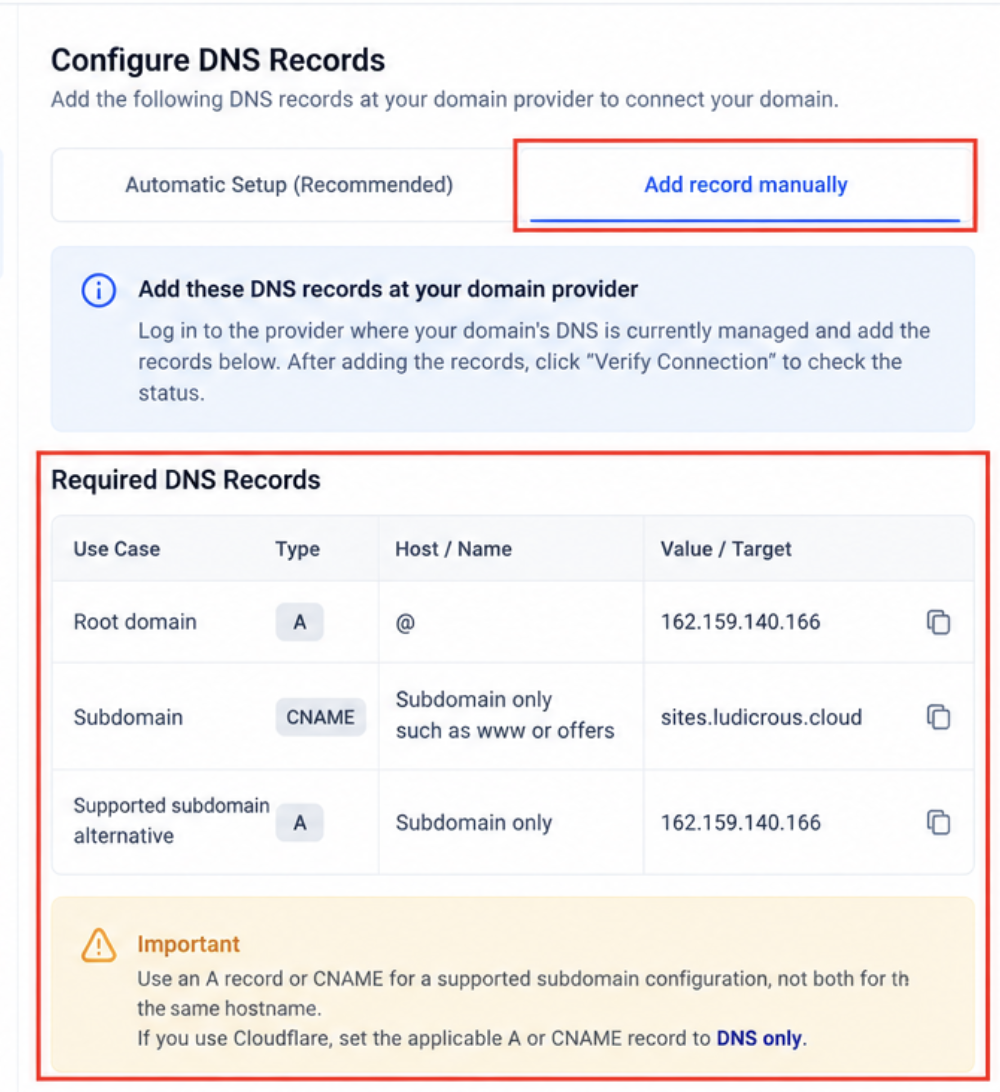
If automatic setup is not available, add one record at the company that manages your domain's DNS.
Click Add record manually in MarTech.
Sign in to your DNS provider and open the DNS settings for your domain.
Add the record that matches your setup:
Connecting a… | Record type | Host / Name | Value / Points to |
Root domain (yourbusiness.com) | A | @ | 162.159.140.166 |
Subdomain (offers.yourbusiness.com) | CNAME | The prefix only, such as offers or www | |
Subdomain (alternative) | A | The prefix only | 162.159.140.166 |
Use an A record or a CNAME for a subdomain, never both. Cloudflare users: set the record to DNS only.
Step 3: Link the domain to your funnel or website
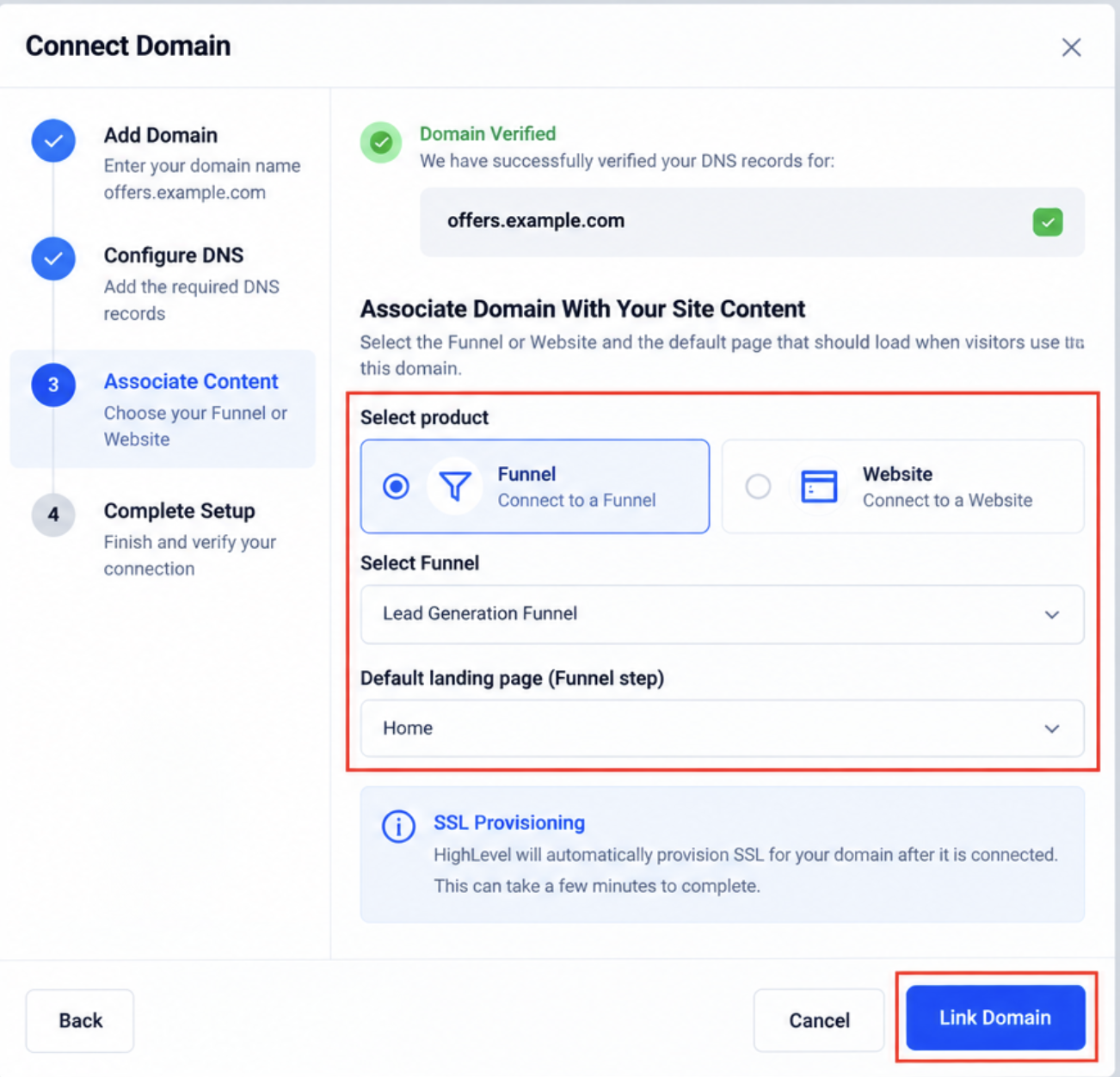
Wait for MarTech to verify your DNS record.
Select the funnel or website you want on this domain.
Choose the funnel step or website page visitors should land on first.
Click Link Domain.
SSL is set up automatically and usually finishes within a few minutes.
Step 4: Set your default page and 404 page
These settings decide what visitors see at your main address and where they go if a link is broken.
Go to Settings → Domains & URL Redirects.
Find your domain and click Manage.
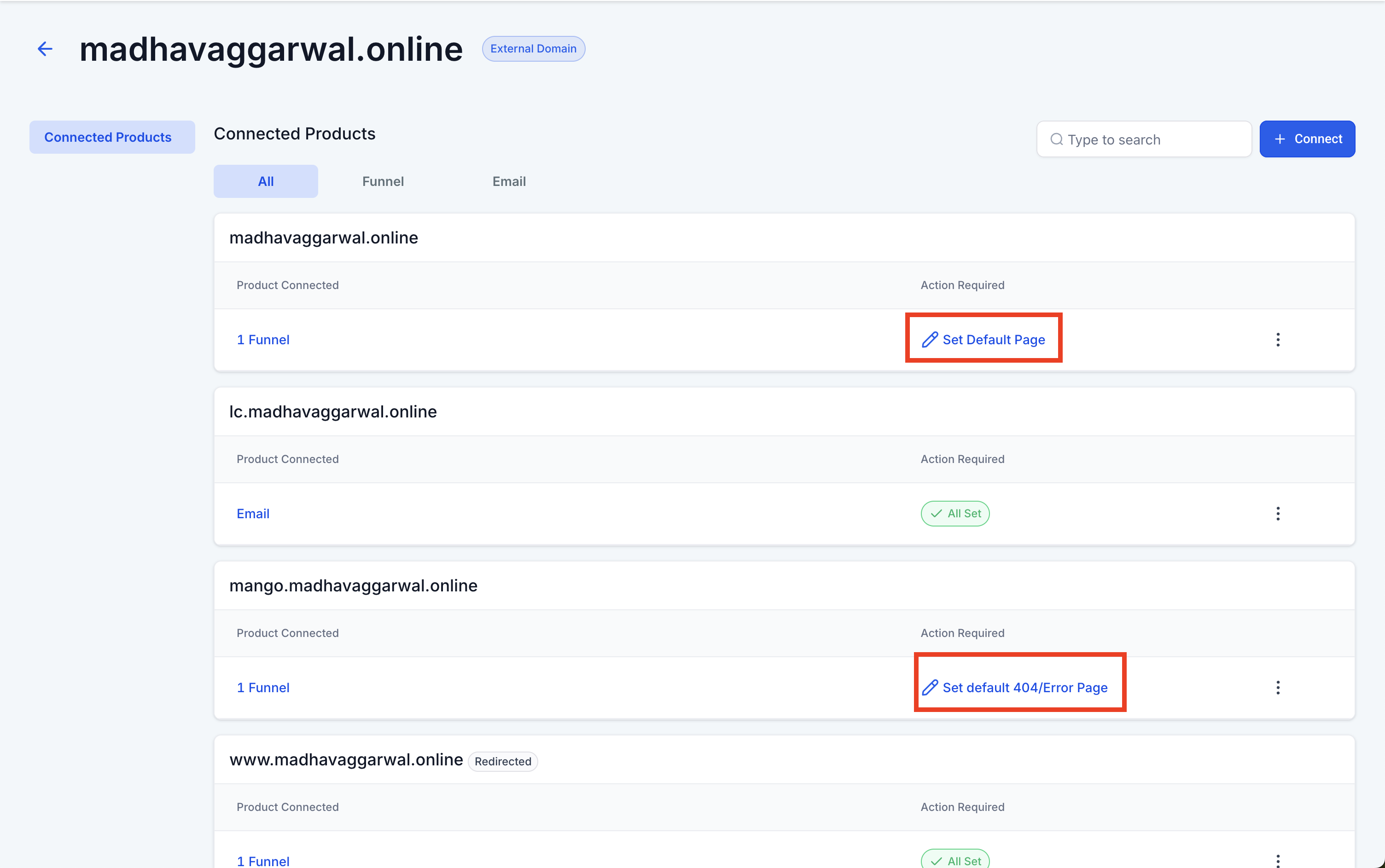
If you see an Action Required alert under Connected Products, click it.
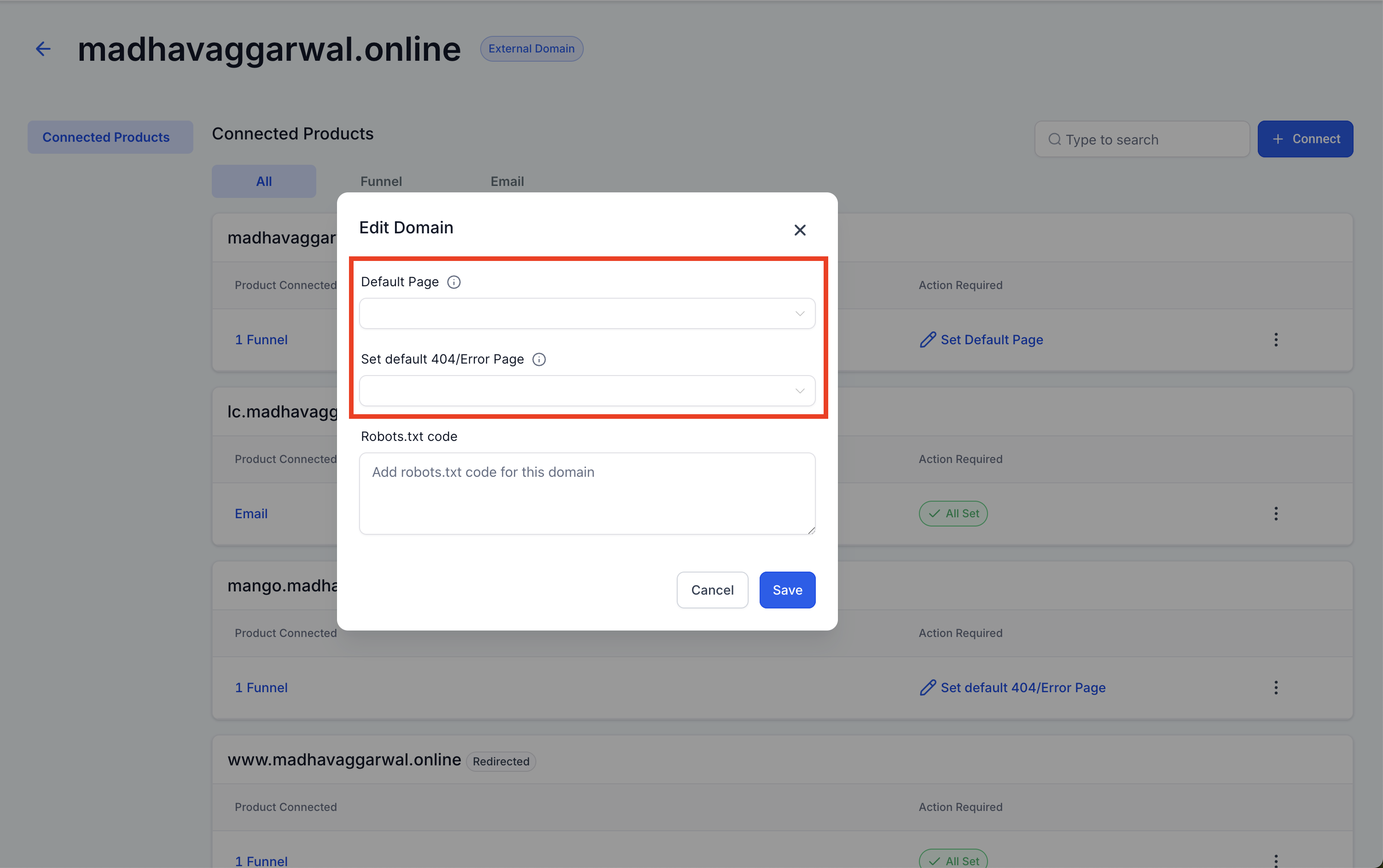
Choose a page from the Default Page dropdown.
Choose a page from the Default 404/Error Page dropdown.
The Action Required alert only appears in the account where the domain was first connected.
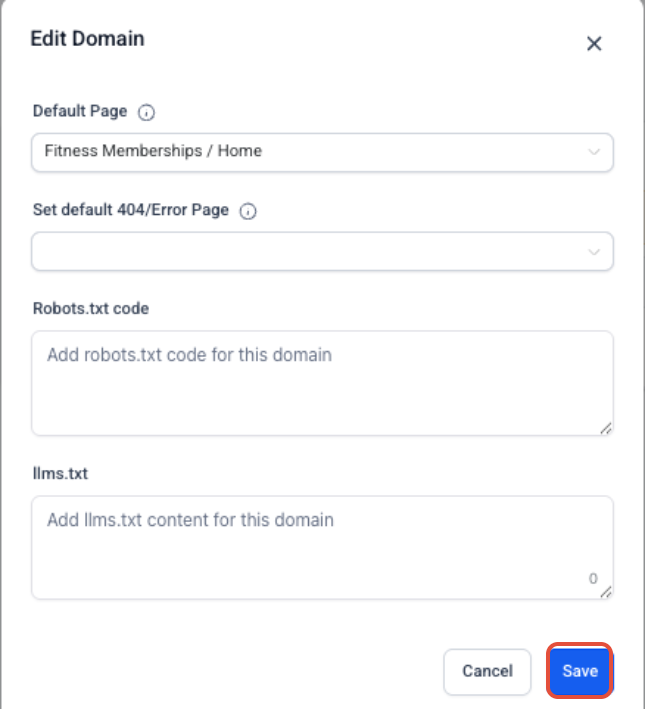
To change these settings later, click Manage on the domain, open the three-dot menu, select Edit, update the default page or 404 page, and click Save.
How to check that your DNS record is live
A free lookup tool shows whether the internet can see your new record yet.
Open a public DNS lookup tool such as MXToolbox.
Choose the lookup type (A or CNAME).
Enter the domain or subdomain you connected and run the lookup.
Confirm it shows sites.ludicrous.cloud (CNAME) or 162.159.140.166 (A record).
Just made the change? Give it up to 24 hours before assuming something went wrong.
How to remove a domain
Before removing a domain, make sure no live funnels or websites still depend on it.
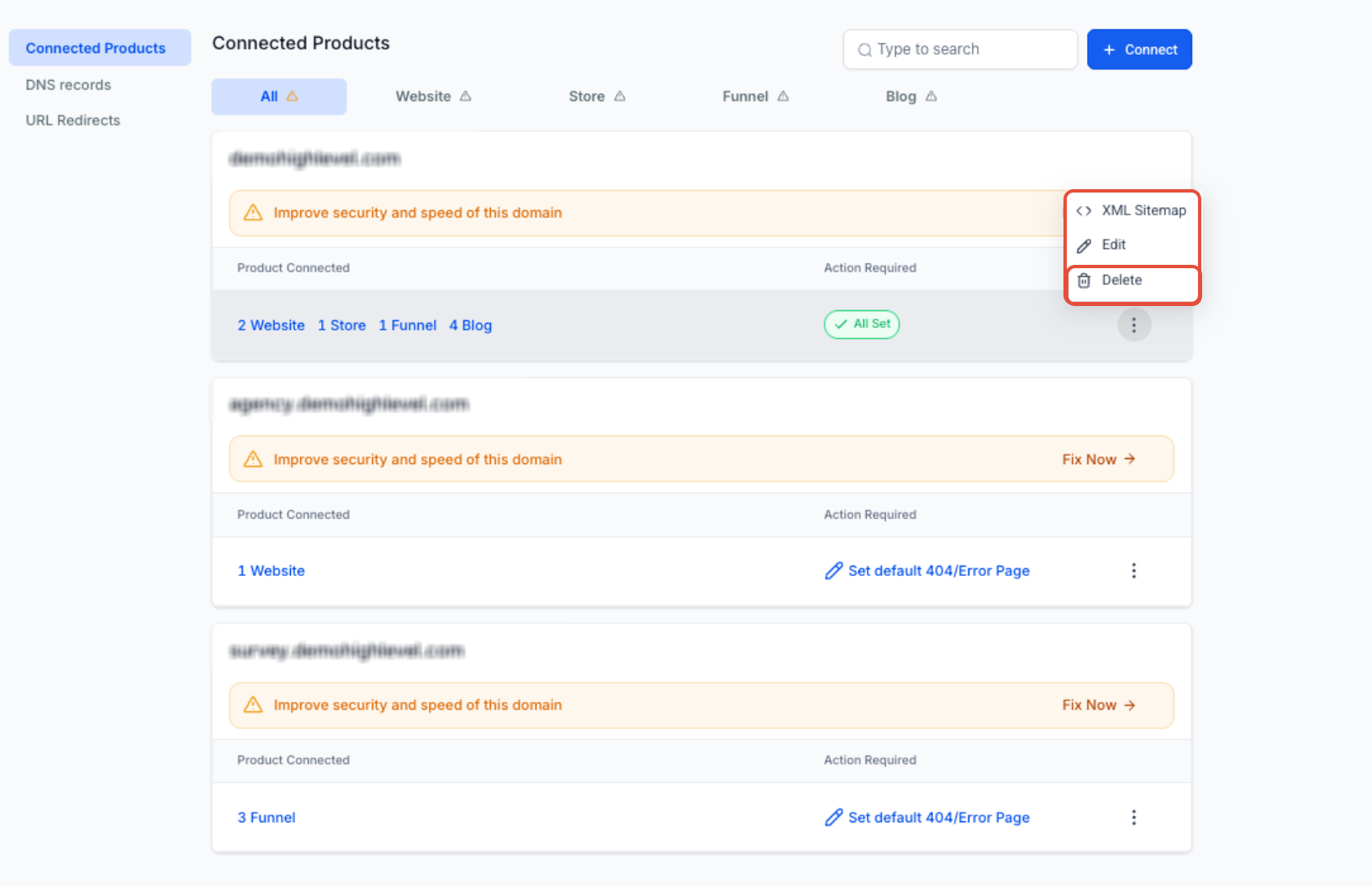
Go to Settings → Domains & URL Redirects.
Find the domain and click Manage.
Open the three-dot menu and select Delete.
Confirm the deletion.
Troubleshooting common issues
Most problems come from a record added in the wrong place, a conflicting record, Cloudflare's proxy, or simply waiting on DNS to update.
"We can't find your CNAME or A record"
Check your domain's nameservers to confirm which company actually manages its DNS, and add the record there.
Delete any other A or CNAME record for the same address that points somewhere else.
In the Host/Name field, enter only the prefix (such as www or offers), not the full domain.
Save, wait for the change to spread, then click verify again in MarTech.
Your site shows an SSL or "not private" warning
Remove any conflicting A, CNAME, or AAAA records for that address.
Confirm the correct record from Step 2b is in place.
On Cloudflare, make sure the record is set to DNS only.
Allow time for DNS to update and SSL to finish.
Your Cloudflare domain won't connect
Sign in to Cloudflare and open your domain's DNS page.
Find the A or CNAME record you added.
Change Proxy status to DNS only and save.
Return to MarTech and try the connection again.
Your domain sometimes shows a 404 page
Check whether visitors use both the www and non-www versions. If so, set up a 301 redirect so one always sends to the other.
Confirm the right funnel step or website page is set as the default page.
Set a Default 404/Error Page so broken links land on a branded page.
Frequently asked questions
Can I use the same domain in more than one account? Yes. The same domain can be added to multiple accounts under the same agency.
Is there a limit on how many domains I can connect? No limit is currently specified.
Do I need to buy an SSL certificate? No. SSL is provided automatically once your domain connects.
Can several funnels or websites share one domain? Yes. Give each one its own path and set the default page so every URL goes to the right place.
Can I buy a domain inside MarTech? Yes. Eligible accounts can purchase and manage domains directly in the platform.
Can I skip automatic setup and do it manually? Yes. Manual DNS setup is always available, whether or not your provider supports automatic connection.
Get your brand online faster
Connecting your domain is one of the quickest ways to make your funnels and websites look polished and trustworthy.
Want to see MarTech in action? Book a live demo and our team will walk you through it.
