
How to Set Up Agent Studio Triggers for Real-Time Starts in Unlimited Digital Marketing
Building an AI agent is only half the battle — the other half is making sure it fires at exactly the right moment. A perfectly trained agent that has to be manually started, or that runs five minutes too late, is just as bad as no agent at all. That's where Agent Studio Triggers come in. Inside app.ajaxunion.com, triggers turn your agents into real-time responders that engage the second a contact submits a form, gets tagged, or sends a chat message.
This tutorial covers what triggers are, the three trigger types you can use today, and exactly how to configure, test, and publish them without breaking your existing automations.
What Are Agent Studio Triggers?
Agent Studio Triggers are event listeners attached to your agent's Start node. When a supported platform event happens — a form submission, a tag change, or an incoming chat message — the trigger fires and starts your agent in the background, instantly.
Because the agent runs in the background, your pages, APIs, and Customer-facing surfaces stay fast. The contact never waits, and you don't need polling scripts or custom webhooks to glue events to actions.
Today, Agent Studio supports three trigger types:
Form Submitted
Lead Tag (added or removed)
Chat Message
Each of these gives your agent a different entry point — and a different set of variables to work with once it starts.
Why Triggers Matter
A few specific advantages worth knowing before you start configuring:
Real-time engagement — respond to leads the moment they act, not the next morning.
Hands-free scalability — replace polling scripts and custom webhook code with an in-product trigger you can configure in minutes.
Consistent entry points — standardize how every agent starts so testing and troubleshooting stay simple.
Non-breaking adoption — triggers are additive. Existing API-based agents continue to work exactly as they did.
A foundation for growth — more trigger types are on the roadmap, so the patterns you build now will keep paying off.
How to Set Up a Trigger: Step by Step
Step 1: Open Agent Studio
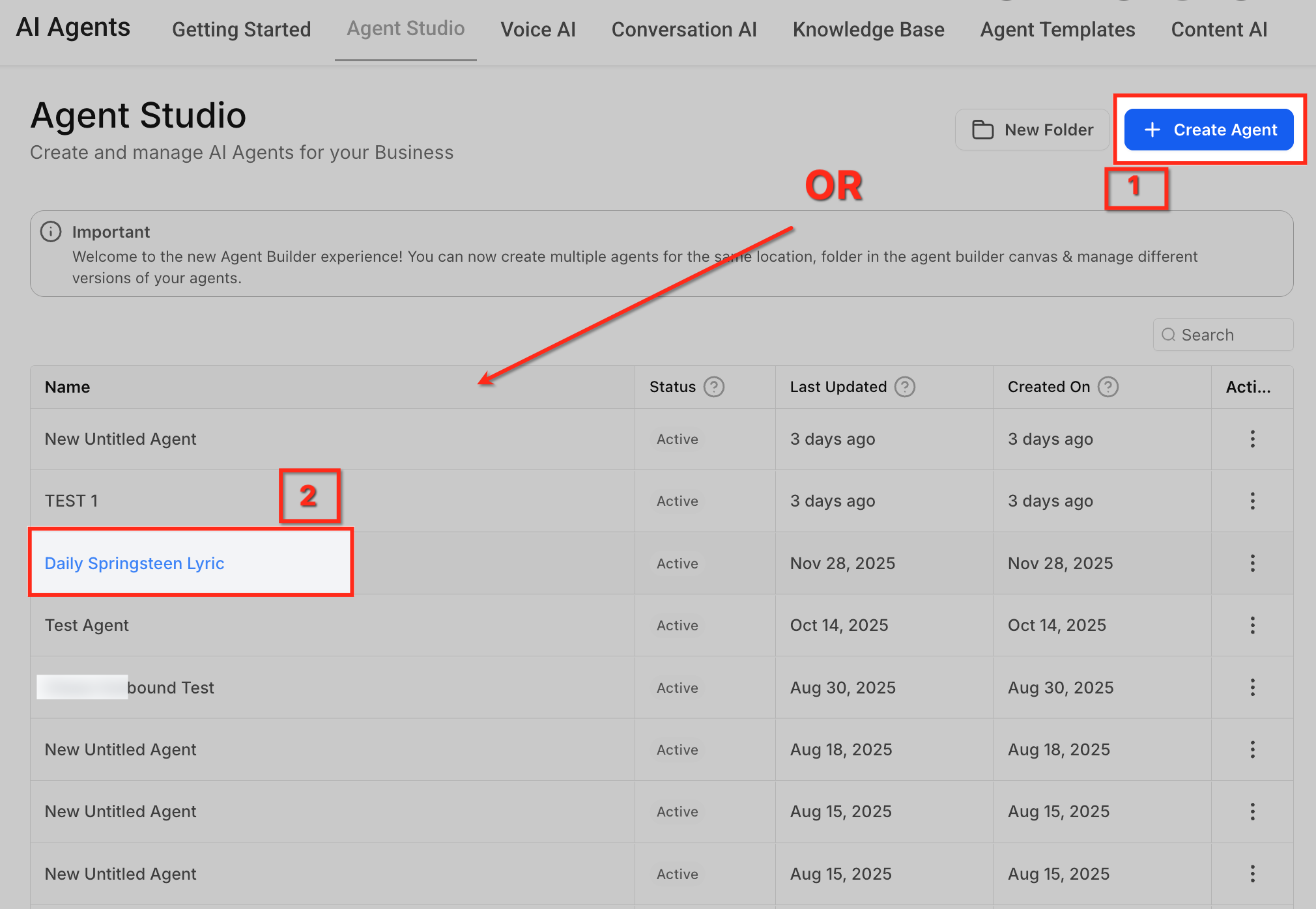
Log into app.ajaxunion.com, open the left sidebar, click AI Agents, and select the Agent Studio tab. This opens the workspace for the current sub-account.
Step 2: Create or Open an Agent
Click Create Agent to start a new agent, or click an existing agent's name to edit it. The list shows each agent's Status, Last Updated, and Created On so you can find the right one quickly.
Step 3: Open the Canvas
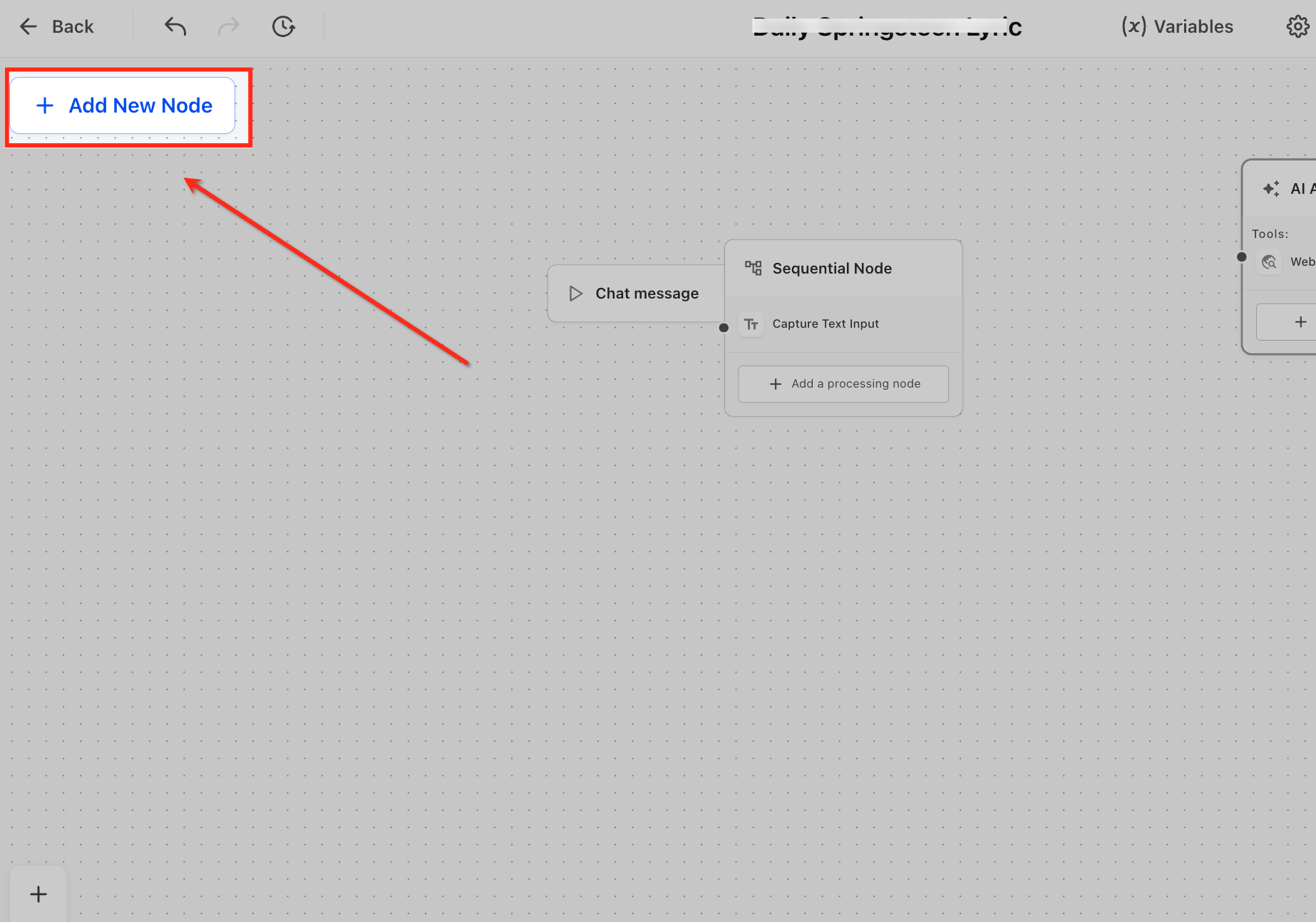
Inside the agent, you'll see the builder canvas with existing nodes and a plus control. Click Add New Node to start building, or scroll to the starting area of your existing flow.
Step 4: Add the Start Trigger Node
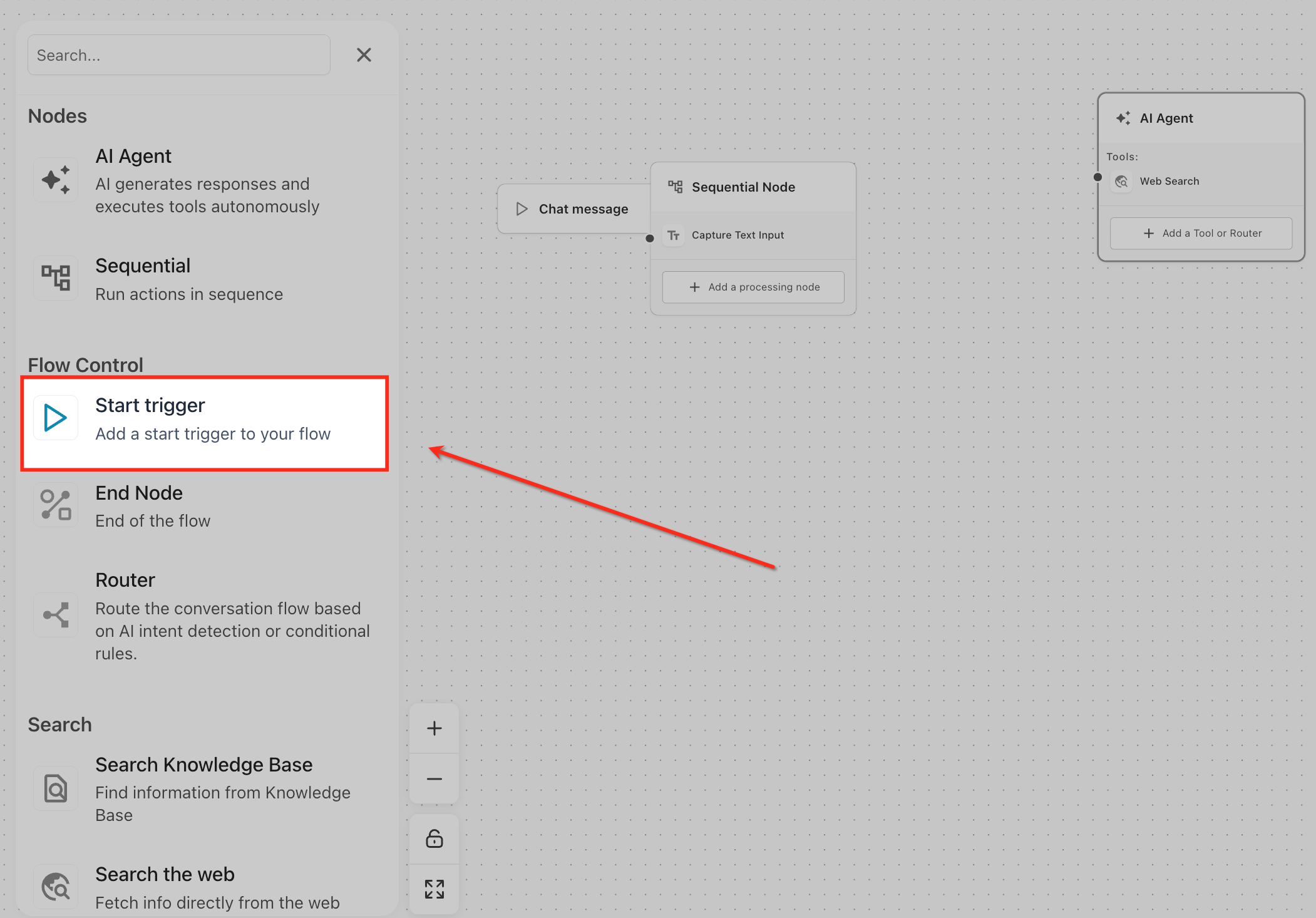
From the node picker, look under Flow Control and choose Start trigger. This drops a trigger tile onto the canvas — the listener that will start your agent when an event fires.
Step 5: Pick a Trigger Type
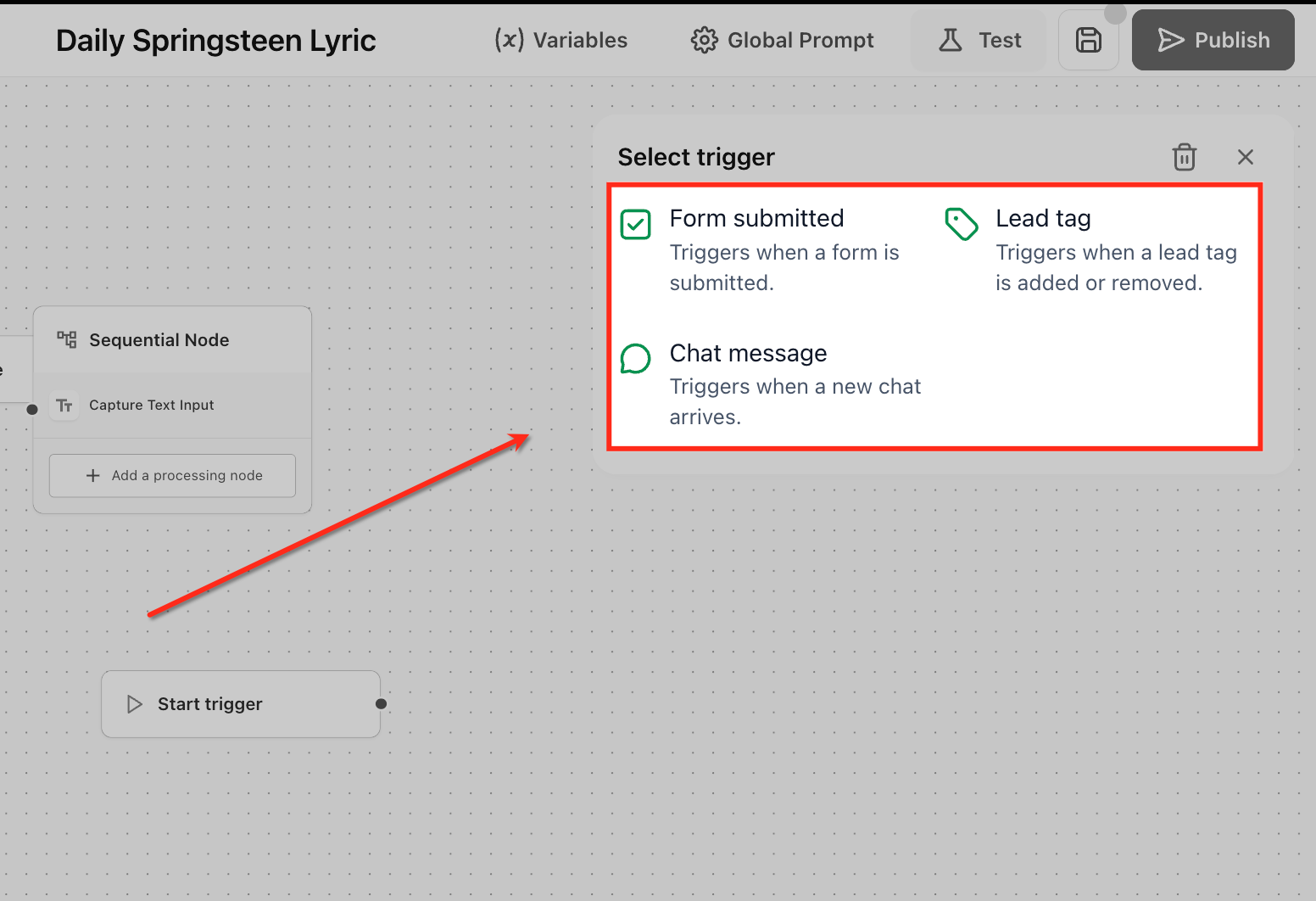
In the Select trigger panel, choose one of the three options:
Form Submitted
Lead Tag
Chat Message
The configuration options that appear next depend on which one you picked.
The Three Trigger Types Explained
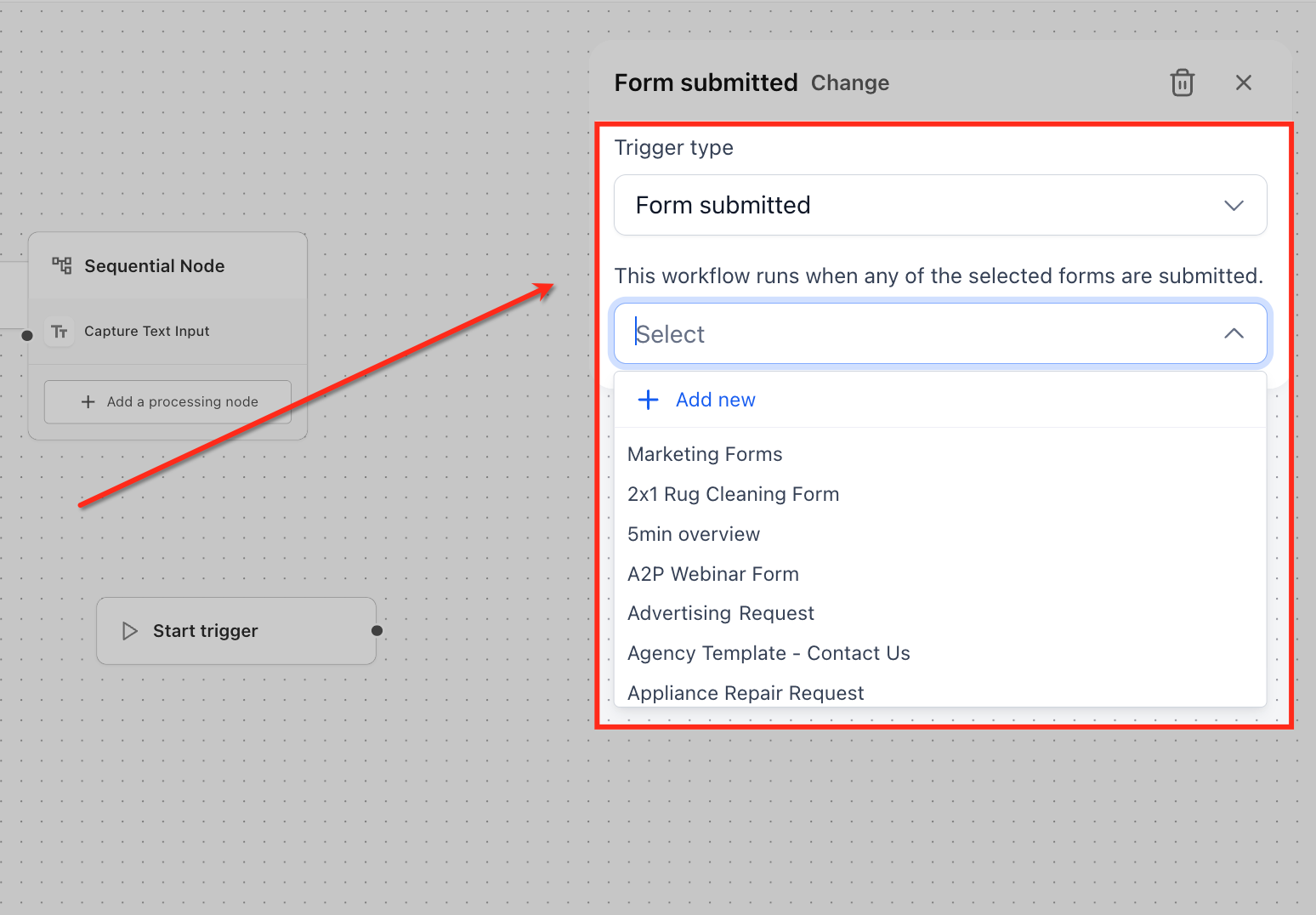
Form Submitted Trigger
Use this when you want an agent to engage immediately after a contact completes a form tracked in your account. It's ideal for instant nurture, lead qualification, and routing to the right team or pipeline.
Starts the agent the moment any selected form is submitted.
Exposes the form's submitted fields as variables your agent can reference in later steps.
To configure: open the dropdown and select one or more forms. If the form doesn't exist yet, click Add new to create one without leaving the trigger setup.
Lead Tag Trigger (Added or Removed)
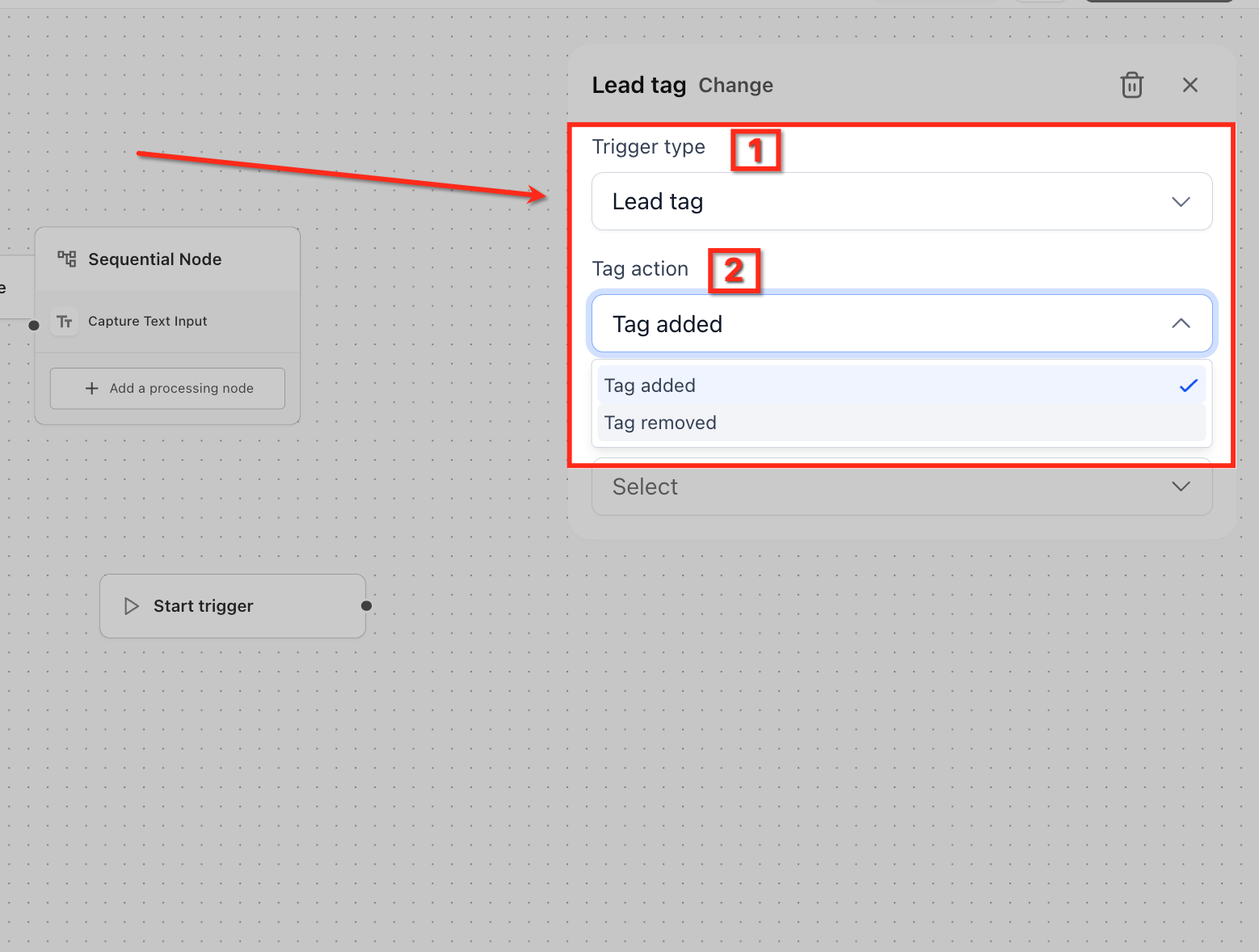
Use this when a tag change should kick off an automation. Common use cases include VIP onboarding, re-engagement sequences, and churn prevention.
Starts the agent when a selected tag is added to or removed from a contact.
Provides the contact's full context — existing tags, custom fields, and more — to your flow.
To configure:
Set Tag action to Tag added or Tag removed.
Pick a tag from the list, or click Add new to create one on the fly.
Tip: when you're bulk-adding tags for testing, run it against a small test segment first. Bulk-applying a tag to thousands of contacts will trigger thousands of agent runs.
Chat Message Trigger
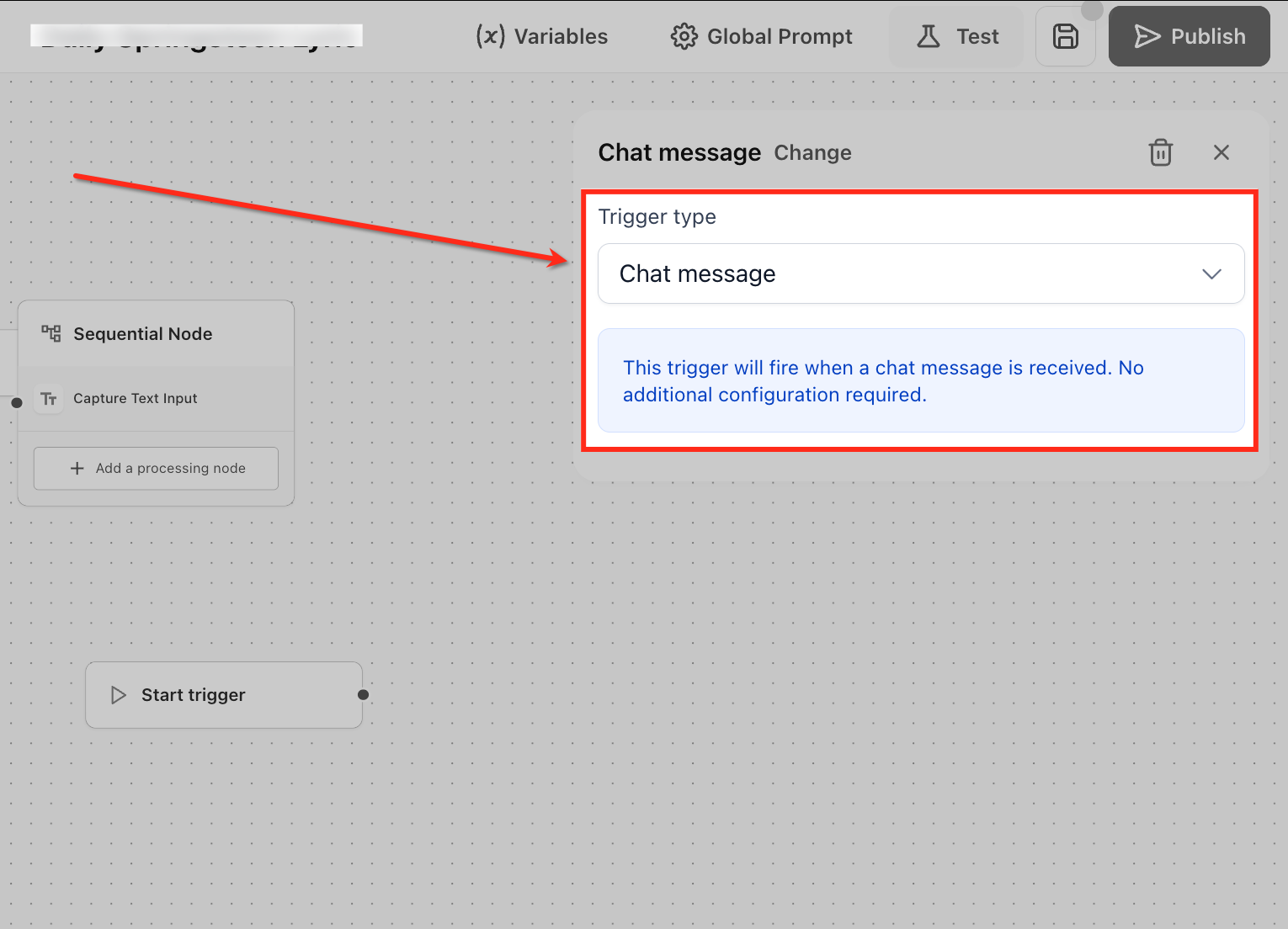
Use this when you want your agent to respond the second a new inbound message hits one of your connected chat widgets or providers. It's perfect for instant replies, smart routing, and FAQ deflection before a human ever has to step in.
No additional configuration required — just add the trigger and publish.
Provides the message text, sender details, and full conversation context to your flow logic.
If you also use the Ask AI assistant, you can route conversations from Ask AI into a specific agent — the chat will initiate the agent through this same Chat message trigger.
Step 6: Validate and Go Live
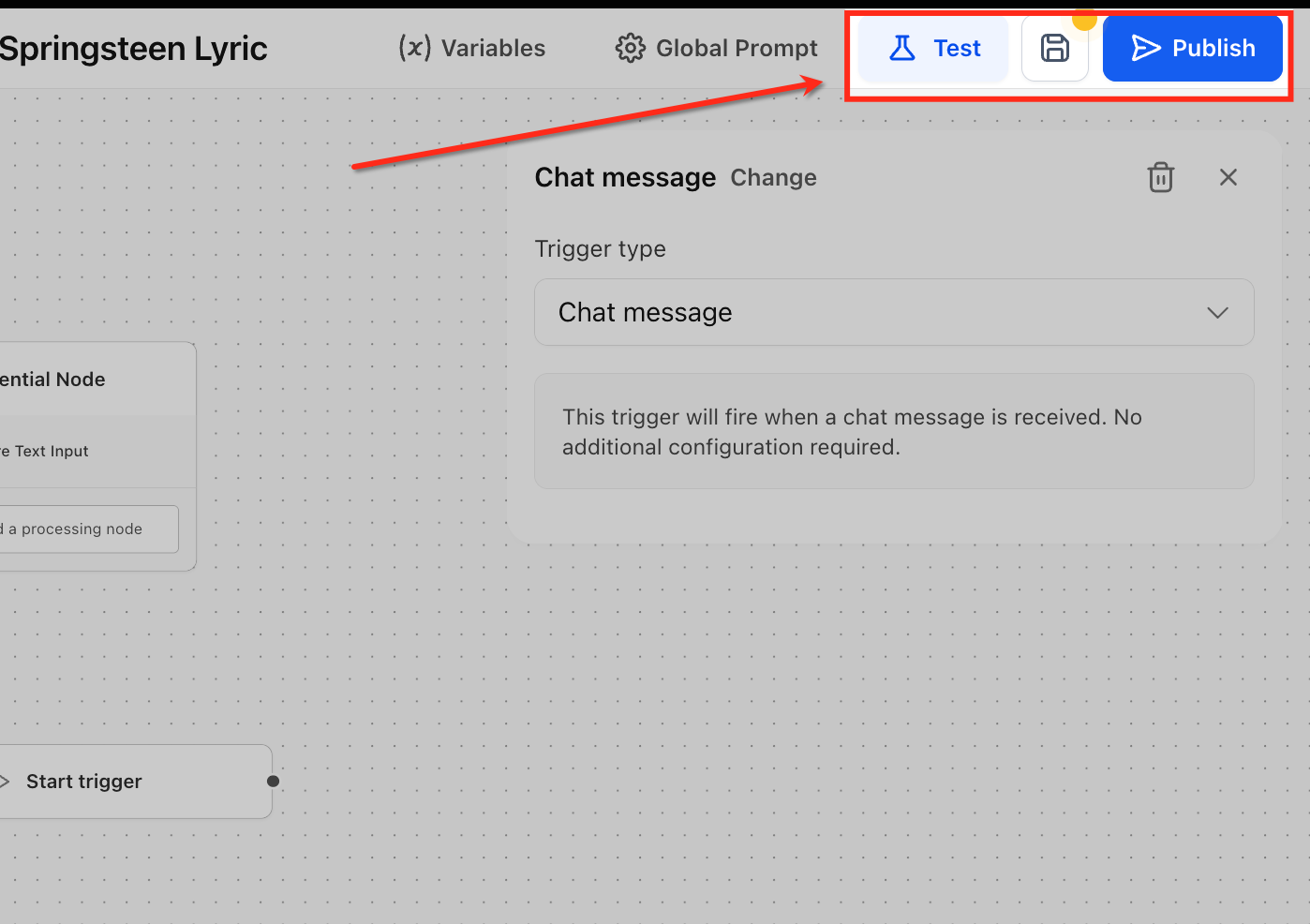
Once your trigger is configured, follow this three-step launch process:
Test — run a safe simulation of the selected trigger. You'll see exactly which variables and payload the agent receives, and no live contacts are affected. Use this to iterate on prompts and node logic before publishing.
Save — store your changes as a Staging version. Nothing goes live yet, but your work is preserved and you can come back to it. Save after every major configuration step.
Publish — push the agent and its Start trigger live for the sub-account. Real events will now start the agent automatically. Make sure the Start trigger is connected to the first node before publishing.
If the agent is going to be mapped to other features like Ask AI, it typically needs to be in Production before it'll appear as an option in those mappings.
Frequently Asked Questions
Will triggers change how my existing API-invoked agents run?
No. Triggers are additive. Existing API-driven flows continue to work exactly as before — triggers only run for agents where you've explicitly added a Start trigger.
Can I test a trigger before going live?
Yes. The canvas Test option simulates the event so you can validate variables, payload, and response behavior without affecting real contacts.
Which chat sources are supported?
Chat triggers work with the existing chat widgets and providers connected to your sub-account. No extra configuration is needed to start.
What data does my agent get when a trigger fires?
It depends on the trigger:
Form submissions include the mapped form fields.
Lead tag events include the contact's full context.
Chat message events include the message text and conversation metadata.
What if I don't see my form or tag in the dropdown?
Confirm you're in the correct sub-account, that the form or tag actually exists there, and refresh the builder. Newly created assets sometimes need a quick refresh to appear.
Can one agent have multiple triggers?
Each agent has a single Start trigger, but you can build multiple agents that respond to different events and route between them using AI Agent Nodes or sub-workflows.
Make Your Agents React in Real Time
Triggers are what turn Agent Studio from a powerful builder into a true automation engine. Set them up once and your agents are on call 24/7 — engaging leads the second they fill out a form, nurturing contacts the moment they get tagged, and answering chats before a customer has time to refresh the page.
Log in at app.ajaxunion.com, open AI Agents → Agent Studio, and add a Start trigger to your next agent. For more tutorials and platform guides, visit UnlimitedDigitalMarketing.com.

