How to Set Up Appointment Reminder Workflows in Unlimited Digital Marketing
No-shows are expensive. A lead who books an appointment and then forgets about it represents lost revenue, wasted calendar time, and a missed opportunity to build a relationship. The good news is that inside app.ajaxunion.com, you can build automated appointment reminder workflows that send timely, personalized messages to contacts via email, SMS, or WhatsApp — without any manual follow-up from your team.
This tutorial covers two approaches: setting up built-in calendar notifications for immediate confirmations and reminders, and building a workflow for more advanced, multi-touch reminder sequences — including a special configuration for Zoom-based appointments.
Two Ways to Send Appointment Reminders
Unlimited Digital Marketing gives you two distinct tools for appointment reminders, and they work best when used together:
Calendar Notifications — built directly into each calendar's settings. Best for immediate confirmations, cancellation alerts, reschedule notices, and simple before/after reminders sent automatically at a fixed time.
Workflow-Based Reminders — built inside the Workflows module. Best for multi-step sequences, custom timing logic, and situations where you need more control over when and how messages go out (such as Zoom appointments).
Part 1: Set Up Appointment Notifications Through Your Calendar
Step 1: Open Calendar Notification Settings
Go to Calendars in your left-hand sidebar, then click Calendar Settings. Select the calendar you want to configure and click the Notifications tab.
Step 2: Choose a Notification Type
You'll see six notification types available to configure:
Appointment Booked (Unconfirmed) — sent immediately when an appointment is booked with unconfirmed status
Appointment Booked (Confirmed) — sent when an appointment is confirmed or updated to confirmed status
Cancellation — sent when an appointment is canceled, marked as no-show, or deemed invalid
Reschedule — sent when the appointment date or time changes
Reminder — sent before the appointment at a timing you define
Follow-Up — sent after the appointment at a timing you define
Click the notification type you want to configure to open its settings.
Step 3: Configure the Channel — Email, SMS, WhatsApp, or In-App
Each notification type supports multiple channels. Select the tab for the channel you want to configure and enable the toggle.
Email notifications:
Choose an existing email template or write a custom subject line and body directly in the editor
For Reminder and Follow-Up types, set exactly how far in advance (or after) the email should send
Use the Send Test Email button to preview the message before activating it
Multiple timing triggers can be added for Follow-Up emails
SMS notifications:
Choose recipients: Contact, Assigned User, or Additional Phone Numbers
Select or create an SMS template. Use Custom Values like
{{contact.name}}and{{appointment.start_time}}to personalize messagesSet timing for Reminder and Follow-Up SMS
Include country codes for all phone numbers to ensure delivery
Note that SMS messages are billed per segment, so keep them concise
WhatsApp notifications:
Select an approved WhatsApp template (only pre-approved templates can be used)
Choose recipients: Contact, Assigned User, or Additional Numbers
Use Send Test WhatsApp Notification to preview before enabling
Ensure your WhatsApp Business Account is connected and verified before activating
In-App notifications:
Select which users should receive the notification
Set timing for Reminder and Follow-Up types
For Event Calendars, account admins receive in-app notifications by default; for other calendar types, the assigned user is selected by default
Step 4: Save Your Settings
Once you've configured each notification type and channel, click Save. Repeat this process for any additional notification types you want to activate.
Part 2: Build a Workflow-Based Appointment Reminder Sequence
For more complex reminder sequences — especially those involving Zoom meeting links — the Workflow builder gives you full control over timing, messaging, and logic. Here's how to build one from scratch.
Step 1: Create a New Workflow and Add Your Trigger
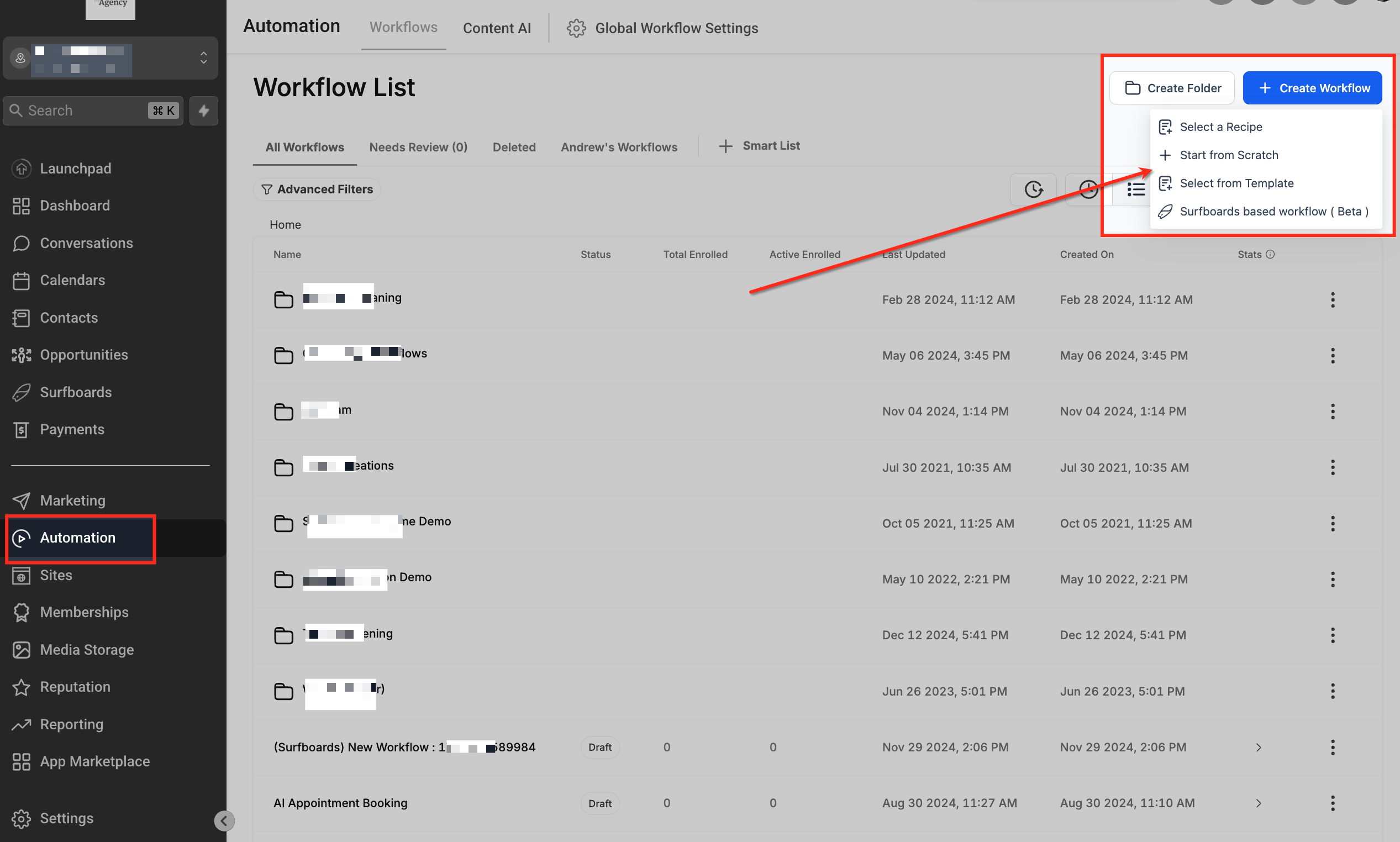
Navigate to Automation > Workflows and create a new workflow. Click Add New Workflow Trigger and select Appointment.
Click Add Filters, then set the filter to Appointment Status is Confirmed. This ensures the workflow only fires for confirmed bookings. Save the trigger.

Step 2: Add a 1-Minute Wait Step
If your calendar uses Zoom as the meeting location, this step is critical. The platform needs a moment to process and generate the Zoom meeting link before it can be included in any outgoing message.
Click the + button to add a new action. Scroll down and select Wait, then set the delay to 1 minute. Save the action.
Skipping this wait step when using Zoom integration will result in reminder messages being sent without the meeting link — one of the most common causes of confused contacts showing up to appointments without a way to join.
Step 3: Send an Immediate Confirmation Message
Click + after the wait step to add your first message action. Choose Send Email or Send SMS depending on your preferred confirmation channel. Build your confirmation message using Custom Values to personalize it with the contact's name, appointment time, date, and — if applicable — the Zoom meeting link.
Save the action.
Step 4: Add a Wait Step Timed to the Appointment
Now you'll set up the timing for your reminder message. Click + to add another Wait step. This time, instead of a fixed delay, select Event / Appointment Time as the reference point.
Enter how far in advance you want the reminder to go out. For example, to send a reminder four days before the appointment, type 4 and switch the unit from minutes to days. Select the option to Skip all outbound communication actions until the next wait or Event Start Date action to prevent reminder messages from sending if the appointment has already passed.
Step 5: Send the Reminder Message
Click + after the wait step and add another Send Email or Send SMS action. This is your reminder — craft it to confirm the appointment details, include the Zoom link if applicable, and prompt the contact to reach out if they need to reschedule.
Save the action.
Step 6: Add Additional Reminders (Optional)
You can continue stacking Wait + Message steps to build a multi-touch reminder sequence. A common approach is to send reminders at four days out, one day out, and one hour before the appointment. Each Wait step can be configured independently with its own timing and message.
Best Practices for Appointment Reminders
Lead with the most important details — appointment date, time, and location or meeting link should appear early in every reminder message
Use Custom Values — always personalize with the contact's name and appointment specifics to avoid generic-feeling messages
Always add the 1-minute wait for Zoom appointments — this is not optional if you want the meeting link to populate correctly
Stack multiple reminders — a sequence that touches contacts at 4 days, 1 day, and 1 hour before the appointment dramatically reduces no-show rates
Test before activating — use test emails, SMS, or phone calls to verify your messages look and read correctly before enabling the workflow for live contacts
Use the Confirmed status filter — triggering on confirmed appointments prevents your workflow from firing on tentative or unconfirmed bookings
Frequently Asked Questions
What's the difference between calendar notifications and workflow reminders?
Calendar notifications are built into the calendar settings and fire automatically based on appointment events. Workflow reminders give you more flexibility — including multi-step sequences, custom timing, and conditional logic. Both can be used simultaneously.
Why is the 1-minute wait step necessary for Zoom appointments?
When a confirmed appointment triggers a workflow, the platform needs time to generate the Zoom meeting link. Adding a 1-minute wait before any message step ensures the link is available and will populate correctly in your email or SMS.
Can I send reminders via both email and SMS?
Yes. You can add both a Send Email and a Send SMS action after each Wait step, or configure each channel separately inside your calendar's Notification settings.
What Custom Values can I use in reminder messages?
Common values include {{contact.name}}, {{appointment.start_time}}, {{appointment.end_time}}, {{appointment.time_zone}}, and the meeting location or Zoom link. A full list of available custom values is accessible inside the workflow message editor.
Can I set up reminders for cancellations and reschedules too?
Yes. Both the Calendar Notifications tab and the Workflow builder support cancellation and reschedule triggers. In your calendar settings, simply configure the Cancellation and Reschedule notification types with the appropriate message and channel.
Will the workflow send a reminder if the appointment has already passed?
Not if you configure your Wait step correctly. Select Skip all outbound communication actions until the next wait or Event Start Date action inside the Wait step to prevent stale reminders from going out.
Stop No-Shows Before They Happen
A well-built reminder workflow is one of the highest-leverage automations you can set up in your account. It runs in the background, keeps contacts informed, and protects the time you've already invested in getting them booked.
Log in to app.ajaxunion.com to build your appointment reminder workflow today, or visit UnlimitedDigitalMarketing.com to explore more ways to automate your business.

