
How to Create and Send Contracts for E-Signature in Unlimited Digital Marketing
Chasing down signatures, juggling separate proposal tools, and manually invoicing after every signed agreement slows deals down and makes your business look less polished than it is. With Documents & Contracts in Unlimited Digital Marketing, you can build professional contracts, proposals, and estimates, collect legally binding e-signatures, and even take payment — all from inside the same platform you already use to manage your contacts.
This tutorial walks you through everything from finding the dashboard to building, sending, and tracking a contract from start to finish.
What Is Documents & Contracts?
Documents & Contracts is a built-in tool that lives under the Payments section of Unlimited Digital Marketing. It lets your business create and manage legally binding agreements without leaving your CRM.
You can start a document three different ways — from a blank canvas, by uploading an existing PDF, or from a prebuilt template — and then layer in e-signature fields, payment collection, automated triggers, and full audit tracking. For agencies, small businesses, and service providers, it replaces the patchwork of separate proposal, signing, and invoicing apps with one connected workflow that helps you close deals faster.
Key Benefits
Everything in one dashboard. Every contract and proposal lives in one organized place under Payments, so your team always knows the status of each agreement without hunting across multiple tools.
Reusable templates. Build a template once for recurring agreements — service contracts, proposals, retainers — and reuse it to keep every document consistent and professional while saving setup time.
E-signatures with an audit trail. Collect legally binding signatures online. Each one generates a certificate recording the signer's details, IP address, and timestamp, giving you legal protection while keeping the signing experience effortless for your client.
Built-in payments. Add one-time or recurring charges directly inside a contract so you can close the deal and collect revenue in the same step — no separate invoice required.
Workflow automation. Trigger follow-up actions automatically when a document is created, sent, viewed, or signed, so deals keep moving without manual chasing.
Navigating the Documents & Contracts Dashboard
The dashboard is your control center for every agreement. To open it, go to Payments → Documents & Contracts in the left menu, then choose All Documents & Contracts from the dropdown to see every draft, sent, completed, or archived document in one view.
A few things to know as you navigate:
Status tabs. Documents are sorted into Draft, Waiting for others, Completed, Payments, and Archived. These make it easy to see, at a glance, which clients still need to sign (just check Waiting for others).
At-a-glance columns. Each row shows the Title, Status, Customer, Date Modified, and Value, so you can quickly tell which agreements are active, which need follow-up, and which are closed out.
Date filter. Narrow the list by selecting a start and end date — handy for reviewing contracts created during a specific billing cycle or proposals sent within a certain window.
Quick actions. The three-dot menu beside any record lets you View, Clone, Mark as Completed, Download a PDF, Convert to Template, Share via Link, Move to Draft, or Mark as Declined.
Creating a New Document
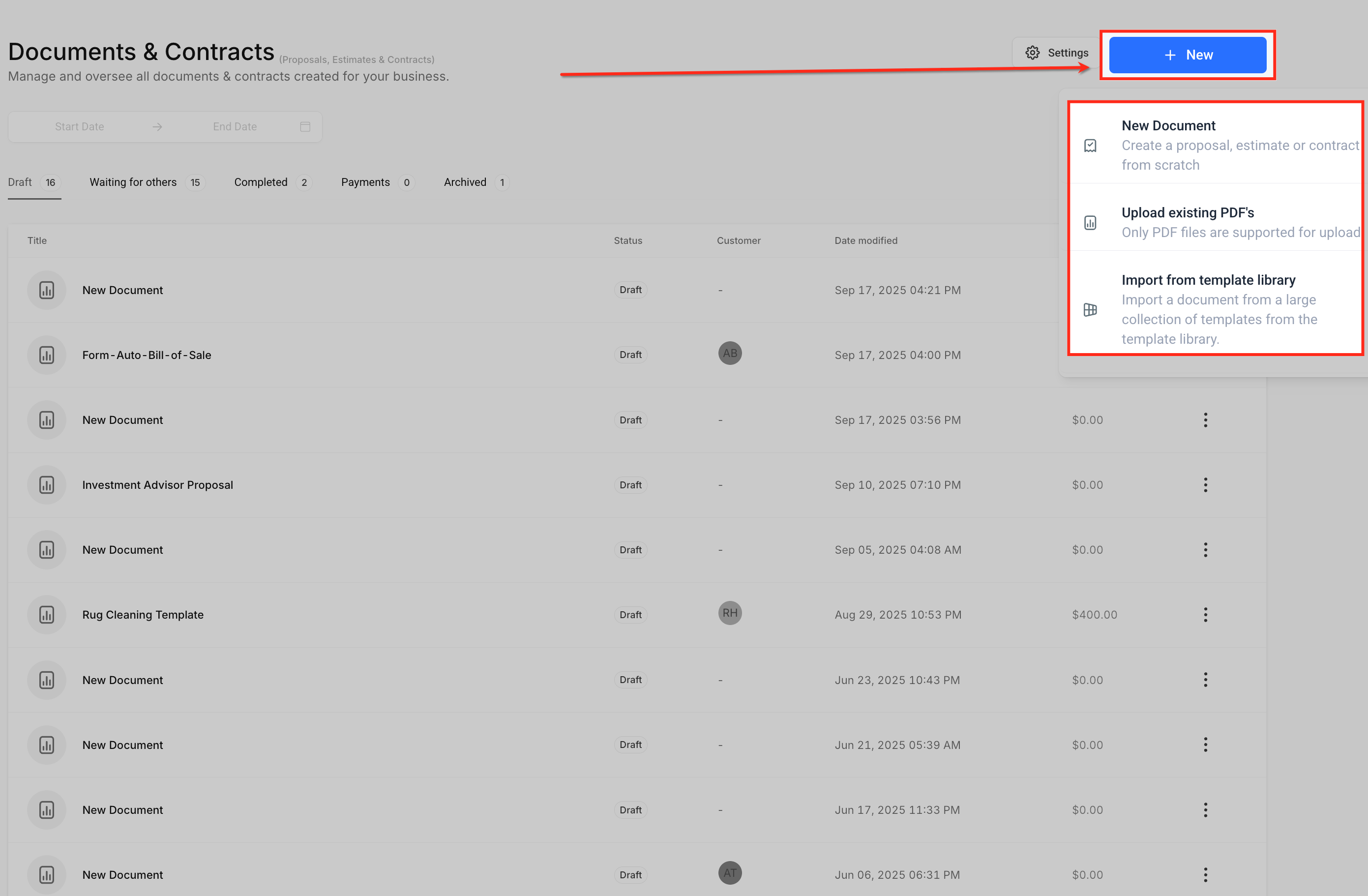
Click the + New button in the top right of the dashboard and choose how you want to start:
New Document — Begin from scratch in the editor. Best when you're building something fresh, like a custom proposal with text blocks, pricing tables, and embedded video.
Upload Existing PDF — Import a PDF you already have and overlay signature or text fields on top of it. Ideal for an existing coaching or service contract you just need signed.
Import from Template Library — Pull from a template you've already built, so a recurring agreement (like a standard service contract) is ready in seconds.
Using the Document Editor
The editor is a flexible drag-and-drop workspace for designing and finalizing your document. Here's what each part of the toolbar does.
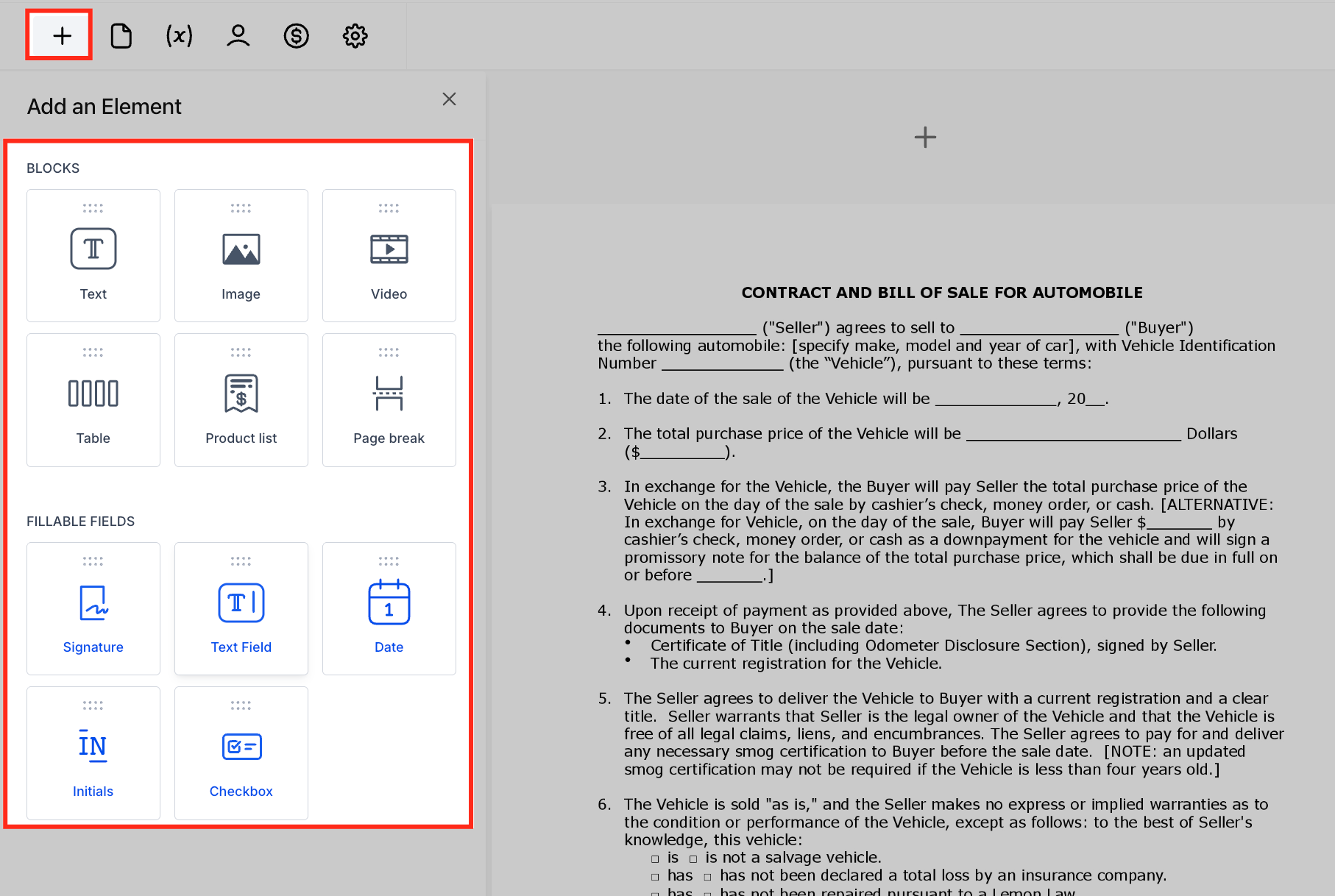
Add Elements
Drop in text, images, videos, tables, product lists, and page breaks. You can also insert fillable fields — Signature, Text Field, Date, Initials, and Checkbox. After adding a field, select it and open the Properties panel on the right. Use To be signed by to assign that field to the correct signer, including a specific staff member in your sub-account.
Page Management
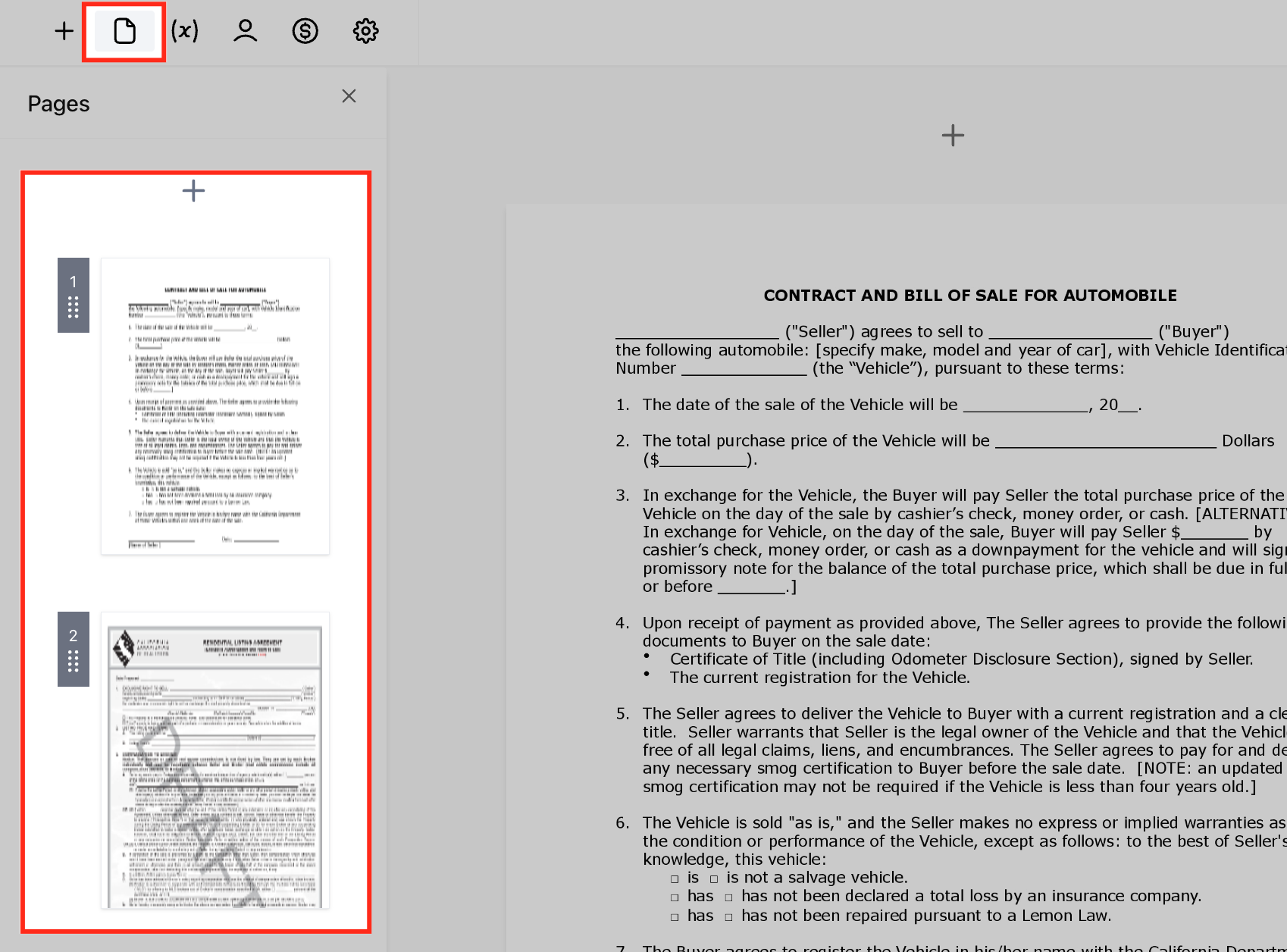
Manage multi-page documents easily — add, duplicate, or remove pages as your agreement requires.
Document Variables
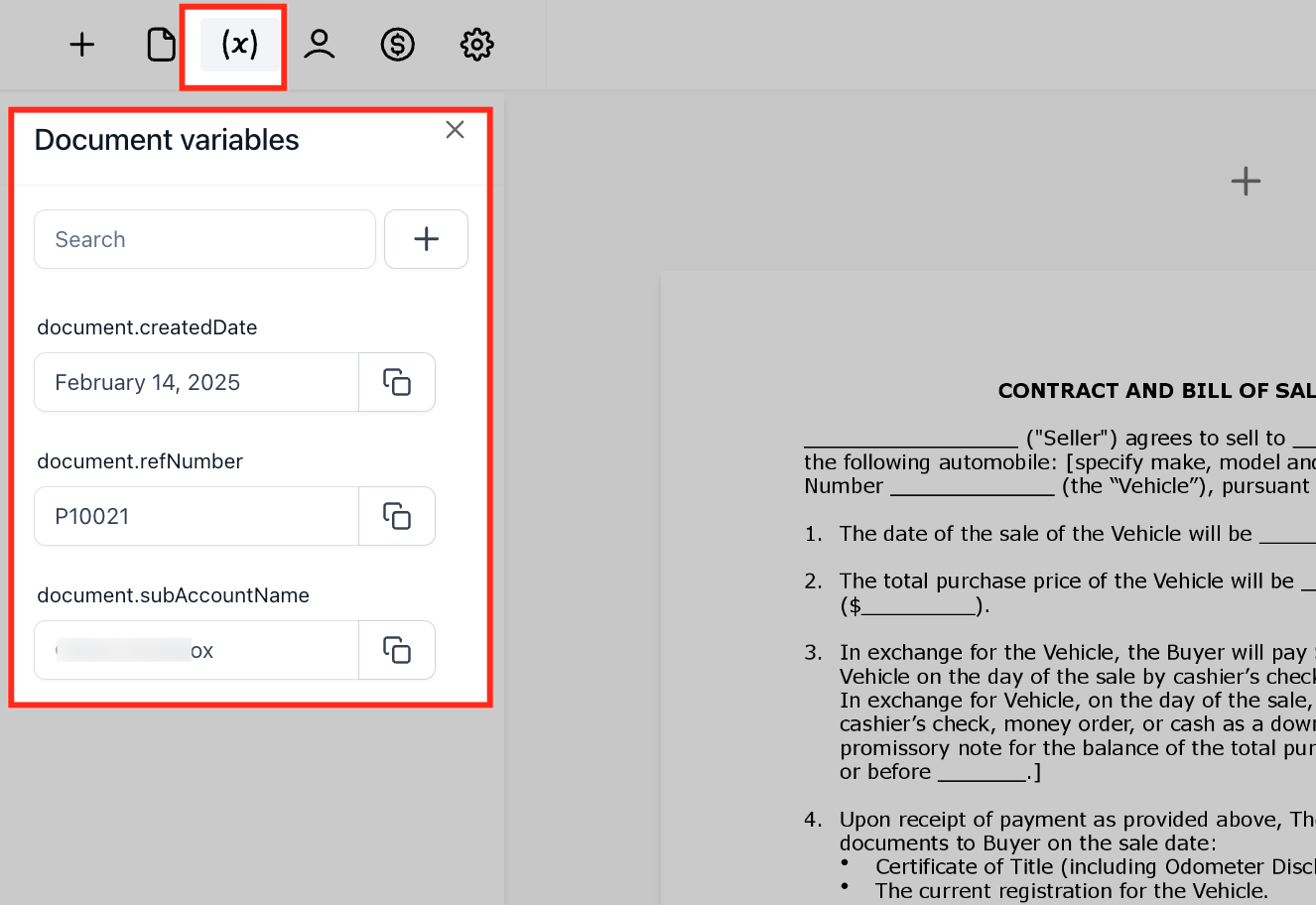
Insert dynamic placeholders such as Created Date, Reference Number, Sub-Account Name, and your own custom fields. Variables populate automatically with the right information the moment the document is sent, so you never hard-code client details.
Content Library
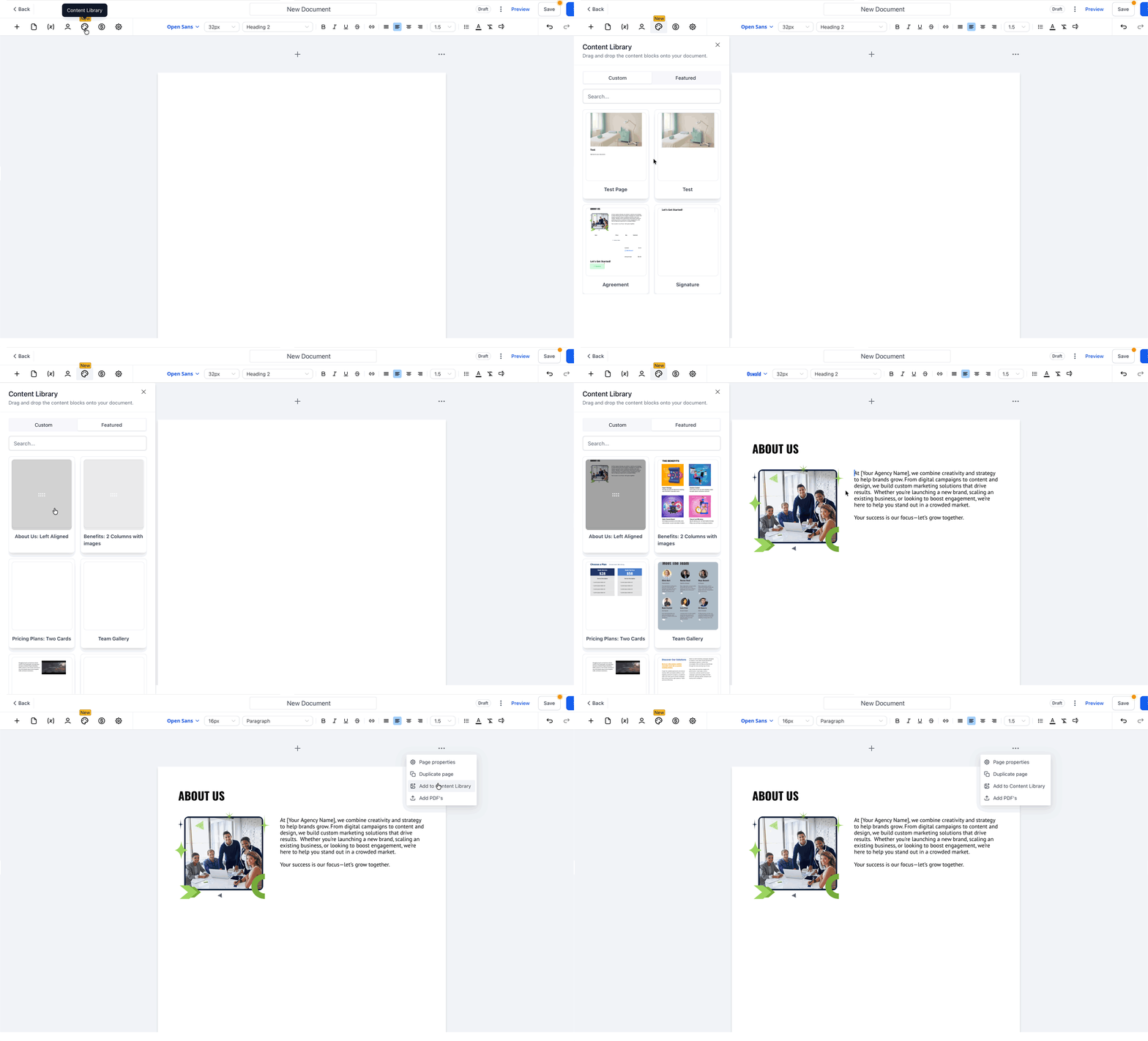
The Content Library is your central store of reusable blocks and full pages. When you build a section you'll want again, choose Add to Content Library and give it a name. Later, insert it into any document or template from Content Library → Custom with drag and drop, then customize it as needed.
Recipients
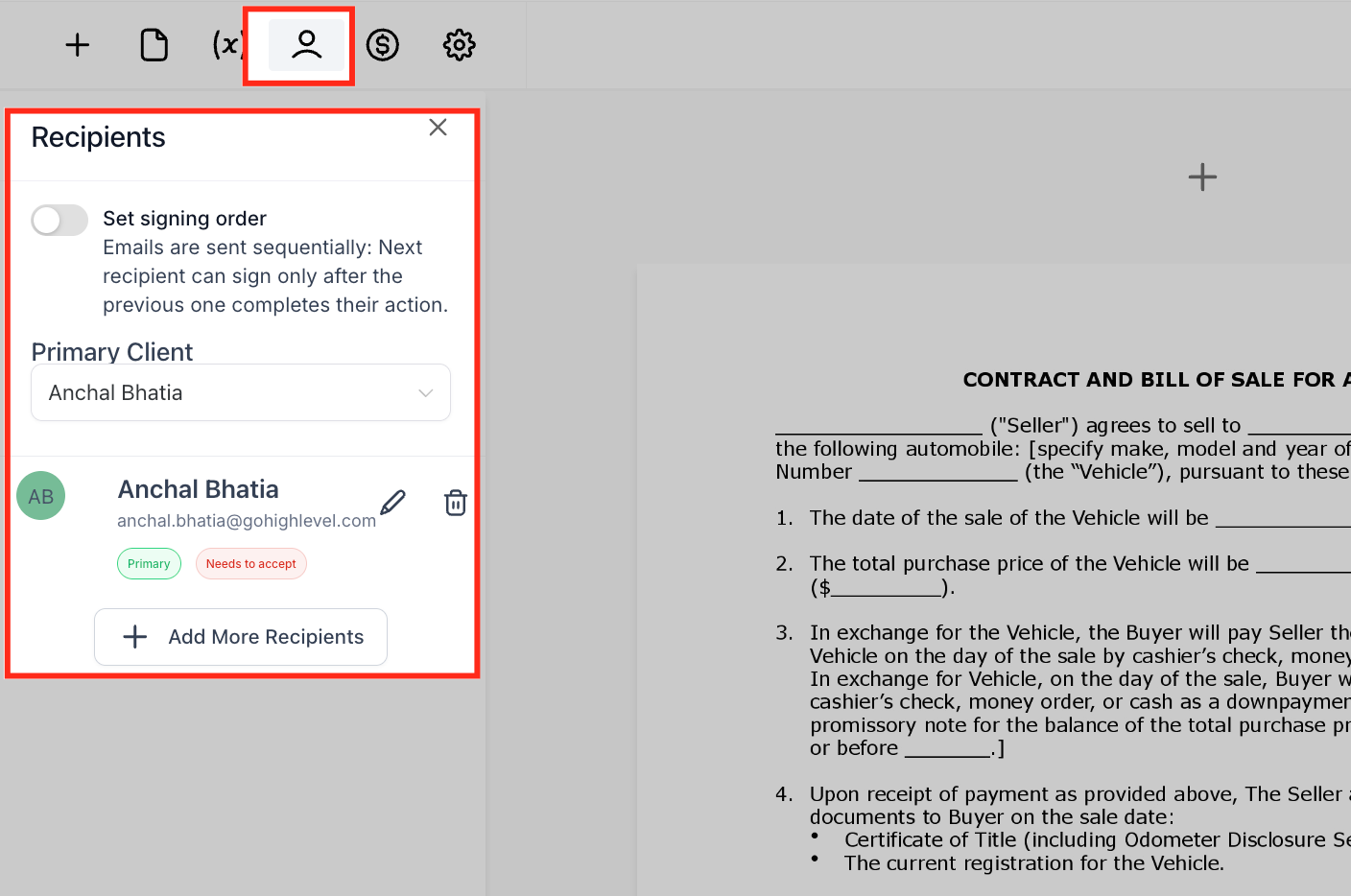
Define who needs to sign or receive the document. You can add multiple recipients, set the signing order (sequential or simultaneous), and assign specific fields — like a signature or initials — to each person.
Payment Settings
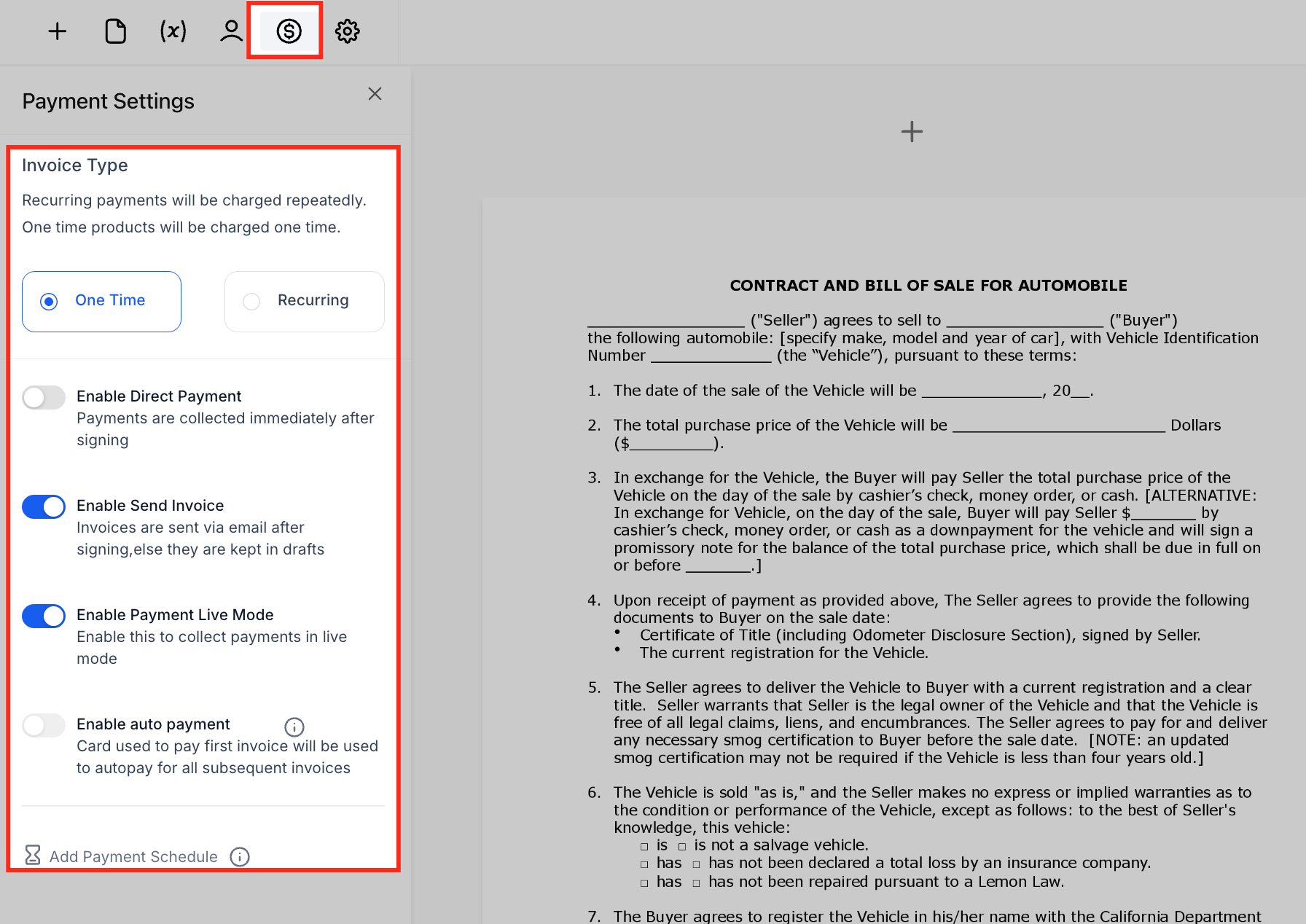
Add payment options directly inside the contract. Choose One-Time or Recurring billing, enable payment upon signing, or send invoices automatically. The feature supports live payment mode and autopay setups, so revenue collection happens the moment the deal closes.
Edit Email & Choose Template
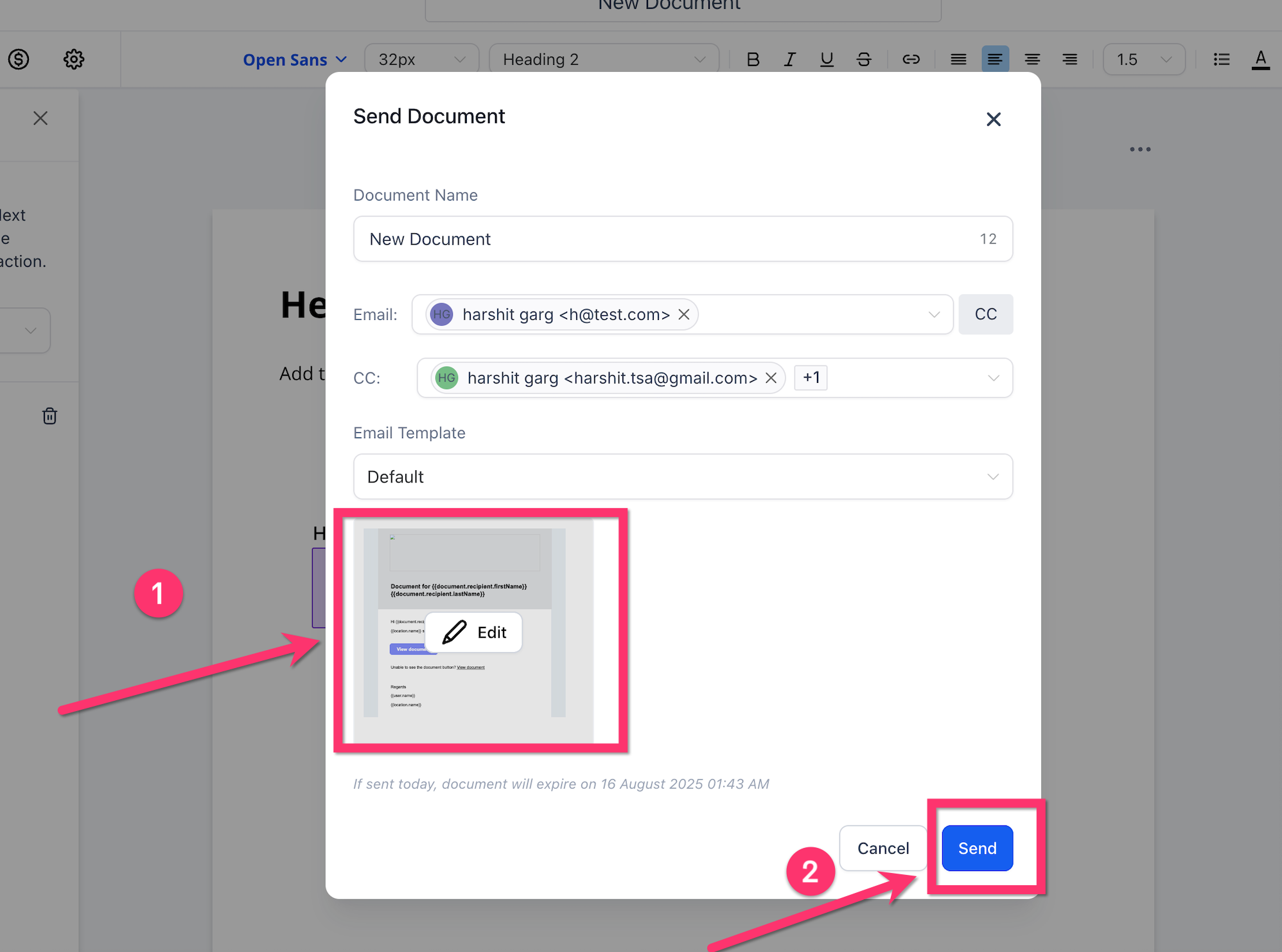
Right before sending, you can pick the email template that fits the situation and tweak the message so the recipient sees exactly the right wording. To do this:
Click Send on the document to open the send modal.
Select the Email Template you want to use.
Click Edit to adjust the subject or body if needed.
Confirm the preview and send.
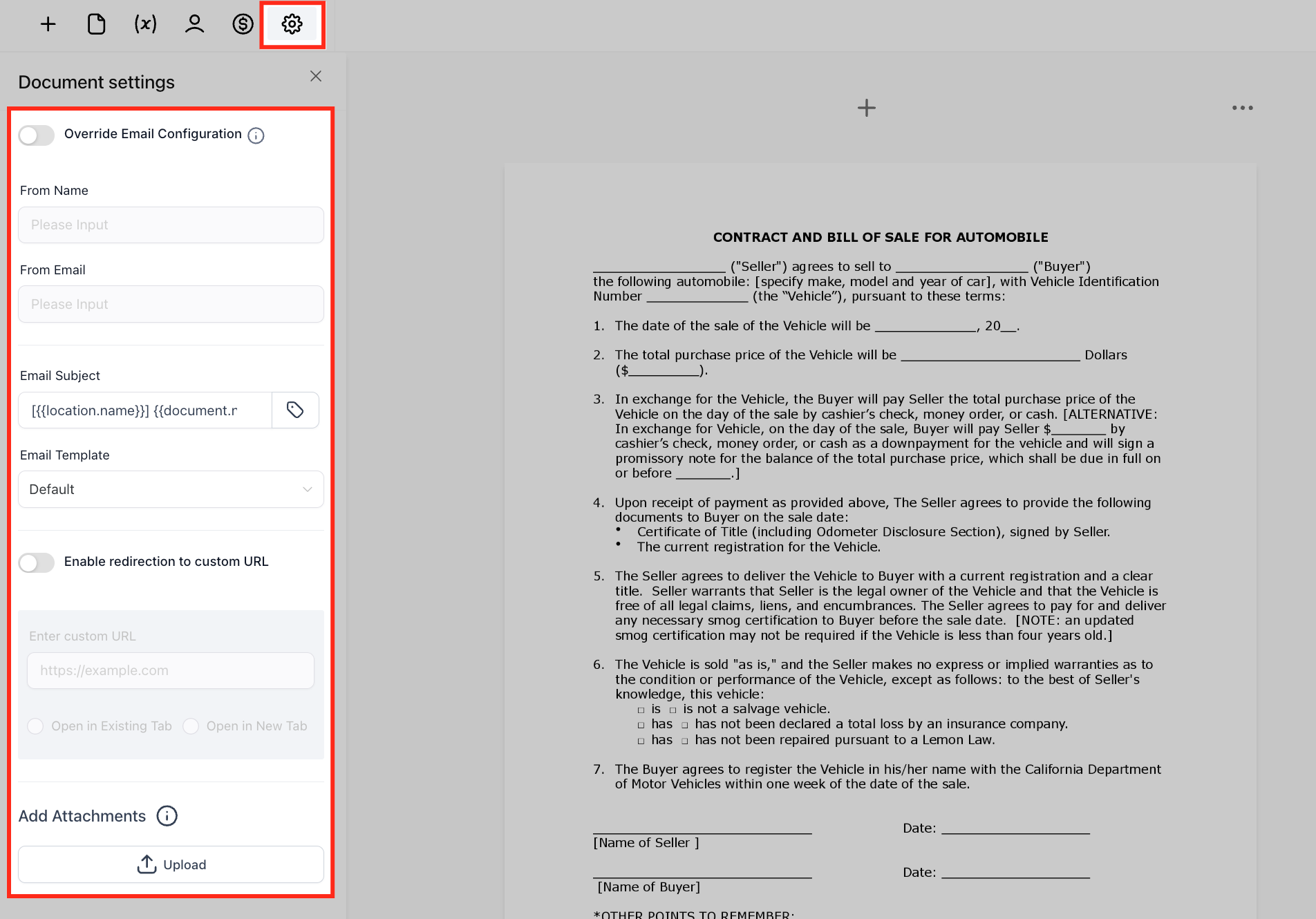
Document Settings
Control how the document is delivered. You can override the default email setup (From Name, From Email, Subject, Template), redirect clients to a custom URL after they sign, and upload attachments to include with the document email.
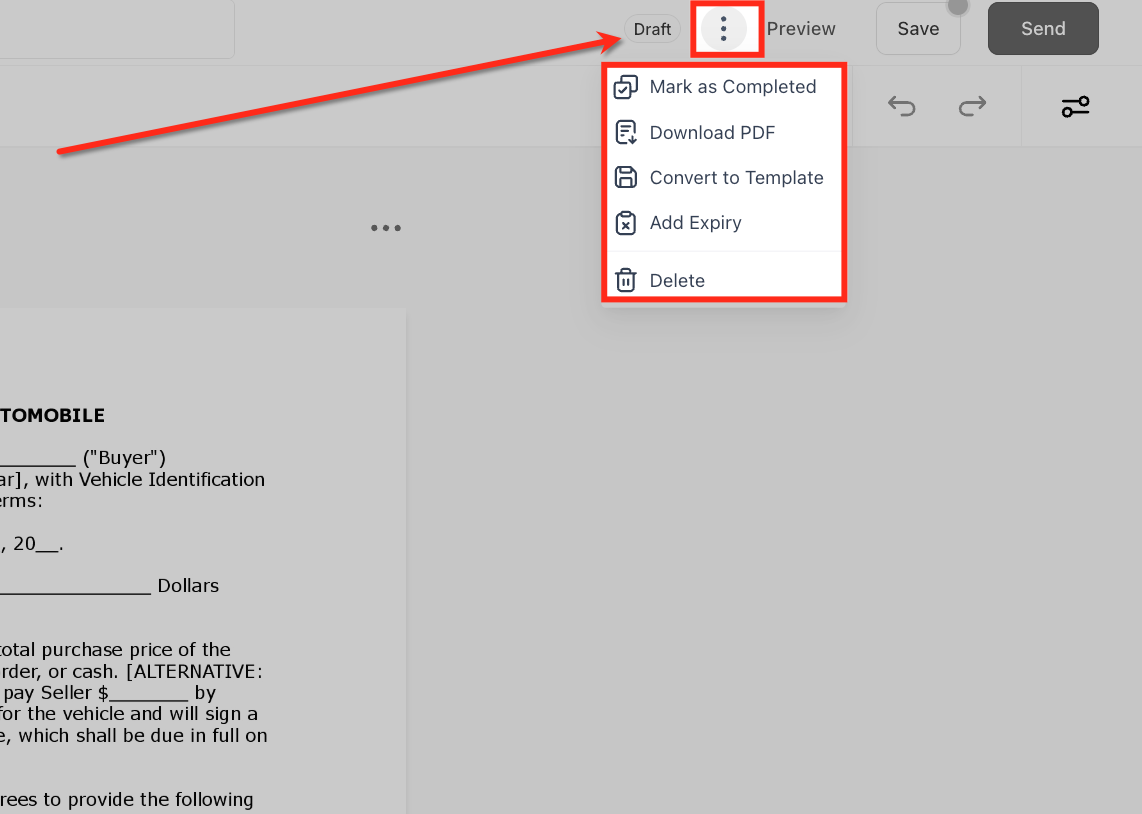
Action Menu
Inside the editor, the three-dot menu (⋮) gives you extra options: Mark as Completed, Download PDF, Convert to Template, Add Expiry, and Delete.
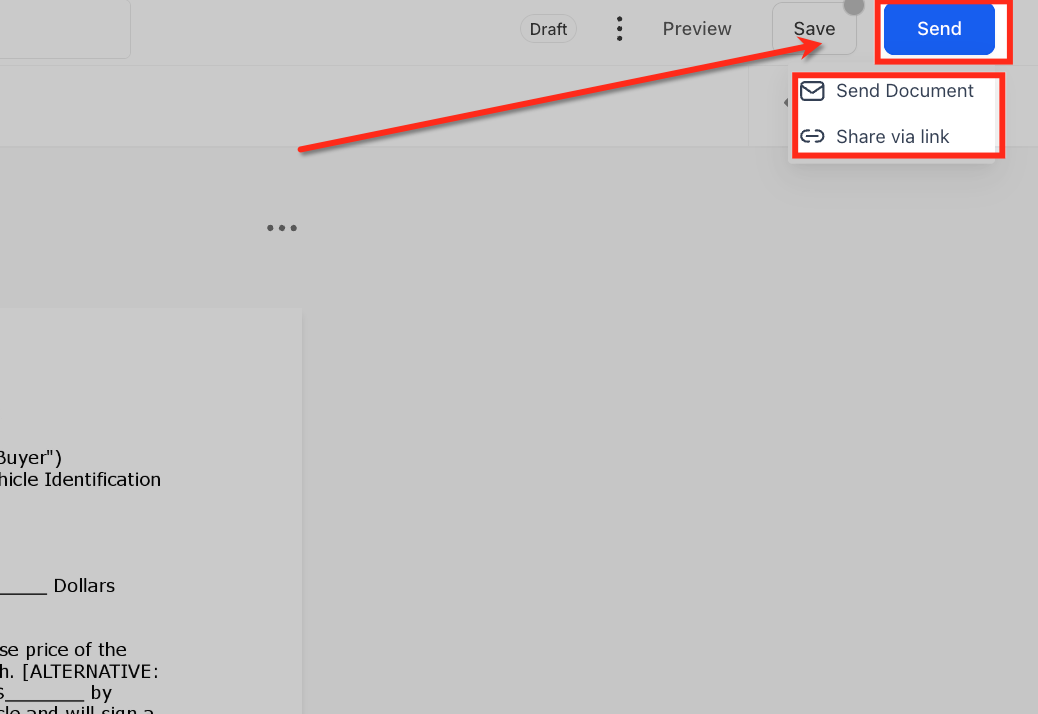
Send Options
When the document is ready, click Send and choose Send via Email or Share via Link.
Frequently Asked Questions
What happens if a client partially signs but doesn't finish? If you've assigned multiple signers and only some complete their fields, the document stays in Waiting for others. You can resend a reminder from the dashboard, and the document won't move to Completed until every required signer is done.
How secure are e-signatures and payment details? All documents and payment data are protected with SSL encryption. Every signature produces a certificate logging the IP address, email, and timestamp. Payment information is processed securely through your connected payment provider and is never stored in the platform.
Can I show different content or pricing to different clients within one document? Conditional logic inside a single document isn't supported — each document is static once created. If you need variations, build multiple templates, or use workflows to send the right template based on your conditions.
If I edit a template, does it change documents I've already sent? No. Editing a template only affects future documents created from it. Anything already sent stays exactly as it was, which protects the legal integrity of signed or pending agreements.
Can a single document accept more than one payment method? Yes. If you've connected multiple processors (for example, Stripe and PayPal), recipients can choose their preferred method at checkout.
How do expiry dates work? Add an expiry date from the document's action menu. Once that date passes, the document automatically moves to Expired and can no longer be signed — useful for time-limited offers and proposals.
Can workflows trigger based on a specific template? Yes. Workflows can filter by both Document Status and Template Name. For example, you could send a reminder only when a particular "Service Agreement" template has gone unsigned for more than three days.
Start Closing Deals Faster
Documents & Contracts brings proposals, signatures, and payments into one connected flow inside Unlimited Digital Marketing — cutting out the back-and-forth and helping you turn a "yes" into a signed, paid agreement in a single step. Head to Payments → Documents & Contracts to build your first one today.

