
How to Create and Send Estimates in Unlimited Digital Marketing
Most deals don't start with an invoice. They start with a number — the price you quote a customer before any work begins, the figure they say yes or no to. That quote is where the sale is actually won or lost, and for a lot of businesses it's handled with a hastily typed email or a verbal "it'll run you about…" that nobody writes down. Then the project drifts, the scope creeps, and three weeks later you're arguing about what was agreed to.
An estimate fixes that. It puts your quote in writing, in a clean branded document the customer can review, accept, or reject with one click — and once they accept, you turn that same estimate into an invoice without rebuilding a thing. Unlimited Digital Marketing gives you a dedicated estimates tool that sits right alongside your invoices, so the whole arc from "here's the price" to "you've been paid" lives in one place.
This guide covers the full estimate lifecycle: creating and sending one, letting your customer accept or reject it, converting an accepted estimate into an invoice, and tracking where every quote stands in your pipeline.
Where Estimates Fit
Think of estimates as the front end of your payment process. The full sequence looks like this: you send an estimate, the customer agrees to it, and you send an invoice to collect. The estimate is the document that gets everyone aligned on price and scope before money changes hands — which means fewer misunderstandings later and a paper trail you can point to if a question ever comes up.
Because the estimate and the eventual invoice share the same system, you never re-enter the same line items twice. The quote you build is the same record that becomes the bill. That single connection is what makes estimates worth using instead of firing off a number in an email.
Creating and Sending an Estimate
Everything related to billing lives in the same area of your dashboard. From the left-hand menu, go to Payments > Invoices & Estimates, then open the Estimates tab. This is where every quote you create lives, organized by its current stage.
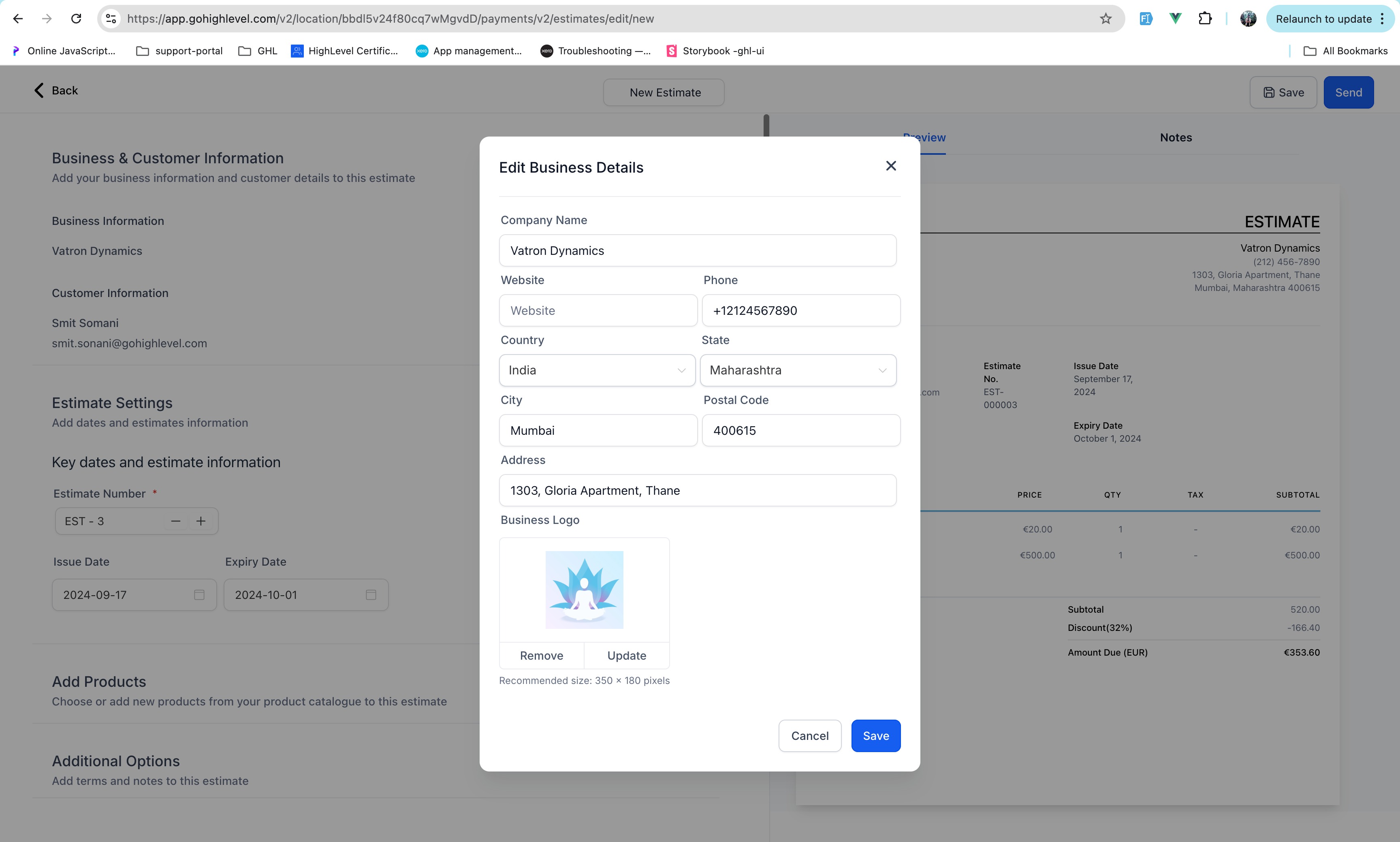
To start a new quote, click the New button. The estimate builder opens, and you'll fill in the details that make the document complete: your business information, the customer's information, an estimate number, and an expiry date. That expiry matters more than it looks — putting a "valid until" date on a quote gives the customer a gentle reason to decide rather than letting your number sit open-ended forever.
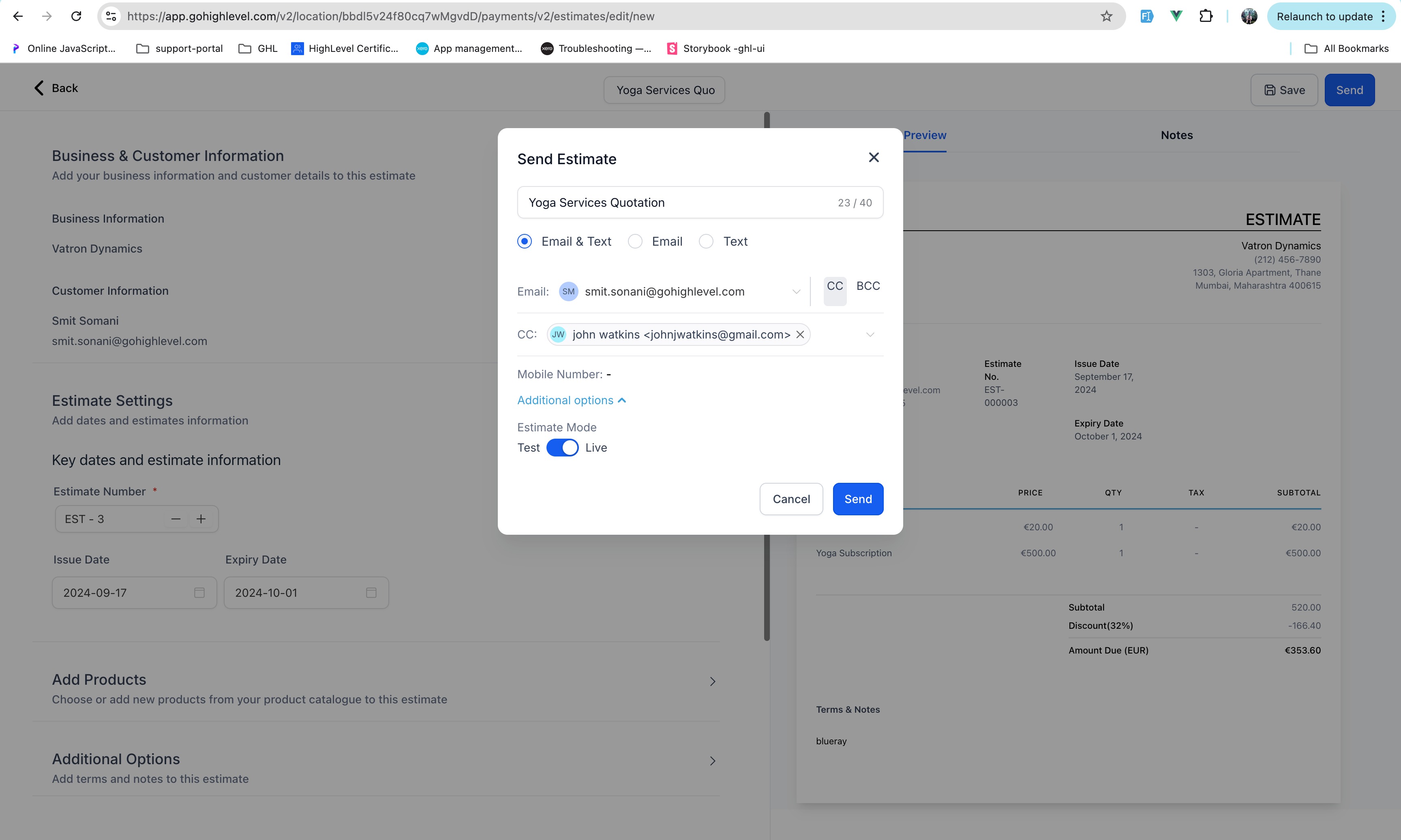
Next, add the products or services you're quoting, with their prices. As you build, you get a full preview of what the customer will see, so the document that goes out is exactly the document you reviewed. When it's ready, review it once more and send it directly to your client — you can deliver an estimate by email or by text, whichever reaches that customer fastest.
Letting Customers Accept or Reject
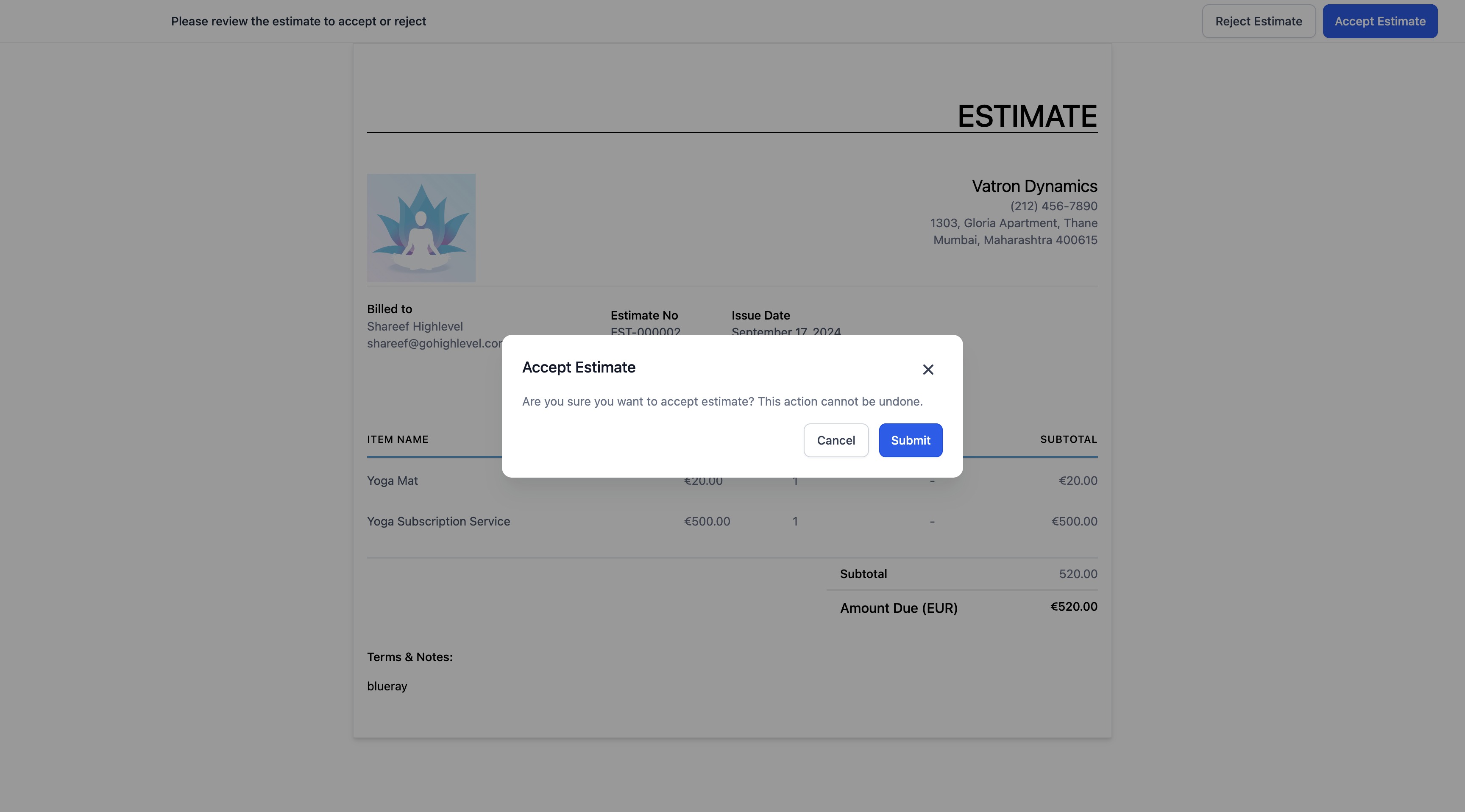
This is the part that turns a static quote into a real decision point. When your customer opens the estimate, they can act on it directly: clicking Accept marks the estimate as accepted, and clicking Reject marks it as rejected and lets them add a note explaining why. That note is valuable — a customer who declines because the price is high is a very different lead than one who declines because the timing is wrong, and now you have it in writing.
You're not locked into making the customer click, either. If you've already gotten a yes (or a no) over the phone, you can update the estimate yourself using Mark as accepted or Mark as rejected so your records stay accurate no matter where the conversation actually happened. Either way, the estimate's status reflects reality, and you always know which quotes are live.
Converting an Accepted Estimate Into an Invoice
Here's the payoff. Once a customer approves an estimate, you don't start a new invoice from scratch — you convert the one you already built. Open the accepted estimate and click Create an invoice, or kick off the same conversion straight from the dashboard. The line items, the pricing, the customer details all carry over, and you're sending a bill in seconds instead of rekeying everything you already typed once.
This is the entire reason estimates and invoices live in the same tool. The quote your customer said yes to becomes the invoice you collect on, with no gap for transcription errors and no duplicated effort. You go from agreement to billing in a couple of clicks.

Tracking Your Pipeline
A quote you've forgotten about is a sale you're not closing. The estimates dashboard is built to keep that from happening by showing you where every estimate stands at a glance.
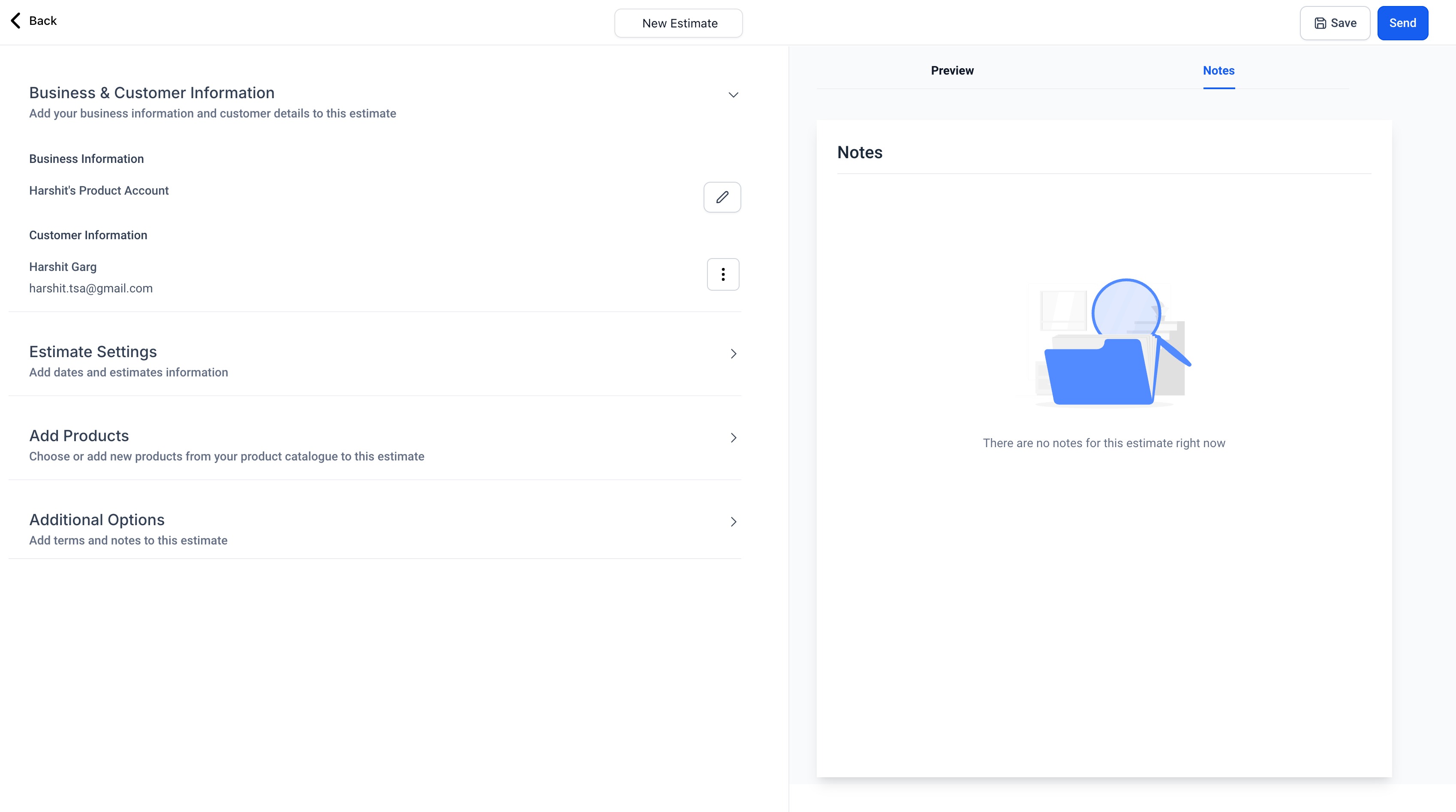
Each estimate carries a clear stage — Draft, Sent, Accepted, Declined, or Invoiced — so a single look tells you what's still being built, what's waiting on the customer, what's been agreed to, and what's already moved into billing. Beyond the individual statuses, the cards across the top of the dashboard show you the total value of the estimates sitting in your pipeline, which turns your quotes into a rough forecast of revenue you're chasing. And any notes your team adds — whether on the dashboard or inside the estimate builder itself — stay attached to the record, so context never gets lost between the person who quoted and the person who follows up.
That visibility is the difference between estimates that quietly expire and estimates you actively work toward a close.
Make Your Estimates Look Like You
A quote is a first impression, so it should carry your brand the same way an invoice does. In your settings, you can customize estimates with your company's branding and terms, so every quote that leaves your account looks polished and consistent rather than generic. Setting this up once means every estimate you send afterward already looks the part — no per-document fiddling required.
Frequently Asked Questions
What's the difference between an estimate and an invoice?
An estimate is a quote you send before work begins — a proposed price the customer can accept or reject. An invoice is the actual request for payment once that work is agreed to or done. The two are connected: in Unlimited Digital Marketing, an accepted estimate converts directly into an invoice, so you quote once and bill from the same record.
Can my customer accept an estimate online, or do I have to mark it myself?
Both options work. Your customer can click Accept or Reject right on the estimate you send them, and a rejection lets them leave a note explaining the decision. If they've already confirmed by phone or in person, you can update the status yourself with Mark as accepted or Mark as rejected so your dashboard always reflects what's really happening.
Do I have to rebuild the invoice after an estimate is approved?
No — that's the whole point of keeping estimates and invoices together. Open the accepted estimate and click Create an invoice (or start the conversion from the dashboard), and all the details carry over automatically. You're not retyping line items or prices.
How do I keep track of estimates I've sent?
The Estimates tab under Payments > Invoices & Estimates shows every quote by stage — Draft, Sent, Accepted, Declined, or Invoiced — along with the total pipeline value across the top of the dashboard. You can see what's outstanding, what's been accepted, and what's already been converted to an invoice, all in one view.
Can I set an expiration date on an estimate?
Yes. When you build an estimate you can add an expiry date, which gives the customer a clear window to decide and keeps stale quotes from lingering indefinitely.
Ready to Quote Like a Pro?
Estimates turn a loose verbal price into a clean, branded document your customers can act on — and once they say yes, the path to getting paid is one click away. It's all built into your Unlimited Digital Marketing dashboard, right next to your invoices.
Log in at app.ajaxunion.com to create your first estimate, and find more tutorials and guides at https://unlimiteddigitalmarketing.com/blog

