How to Create and Send Invoices in Unlimited Digital Marketing
Getting paid shouldn't be the hardest part of running your business. Yet for a lot of owners, billing is exactly where things slow down — invoices sitting half-finished in a spreadsheet, payment terms that live only in someone's head, logos that don't match from one document to the next. Every one of those small gaps quietly costs you time and makes your business look less polished than it actually is.
Invoices are more than a request for money. They're a calling card. A clean, branded, clearly worded invoice tells your customer that you run a tight operation and that you expect to be paid the same way — promptly and without friction. Unlimited Digital Marketing puts invoicing right inside the same dashboard you already use to manage contacts, conversations, and payments, so you can build, send, and track a bill without ever leaving the platform or stitching together a separate billing app.
This guide walks through the whole cycle: creating your first invoice, setting the defaults that apply to every invoice you'll ever send, and managing what happens after the invoice goes out. By the end you'll have a billing process that looks professional and runs on autopilot.
Before You Start
Invoices in Unlimited Digital Marketing are powered by a connected payment processor, so the one prerequisite is having Stripe linked to your account. Once that connection is live, your customers can pay an invoice directly from the link you send them — by card, in most cases — and the payment is recorded against the invoice automatically. If you haven't connected Stripe yet, do that first; everything below assumes it's in place.
It's also worth taking a few minutes to gather the basics before you build anything: your business name and logo, the products or services you bill for and their prices, and the payment terms you want to apply by default. You'll plug these into your general settings once, and from then on every new invoice inherits them.
Creating Your First Invoice
The fastest path to a finished invoice starts in the billing area of your dashboard. From the left-hand menu, go to Payments > Invoices & Estimates. This is your billing home base — every invoice and estimate you create lives here, alongside its current status.
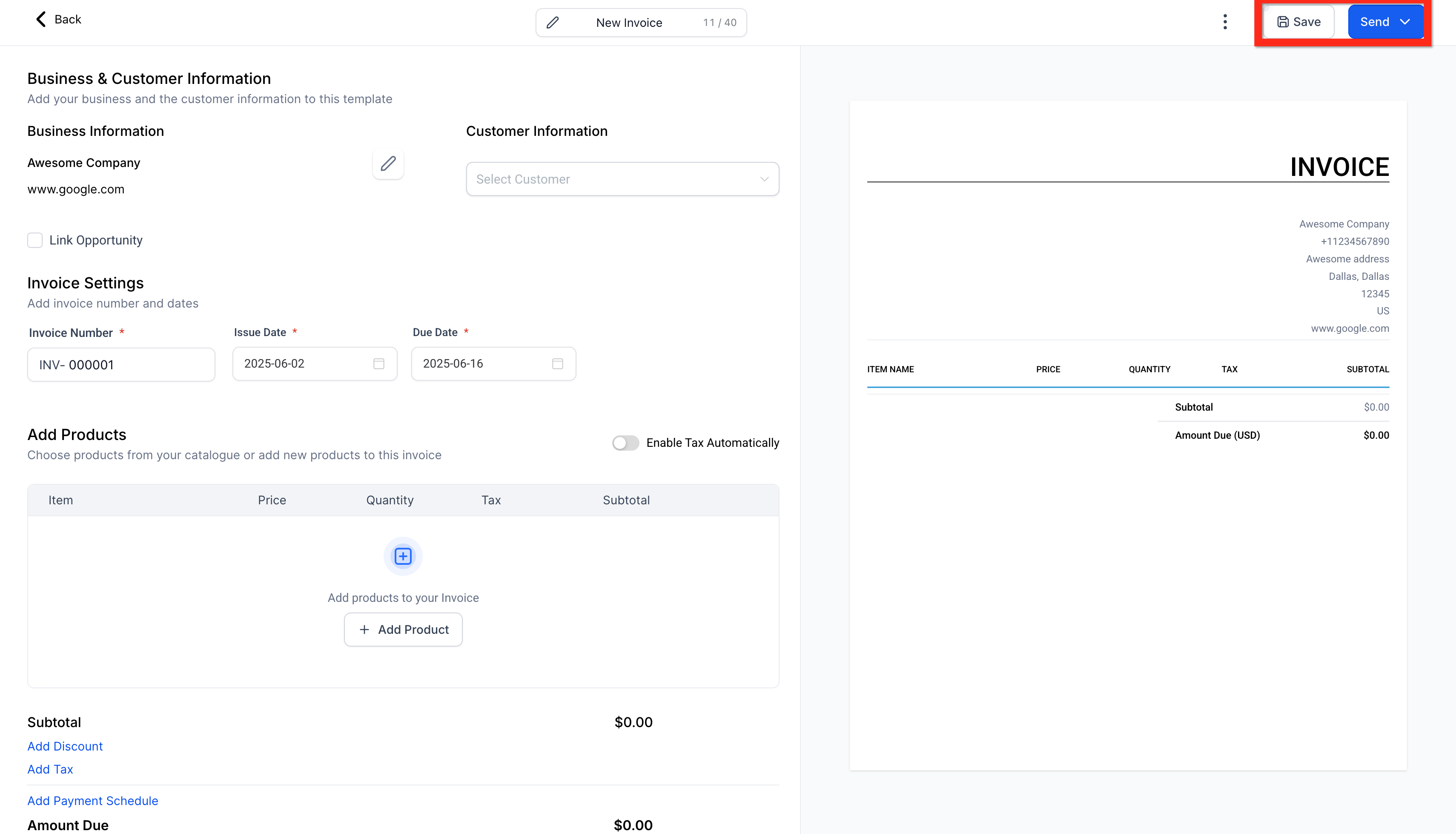
To start a fresh invoice, click New > New Invoice. That opens the invoice editor, which is where you'll do the actual work of building the document. Add your line items — the products or services you're charging for — along with their prices and quantities. Then attach the customer. If the person you're billing already exists as a contact in your account, you can pull them in directly so their details populate automatically; if not, you can enter their information on the spot.
As you fill things in, the editor builds a live preview of what your customer will receive, so there's no guessing about how the final document will look. Once the details are right, click Save. Saving stores the invoice as a draft, which means you can step away, double-check your numbers, or come back to it later without sending anything prematurely.
When you're confident everything is correct, click Send. Your customer receives the invoice with a payment link attached, and the invoice status updates so you can see at a glance that it's on its way. That's the entire core flow — navigate to Payments > Invoices & Estimates, click New > New Invoice, configure the details, Save, then Send.
From there, you have room to grow. If a customer would rather pay in stages, you can attach a payment plan that splits the total into scheduled installments. And for any service you bill on a repeating basis — retainers, memberships, subscriptions — you can set up a recurring invoice so the system generates and sends each cycle's bill for you instead of relying on someone to remember.
Customizing Your Invoice Settings
Here's the step most people skip and later regret: configuring your general invoice settings before you send anything important. These settings are the defaults that apply to every invoice, which means setting them once saves you from re-entering the same information on every single bill — and from the embarrassment of sending a customer something that's missing your logo or shows the wrong terms.
To get there, go to Payments > Invoices & Estimates and click the Settings (gear icon). Inside the general settings, you can upload your logo, enter your company information, and set your default payment terms. This is what turns a generic invoice into something that unmistakably belongs to your brand. When a customer opens a bill and sees your logo, your business name, and clear terms, the document carries the same weight as anything else you'd put your name on.
Spend a moment on the payment terms in particular. Setting a sensible default — net 15, net 30, due on receipt, whatever fits how you actually operate — means every invoice you send communicates the same expectation without you having to type it each time. Consistency here is quietly powerful: customers learn your rhythm, and you stop having the awkward "when is this due?" conversation.
Once your settings look right, click Save. From that point forward, every new invoice starts from this foundation. You can still override anything on an individual invoice when a situation calls for it, but the defaults handle the routine cases so you don't have to think about them.
With your foundation set, the same place is where you fine-tune billing for trickier scenarios — turning on recurring invoices for regular billing cycles, or adjusting payment schedules when a customer pays a bill in parts rather than all at once.
Managing and Tracking Your Invoices
Sending an invoice is only half the job. The other half is knowing what happens after it lands — and that's where staying organized turns into actually getting paid on time.
Every invoice you create shows up in the list under Payments > Invoices & Estimates. To check on a specific one, find it in that list and review its status. Each invoice carries a clear label — Draft for something you've built but not sent, Sent for a bill that's out with the customer, and Paid once the money has come through. That single column is your billing dashboard: a quick scan tells you what's still in progress, what's awaiting payment, and what's already settled.
When a payment is overdue, you don't need to dig up the customer's email separately. You can follow up directly from the invoice view, keeping the entire thread — the original bill and your reminder — tied together in one place. And when you land a repeat customer or a similar job, you don't have to rebuild from scratch; you can create a new invoice or estimate based on a previous one and adjust only what's changed.
That's the whole loop. Build it, brand it, send it, and watch it move from Sent to Paid — all without leaving the dashboard you already work in every day.
Frequently Asked Questions
Why is my logo missing on older invoices but showing up on new ones?
This almost always comes down to a deleted image. Invoices pull your logo from its original location in your Media Library, so if that file gets removed, the link breaks on every invoice that was already using it — even though brand-new invoices look fine because they're pulling the current logo from your settings. To fix unpaid invoices, upload a fresh logo to your Media Library and confirm your business details point to the new image; the logo will reappear. Paid invoices are a different story: because paid records can't be edited, you'd need to add the logo manually to the PDF if you ever have to resend a receipt.
The invoice text editor only shows the formatting toolbar and won't let me type. How do I fix it?
This is a local browser issue, not a problem with your account. It usually happens when the text editor fails to load because of old cached data and cookies. Fully clear your browser's cache and cookies, close all your tabs, then log back in. The editor should load correctly and let you enter your terms, conditions, or notes again.
My invoice says "Sent" but the customer never received it. What's wrong?
A "Sent" status that doesn't reach the customer is also usually a browser problem rather than a system failure — outdated cached data can produce a false "sent" signal. Have whoever sent it clear their browser cache and cookies, log out and back in, and try resending. If it still doesn't go through, reach out to support, since a persistent issue can point to something with your email sending domain that needs a closer look.
Do I need anything set up before I can send invoices?
Yes — you'll need Stripe connected to your account so customers can pay the invoice from the link you send. Once that's in place, you're ready to create and send bills, and payments are recorded against each invoice automatically.
Ready to Get Paid Faster?
Professional invoicing is built into your Unlimited Digital Marketing dashboard — no separate billing software, no copy-paste between tools. Set your branding and terms once, and every invoice you send going forward looks sharp and collects payment in a couple of clicks.
Log in at app.ajaxunion.com to build and send your first invoice, and explore more tutorials and guides at https://unlimiteddigitalmarketing.com/blog

