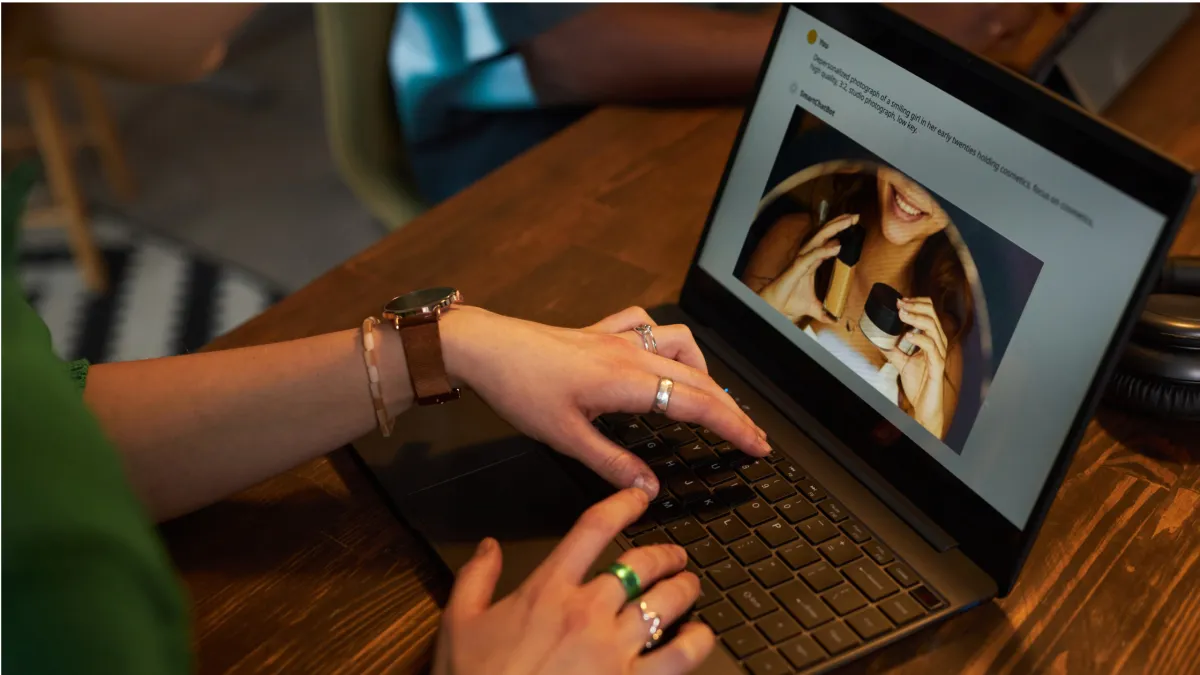
How to Generate and Edit Images with AskAI in Ajax Union MarTech
A great campaign can stall on one missing piece: the image. You've written the post, planned the email, mapped the landing page — and now you're stuck hunting for a stock photo that almost works, or waiting on a designer for a banner you needed yesterday. AskAI removes that bottleneck. Inside your Ajax Union MarTech account, you can describe the image you want in plain language, watch it appear in seconds, and refine it through conversation until it's exactly right — no design skills, no separate tools, no waiting.
This guide walks you through generating images from a prompt, editing them conversationally, saving the ones you love, and a few ways to put this to work across your marketing.
What Image Generation in AskAI Actually Does
AskAI lets you create and refine images through natural-language prompts. Instead of opening a design program, you type what you're picturing — "a bright, modern hero image of a coffee shop at sunrise" — and AskAI generates it. From there, you keep talking to it: ask for a different background, a new color palette, an added element, or a different artistic style, and it adjusts.
The real advantage is the back-and-forth. You're not stuck with the first result and you're not starting over with every change. AskAI remembers the image you're working on, so each edit builds on the last. That makes it genuinely useful for the kind of iterative tweaking real marketing assets need — a little brighter, a little more on-brand, one more element — until it's ready to publish.
What this gives you, in practice: visuals generated instantly from a description, effortless refinement through plain commands, a full session history so you never lose a previous version, one-click saving to your Media Library for reuse, and stronger visual content across social, email, and web with very little effort.
Before you start: Image generation requires AI access on your account. If you try it and the feature isn't available, reach out to the Ajax Union team and we'll confirm your access.
Generating and Editing an Image from Scratch
The fastest path is generating directly inside AskAI. Here's the full flow:
Log in to your Ajax Union MarTech account at app.ajaxunion.com.
Click the AskAI button in the top-right navigation bar.
Enter your prompt in the text field — for example, "Generate an image of a beautiful sunset over the ocean."
Submit by pressing Enter or clicking the arrow button.
Wait a few seconds while AskAI generates the image.
Once your image appears, editing it is just as conversational:
Click into the prompt field below your generated image.
Enter an edit instruction — for example, "Add a few birds in the sky" or "Make the colors warmer and more modern."
Submit the edit.
Wait while AskAI applies the change and renders the updated version.
Repeat that last loop as many times as you need. Want to specify a look? Include it in your prompt. Adding words like "cartoon," "realistic," or "3D" tells AskAI exactly which style to aim for, so you spend less time correcting and more time refining.
Editing Images You Already Made in Your Marketing Tools
You don't have to start in AskAI to use it. If you've already generated an image elsewhere in your account — say, while building a social post — you can hand it to AskAI for edits without recreating it.
Navigate to Marketing > Social Planner.
Create a new post and generate an image, or open an existing post that already has an AI-generated image.
Click the Edit with AskAI button.
Enter your edit prompt — for example, "Change the latte art to a cat."
Submit and wait for the updated image to render.
This is handy when an image is almost right but needs one specific change. Instead of regenerating the whole thing, you describe the single tweak and AskAI handles it.
Saving and Reusing Your Images
Here's an important detail about how AskAI handles your images: nothing is saved automatically. After you generate or edit an image, you have a few options.
Click the Save icon to add the image to your Media Library permanently, where you can reuse it across future projects. Click the Copy button to place the image on your clipboard and paste it wherever you need it. And if you do neither, the image stays available only inside that AskAI session.
That last point is the one to remember. Because images aren't saved unless you choose to save them, your Media Library stays clean and clutter-free — but it also means a great image can disappear when you leave the session. If you make something you like, save it before you move on.
Where This Pays Off
The fastest way to understand the value is to picture the moments it saves you. AskAI image generation fits naturally into work you're already doing:
Social media graphics that match a seasonal promotion or campaign theme.
Hero images for sales pages and key website sections.
Email banner visuals designed to lift engagement.
Product mockups or lifestyle shots for ads.
Visual storytelling for blog posts and landing pages.
In each case, the win is the same: you go from "I need an image for this" to a finished, on-brand visual in minutes, inside the same platform where the rest of your marketing already lives.
Session History: Why You Won't Lose Your Work Mid-Edit
One thing that makes the editing experience genuinely usable is that AskAI is session-aware. Your edits are tied to the specific image you started from, so the assistant always knows the context of what you're refining. You can step away and return to your original AskAI session to keep working, and because images only land in your Media Library when you save them, your edits stay contained until you decide they're final.
The practical upshot: you can iterate freely, knowing each change builds on the last and nothing gets overwritten or cluttered along the way.
Frequently Asked Questions
Can I choose a specific style for the image?
Yes. Just include the style in your prompt. Words like "cartoon," "realistic," or "3D" guide AskAI toward the look you want, so the first result lands closer to your vision.
Where are my generated images stored?
Images start out saved only within your AskAI session. To keep one permanently, click Save to move it into your Media Library.
Do I need design experience to use this?
No. You only need to describe your idea clearly — AskAI handles the actual design work. If you can explain what you're picturing, you can create it.
Can I keep editing the same image over and over?
Yes. You can refine an image as many times as you like within your AskAI session until it's exactly right.
Will my AskAI edits show up in my other content history?
Not currently. Edits you make through AskAI stay within AskAI's own session history rather than appearing in your other content tools' edit history.
The feature isn't showing up in my account. What now?
Image generation depends on your account's AI access. Reach out to the Ajax Union team and we'll confirm your setup and get you started.
Start Creating Visuals in Minutes
The hardest part of marketing imagery used to be making it. Now you describe what you want, refine it in plain language, and save the keepers — all without leaving Ajax Union MarTech. Whether it's a seasonal social graphic, an email banner, or a hero image for a new landing page, AskAI turns "I need a visual for this" into a finished asset in minutes.
Log in at app.ajaxunion.com, click the AskAI button, and try generating one image for a project you're working on right now. For more guides on getting the most from your Ajax Union MarTech account, visit martechsupport.com.

