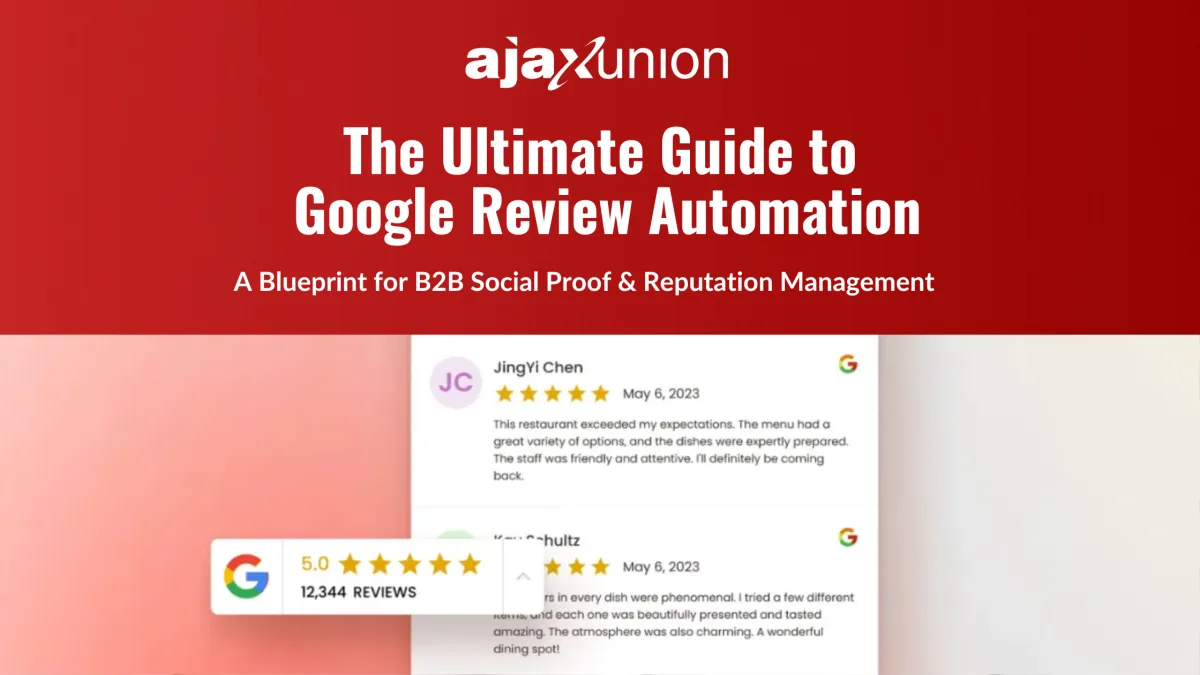
Month 3: Put Your Google Reviews on Autopilot
Three months in. Your foundation is solid, the cold leads in your CRM are waking up, and you have live conversations happening that didn't exist when you started. Now it's time to build the system that compounds in the background — the one that makes every future ad cheaper, every landing page convert higher, and every new prospect more likely to pick you over a competitor.
That system is Google reviews. Specifically, lots of them, arriving consistently, without anyone on your team remembering to ask.
In B2B, social proof is the silent closer of deals. Your Google Business Profile is almost always the first thing a prospect looks at after hearing your name or seeing your ad, and a strong, growing review count signals two things at once: real customers vouch for you, and the Google algorithm trusts you enough to put you higher in local search results. Both make every later marketing dollar work harder.
Month 3 is about making review collection automatic. By the end of it, every time a deal closes, an SMS and an email go out asking for a review — and a separate system drafts thoughtful, on-brand replies to the reviews that come in, so your profile stays active without sucking up anyone's time.
Why Reviews Quietly Make Everything Else Work
The reason most businesses don't get reviews isn't that customers don't want to leave them. It's that nobody asked, or the ask came two weeks too late, or the person asked had to dig around to find the right link to leave a review on. Friction kills review collection in every business that hasn't automated it.
When you remove the friction, the math changes fast. A consistent stream of fresh 5-star reviews tells Google you're an active, real business — which improves local SEO rankings and pushes you higher when prospects search for what you do. It also gives every prospect comparing you against competitors a reason to pick you without you having to make the case yourself. The page does the work.
The other side of the equation is response. Replying to reviews — every single one, positive or negative — sends another signal to both Google and prospects that you pay attention. Most businesses don't, which is exactly why doing it automatically is a real advantage.
Connecting Your Google Business Profile
Everything starts with the integration. Inside your martech platform, head to Settings → Integrations and find the Google connection. Connect the Google account that owns your Business Profile and grant the requested permissions. If your business has multiple locations, you'll be asked to pick the right one from a dropdown — make sure you select the exact profile you want reviews flowing into, especially if you have legacy or duplicate listings.
Once the integration is live, the system automatically pulls your unique review link — the URL that takes a customer straight to the "Write a Review" pop-up on Google. This matters more than it sounds. Most people who agree to leave a review never actually leave one because they get distracted somewhere between "I'll do it later" and the search box. Sending them directly to the review pop-up removes every step in between.
You can find and confirm the review link inside the Reputation tab under Settings. If it didn't auto-populate after the integration, generate it manually, click it to confirm it opens the right Google profile, and move on.
Building the Automation
Now to the part that makes this run without you. Navigate to Automations → Workflows and create a new workflow from scratch. Name it something clear — Google Review Request works fine.
The trigger is what makes the automation fire at exactly the right moment. Set it to Opportunity Status Changed and filter for status equal to Won, scoped to the specific pipeline you use for closed deals. This means the review request goes out the moment a deal moves to Won — not before, not whenever someone remembers to send it.
Add a Wait step set to 2 hours. The timing matters. Sending a review request the second a deal closes feels transactional. Two hours later, the positive feeling is still fresh, the customer is past the actual handoff, and the request reads as genuine.
After the wait, add a Send SMS action. The SMS template should be short, personal, and direct:
"Hi {{contact.first_name}}, it's {{user.name}} from {{location.name}}. It was a pleasure working with you! Do you have 30 seconds to leave us a quick review on Google? It helps us out a ton: {{location.review_link}}"
Then add a Send Email action with a slightly longer version of the same ask:
Subject: How did we do, {{contact.first_name}}?
"Hi {{contact.first_name}}, thank you for choosing {{location.name}}. We strive to provide 5-star service to all our partners, and your feedback is incredibly valuable to us. Would you mind sharing your experience with a brief review? It takes less than a minute and helps us continue to improve our service. Leave a review here: {{location.review_link}}. Thank you for your business!"
Both messages use merge fields that auto-populate the customer's name, your name, your business name, and the direct review link. None of it requires manual editing per send.
Before publishing, turn Allow Re-entry off. You don't want the same customer getting hit with a second request if their deal somehow re-enters the Won stage. Save the workflow, set it to Published, and the automation is live.
Setting Up the Persistence Protocol
If the first request doesn't produce a review within 48 hours, you can layer in a single follow-up — same automation, with a second wait step and a softer second message. Two touches is the ceiling. Anything beyond that crosses from helpful into pushy, and the goal here is to protect the relationship while maximizing the chance of conversion.
Most businesses leave performance on the table by sending only one request and giving up. A single, polite follow-up roughly doubles the response rate without damaging anything.
Letting Reviews AI Handle Responses
Collecting reviews is half the system. The other half is replying to every one of them, which is where Reviews AI takes over.
Inside Reputation → Settings, find the Reviews AI section. Set the AI Mode to Suggestive if you want to approve responses before they post, or Auto-Respond if you want it fully hands-off. For most teams starting out, Suggestive is the right call — the AI drafts a reply, you give it a quick look, you click post. It cuts the time of responding by about 95 percent without giving up brand control.
Configure the tone of voice to match how your business actually talks. The options usually include Professional, Friendly, Direct, and a few in between. Match your real voice, not a more formal version of it — readers can tell the difference.
The AI handles positive and constructive reviews differently. For 5-star reviews, it focuses on gratitude and reinforcing your brand. For lower-star reviews, it acknowledges the feedback, offers to take the conversation offline to resolve it, and protects your public image in the process. That second behavior is what makes the system worth using — most businesses either ignore bad reviews or argue with them publicly, both of which cost trust.
What Success Looks Like After 30 Days
By the end of Month 3, your Google Business Profile should be visibly more active than it was. New reviews are arriving on their own, every closed deal triggers an automated request, and the responses to those reviews are being drafted by AI and approved (or auto-posted) within minutes instead of days. Your average review count per month should be climbing, your overall rating should be trending up, and you should be seeing the early signals of local SEO movement on the searches that matter to you.
None of that requires daily attention from you. The whole point of the month was to make reputation a background system.
Get the Full Step-by-Step Guide
The walkthrough above is the operating version of Month 3. For the deeper dive — exact SMS and email templates, full Reviews AI configuration, the success checklist, and the troubleshooting reference — grab the PDF.
📥 Download: The Ultimate Guide to Google Review Automation →
FAQ
What if I don't have a Google Business Profile yet?
Create one first. The integration won't work without it, and a Business Profile is foundational for local SEO regardless. Setup takes under an hour and requires a postcard verification step that takes a week or two.
Can I customize the SMS and email templates?
Yes — and you should. The templates above are starting points. Match the language to how you actually talk to customers. Anything that reads like a stock automation will get ignored.
What happens if I get a bad review?
Reviews AI in Suggestive mode will draft a calm, professional response that acknowledges the feedback and offers to take the conversation offline. You approve it, post it, and follow up privately. Public arguments are the worst possible outcome — this prevents them.
How long before I see SEO results?
Local SEO movement from review velocity typically shows up at 60 to 90 days, not overnight. The early signal is more prospects mentioning the reviews when they reach out.
What's next?
Month 4 is the AI Chat Widget and Unified Inbox — turning your website into a real-time conversation engine that captures the visitors your improved reputation starts sending you.
Month 3: Complete
Reputation is the rare marketing asset that compounds whether you're working on it that day or not. Once this system is in place, every closed deal makes you slightly more attractive to the next prospect, and the platform you spend on stops paying off only in months you actively run campaigns.
Next month, you turn your website into the conversation engine that captures everyone the reputation system starts pulling in.

