How to Set Up an Intake Chatbot in GoHighLevel Using a Marketplace Template
How to Set Up an Intake Chatbot Using the AI Agent Marketplace in Unlimited Digital Marketing
An intake chatbot is an AI Agent that handles the first stage of every lead interaction automatically. Instead of a staff member asking the same qualifying questions on repeat, the bot does it — collecting contact details, asking about the prospect's situation, and routing them to the right next step, whether that's a booking, a pipeline stage, or a team notification.
Inside Unlimited Digital Marketing, you can launch one of these bots in minutes using a prebuilt Marketplace Template — no prompt engineering from scratch, no blank screen. Here's why that matters and exactly how to do it.
Why Use an Intake Chatbot?
Intake bots solve a core problem for service businesses: leads don't wait. When someone submits a form or starts a chat at 10pm, the window to engage them is short. An AI Agent closes that window permanently by responding instantly, every time.
The practical benefits:
No lead slippage — every inquiry gets an immediate, consistent response regardless of time or day
Cleaner CRM data — structured questions produce structured answers in your contact records
Faster sales cycles — prospects who've already been qualified and booked convert faster
Less admin load — your team only engages with leads who are pre-screened
What Is the AI Agent Marketplace?
The AI Agent Marketplace inside Unlimited Digital Marketing is a catalog of prebuilt Conversation AI and Voice AI templates created by agencies and builders. Each template comes packaged with the assets it needs to run — workflows, calendars, custom fields, and custom values — so you're not wiring things together after the fact.
For intake bots specifically, you'll find templates built for industries like real estate, legal, home services, healthcare, and coaching. Each one includes a ready-to-run prompt structure you can customize for your business.
How to Set Up an Intake Chatbot Using a Marketplace Template
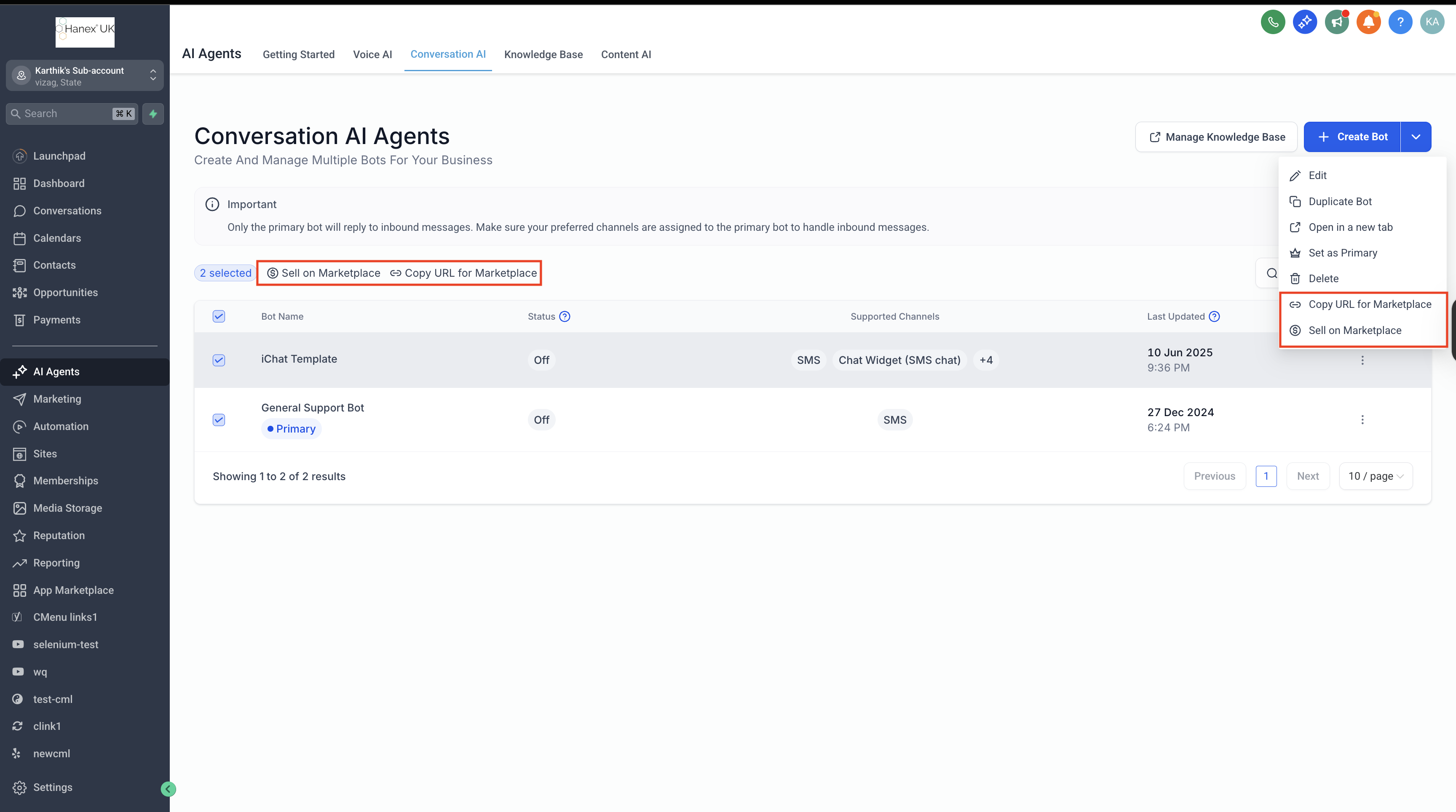
Step 1: Go to Conversation AI in your sub-account
Log into your sub-account inside app.ajaxunion.com. In the left sidebar, navigate to AI Agents → Conversation AI.
Step 2: Click "Create Bot"
On the Conversation AI dashboard, click Create Bot to open the setup flow.
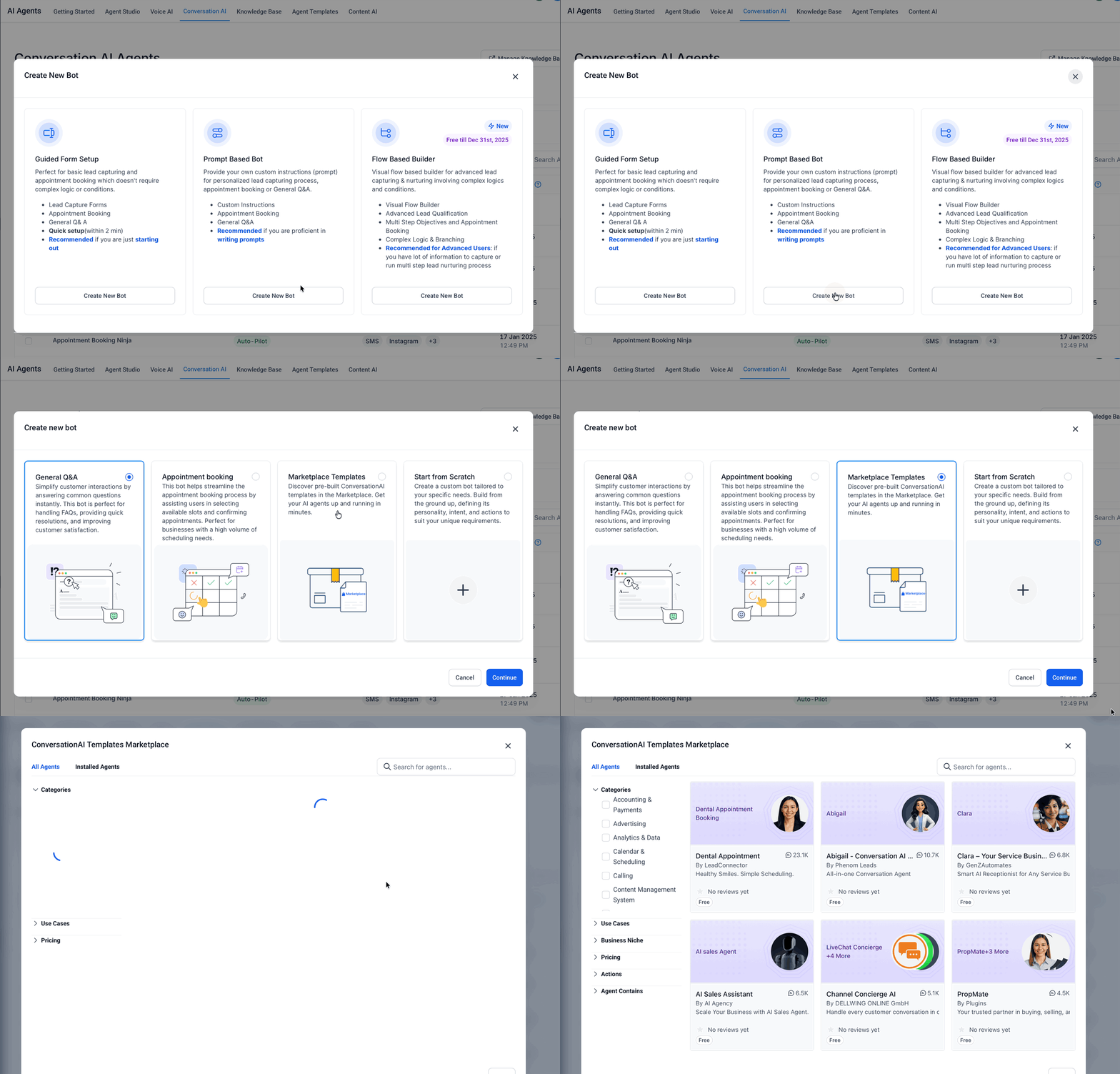
Step 3: Select "Prompt Based Bot" → "Marketplace Templates"
When prompted to choose a bot type, select Prompt Based Bot. Then click Marketplace Templates instead of building from scratch. This opens the full template catalog.
Step 4: Browse and find an intake template
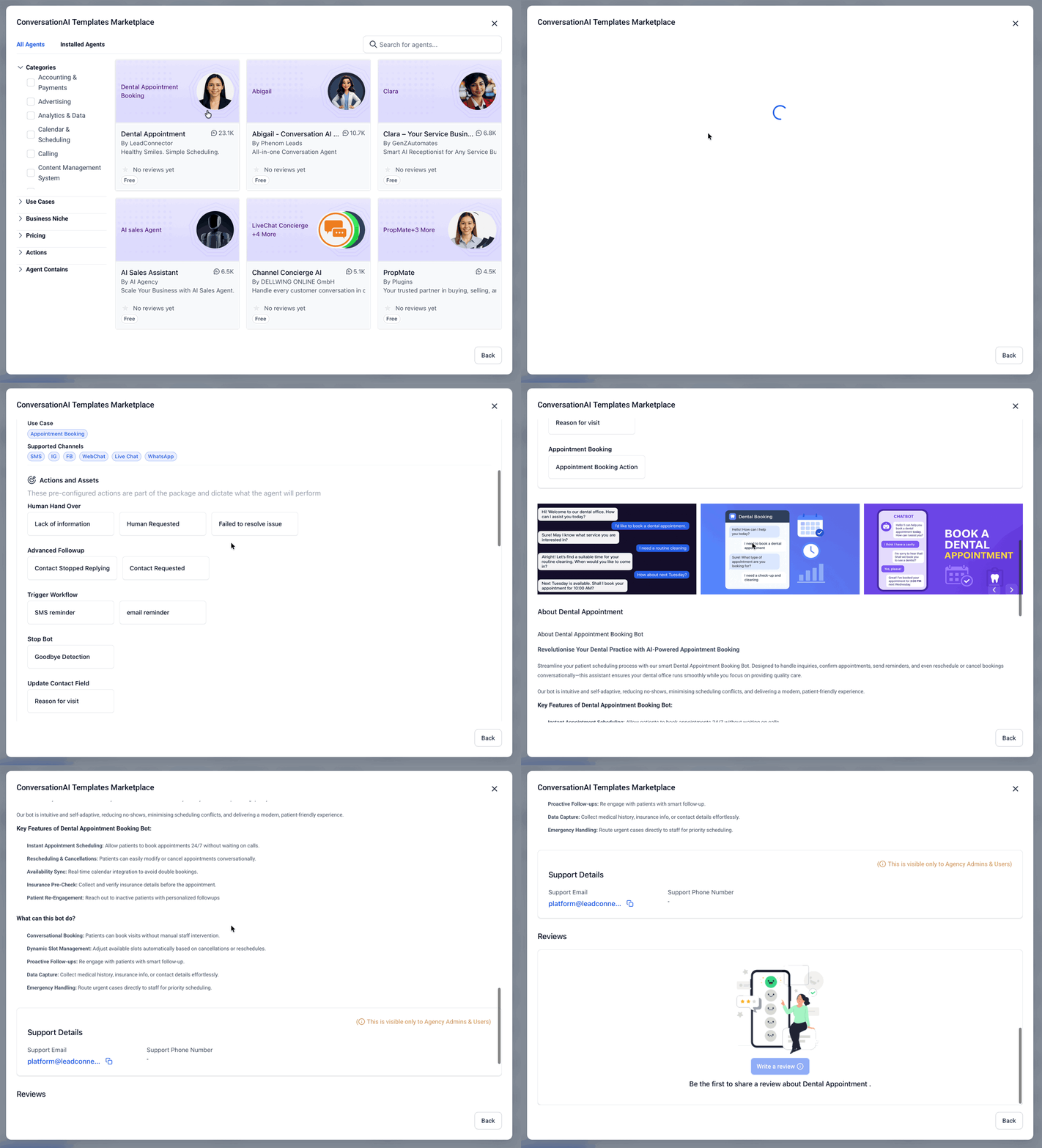
Search the catalog by use case or industry. Look for templates tagged for lead qualification, appointment booking, or intake. Each listing card shows the agent description, number of installs, ratings, and a summary of what assets are bundled with it. Read the descriptions carefully — a good intake template will tell you exactly what questions it asks and what it does with the answers.
Step 5: Preview the bot before installing
For Conversation AI templates, the Marketplace includes a live chat preview embedded directly in the listing. Use it to talk to the bot as a prospect would. Check whether it asks the right qualifying questions, handles vague answers gracefully, and matches the tone your business uses. This step exists so you don't install something and find out it's wrong after the fact.
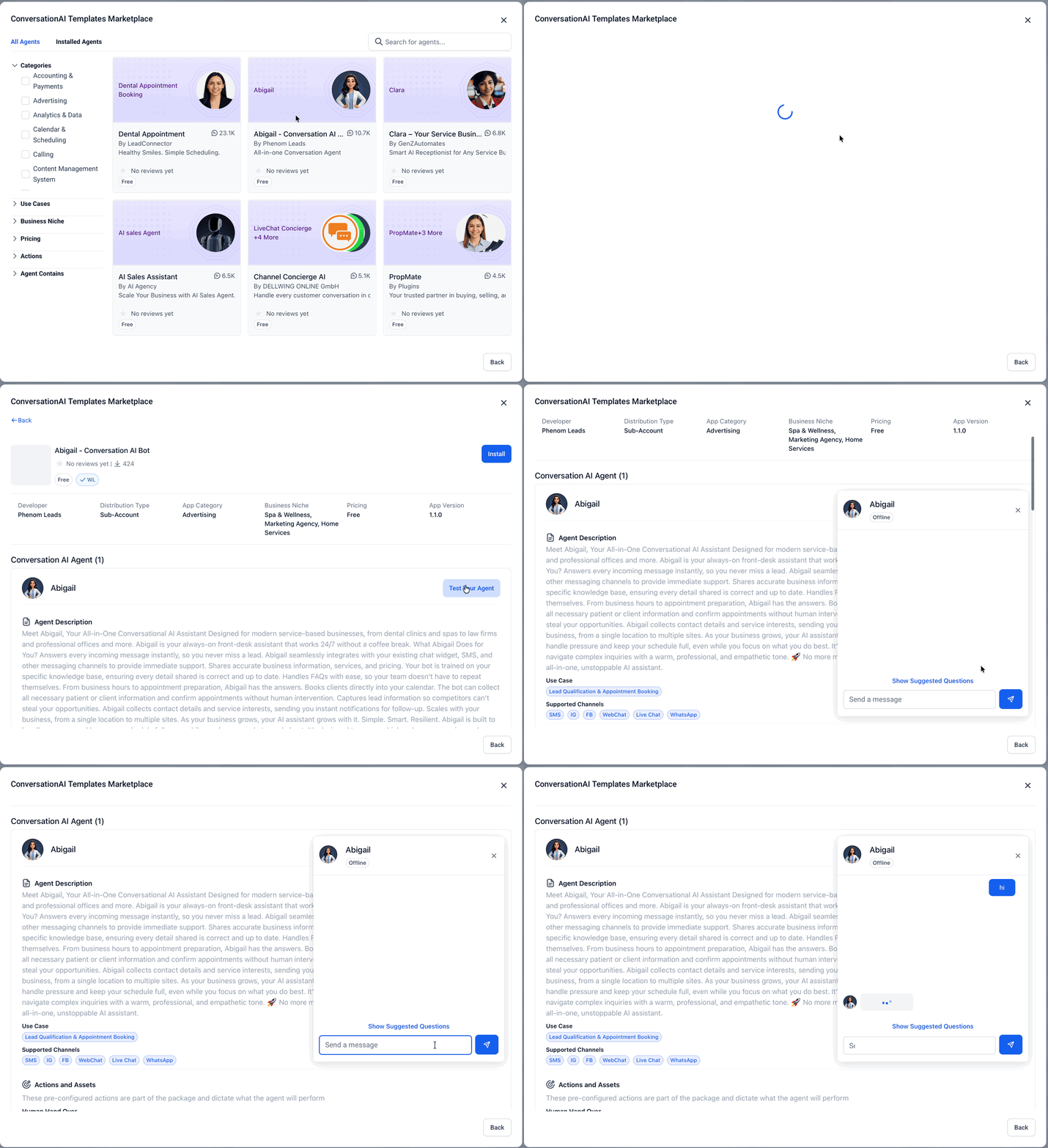
Step 6: Click Install
Once you've confirmed the template fits, click Install. The platform will display all the assets included — workflows, calendars, custom fields, and custom values. Confirm and complete the installation. Everything gets added to your sub-account automatically.
Step 7: Customize the bot for your business
This is the most important step. After installation, open the bot in your Conversation AI dashboard and update:
Business name and context — tell the bot who it's working for and what you do
Qualifying questions — edit the prompts to match your actual intake process
Goals and Actions — define what happens when the bot completes an intake (book an appointment, tag the contact, move them to a pipeline stage, notify your team)
Knowledge Base — update it with your real services, FAQs, pricing, and location info
The template is a starting point. The customization is what makes it perform.
Step 8: Run Test & Train before going live
Use the built-in Test & Train feature to simulate real conversations before connecting the bot to a live channel. Run through at least three scenarios: a standard lead who answers everything, someone who gives vague responses, and someone who immediately asks for a human. Review the bot's replies, make corrections, and re-test.
Step 9: Connect the bot to a channel
When you're satisfied with the behavior, activate the bot on your chosen channel:
Website chat widget — most common for intake
SMS — connect via a phone number in your account
Social DMs — Instagram or Facebook Messenger via integrations
Assign the bot to the channel in your settings and set it live.
Step 10: Review conversations and refine
Check real conversations regularly during the first few weeks. The platform logs every interaction so you can see where leads drop off, what confuses them, and what questions the bot wasn't prepared for. Update the prompts and Knowledge Base as you learn.
Frequently Asked Questions
Do I need to build the intake bot from scratch?
No. Marketplace Templates give you a fully structured bot with supporting assets already packaged. You customize it — you don't build it from zero.
What assets come with a Marketplace Template?
Templates can include workflows, calendars, custom fields, and custom values required by the agent, depending on what the creator packaged.
Can I try the bot before installing it?
Yes. Conversation AI templates include a live chat preview directly in the Marketplace listing so you can test the bot's behavior before committing.
Can I edit the bot after installing it?
Yes. You can update prompts, goals, actions, and the Knowledge Base at any time. Avoid renaming key identifiers that are referenced by bundled workflows, as this can break existing connections.
What channels can the intake bot run on?
Conversation AI bots can be deployed on your website chat widget, SMS, Instagram DMs, and Facebook Messenger, depending on your integrations.
How do I disable the bot without deleting it?
Remove the bot from its assigned channel. The configuration stays intact — it just stops receiving new conversations until you reconnect it.
Ready to Build an Intake Bot That Actually Qualifies Leads?
The AI Agent tools inside app.ajaxunion.com let you launch a Conversation AI chatbot in minutes — no coding, no guesswork, just a ready-to-deploy bot that captures, qualifies, and books leads on autopilot.
Stop losing prospects to slow follow-up. Start converting them while they're warm.
If you don't have an account yet, sign up for a free trial here: 👉 https://UnlimitedDigitalMarketing.com
Install your intake bot template and start turning conversations into clients today.

