
How to Set Up Reviews AI Agents in Unlimited Digital Marketing
Your online reputation can make or break a potential customer's decision to work with you. Responding to every review — quickly, thoughtfully, and consistently — is a tall order for any busy business. That's where Reviews AI Agents come in. Inside app.ajaxunion.com, you can create AI-powered personalities that automatically craft and publish review responses tailored to your brand's tone, your customer's sentiment, and even the language they wrote in.
This tutorial walks you through setting up Reviews AI Agents from scratch, so you can stop scrambling to reply to reviews and start building a reputation that works for you around the clock.
What Are Reviews AI Agents?
Reviews AI Agents are customizable AI personas inside the Reputation Management module of your Unlimited Digital Marketing account. Each agent is configured with a name, a tone (such as Friendly, Professional, or Empathetic), and a prompt that guides how it responds to reviews.
Once set up, agents can be assigned to respond automatically based on whether a review is positive, neutral, or negative. You can also rotate multiple agents using Round Robin Assignment so your replies feel varied and human rather than templated. The result is a consistent, on-brand response strategy that runs in the background — no manual effort required.
What You'll Need Before You Start
An active account at app.ajaxunion.com
At least one connected Google Business Profile (for assigning agents to specific pages)
Agency-level access (Reviews AI Agents are currently available to Agency Users only)
Step 1: Access the Reviews AI Settings
Navigate to the Reputation Management module from your left-hand sidebar. Click on Settings, then select the Reviews AI tab. This is where you'll create and manage all of your AI Agents.
Step 2: Create or Select an AI Agent
Click Create Agent. You'll have two paths:
Build from scratch — manually define the agent's tone, style, and response instructions
Use a ready-made template — choose from a set of pre-configured personalities
If you want to get started immediately without configuring each agent individually, click Create Starter Agents. This instantly enables all pre-built AI Agents with templated personalities, giving you a working setup in seconds.
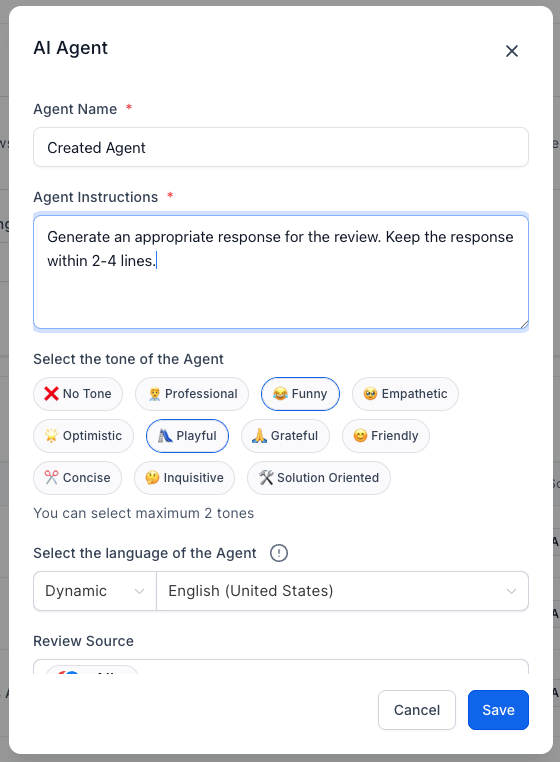
When building an agent, you'll configure three key fields:
Agent Name — Give your agent a friendly, recognizable name. This helps you track performance and review quality across multiple agents.
Tone — Select from options like Friendly, Professional, Empathetic, and more to match the voice you want representing your brand.
Prompt — Write a concise set of instructions that guides how your agent approaches responses. Keep it specific and aligned with your business values.
Step 3: Set Assignment Rules for AI Agents
Once your agent is created, you'll decide when and how it gets deployed. Assignment rules let you match the right agent to the right review:
Review Sentiment Assignment — Assign different agents to Positive, Neutral, and Negative reviews. This way, a warm and celebratory agent handles five-star reviews while a more empathetic, solution-oriented agent addresses complaints.
Round Robin Assignment — Enable this setting to automatically rotate between multiple agents. This adds natural variety to your replies so responses don't feel repetitive over time.
Step 4: Configure Language Detection
Your customers may leave reviews in languages other than English — and your AI Agents are built to handle that. The system automatically detects the language of each incoming review and responds accordingly.
To handle edge cases, set a Fallback Language. This ensures that if the platform cannot detect a review's language, it defaults to your preferred language rather than guessing or failing to respond.
Step 5: Select Google Business Pages (Optional)
If your business operates across multiple locations or brands, this step is especially valuable. You can assign specific AI Agents to individual Google Business Pages, giving you granular control over the tone and personality each location projects.
For example, a professional medical practice and a casual fitness studio under the same agency can each have an AI Agent with a completely different voice — managed from a single account.
Step 6: Manage and Test Your AI Agents
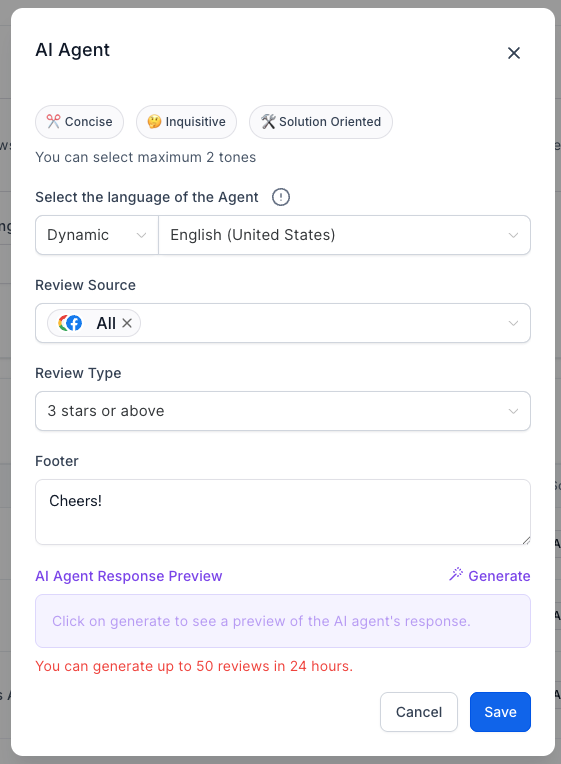
Before your agents go live, take advantage of the built-in testing and management tools:
Preview responses — See exactly what your agent would say before publishing, so you can fine-tune the prompt or tone if needed.
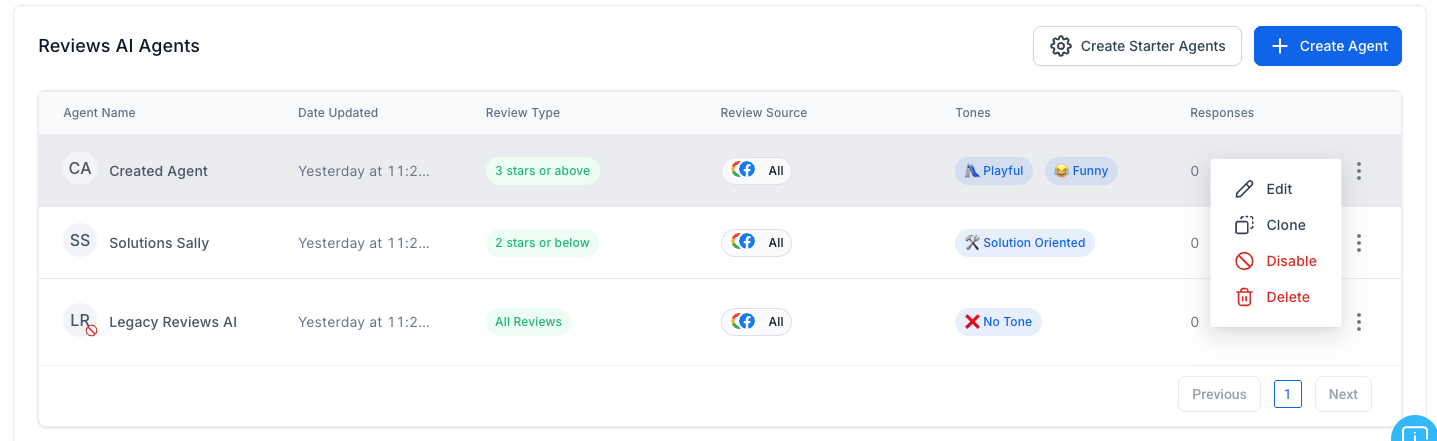
Edit, Clone, or Delete — Update an existing agent, duplicate it as a starting point for a new one, or remove it entirely at any time.
Review attribution — Inside Reputation Management, you can see exactly which agent crafted each review reply, making it easy to audit quality and performance.
Best Practices for Reviews AI Agents
Getting the most from your Reviews AI Agents comes down to intentional setup. Keep these principles in mind:
Match your brand voice — Define tone and style clearly so every response feels like it came from your team, not a bot.
Differentiate by sentiment — Positive reviews deserve celebration; negative ones need empathy and resolution. Don't use the same agent for both.
Write tight prompts — Specific, concise instructions produce better responses than vague ones. Tell the agent exactly what to say and what to avoid.
Personalize where possible — Include your business name, location, or service type in the agent's prompt to make responses feel tailored rather than generic.
Preview regularly — Especially in the early stages, check generated responses often to make sure the tone and content are on target.
Frequently Asked Questions
Who can use Reviews AI Agents?
Reviews AI Agents are currently available to Agency Users only. If you're managing a sub-account, check with your agency administrator for access.
Can I use more than one AI Agent at a time?
Yes. You can create multiple agents and use Round Robin Assignment to rotate between them automatically, or assign different agents to different review sentiments.
What languages do Reviews AI Agents support?
The system automatically detects the language of incoming reviews and responds in kind. You can also set a Fallback Language to ensure consistent behavior when language detection isn't possible.
Can I assign agents to specific Google Business Pages?
Yes. You can assign different AI Agents to individual Google Business Pages — useful for managing separate brands, locations, or audiences from a single account.
Do I have to build agents from scratch?
No. You can use the Create Starter Agents option to instantly enable a set of pre-built agents with ready-made personalities and get started right away.
Can I preview what my agent will say before it posts?
Yes. The platform includes a preview feature so you can review and approve AI-generated responses before they're published.
Start Automating Your Reputation Management
Your reviews are one of the most visible parts of your brand. With Reviews AI Agents inside app.ajaxunion.com, every review gets a timely, thoughtful, and on-brand response — without adding anything to your plate.
Log in to app.ajaxunion.com to set up your first Reviews AI Agent today, or visit UnlimitedDigitalMarketing.com to learn more about how our platform helps you grow your business on autopilot.

